
$ Variables to create dynamic templates
Inserting dynamic variables within a template:
Section titled “Inserting dynamic variables within a template:”To enhance the effectiveness of templates, it is valuable to incorporate user and project data within them. When creating or editing a template, you will find a convenient dropdown list of template variables available for use. By utilizing these variables, you can easily include dynamic data in your templates.
Type $ to insert a variable
Section titled “Type $ to insert a variable”While you write a template, type $ where you want the variable. A list of variables opens at the cursor:
- Keep typing to narrow the list. For example,
$repshows Reporter. - Press Enter or click a variable to insert it, for example
${reporter}. - Press Escape to close the list and keep the
$as you typed it, for example in a price.
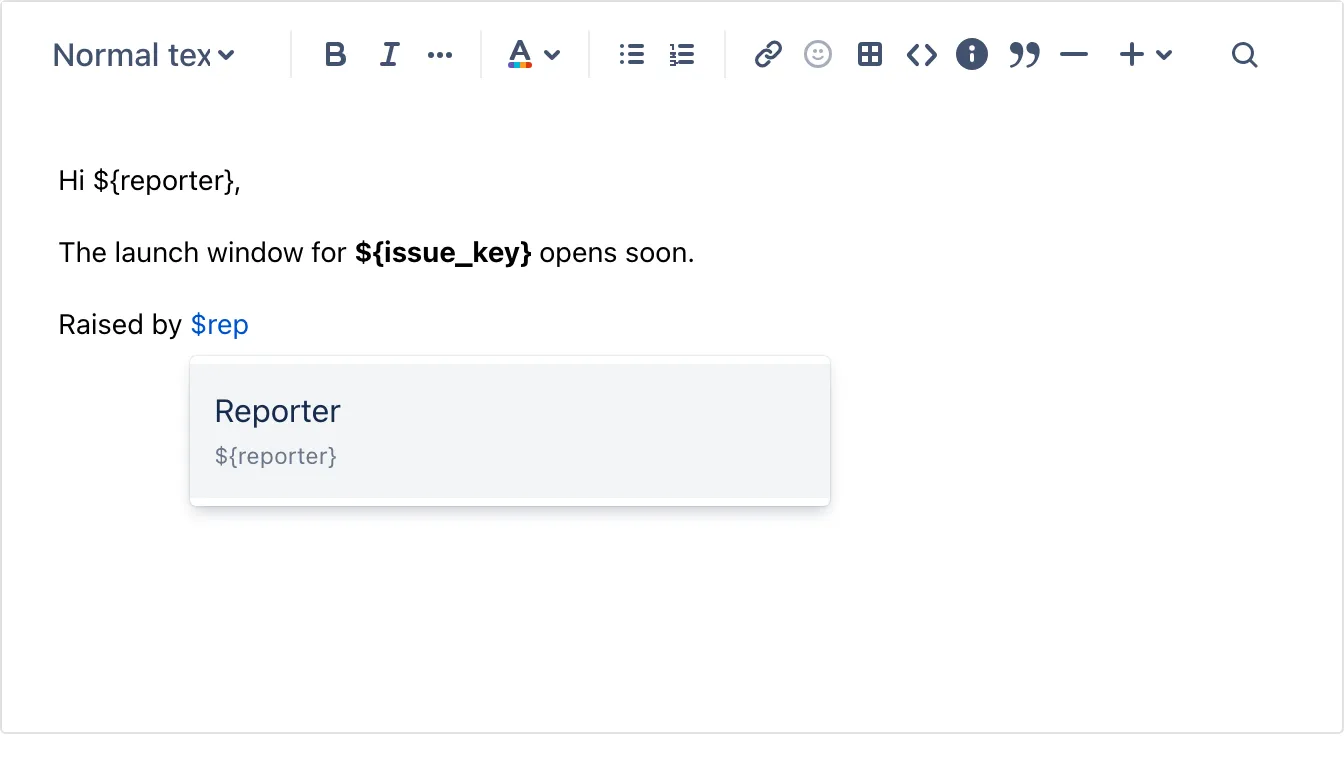
The list opens when $ starts a word: at the start of a line or after a space. It works in the template editor and the signature editor.
Pick a variable from the dropdown
Section titled “Pick a variable from the dropdown”You can also use the Insert Field ($ variables) dropdown above the editor. Click a variable to insert it at the cursor, or click the copy icon next to it to copy it to your clipboard.
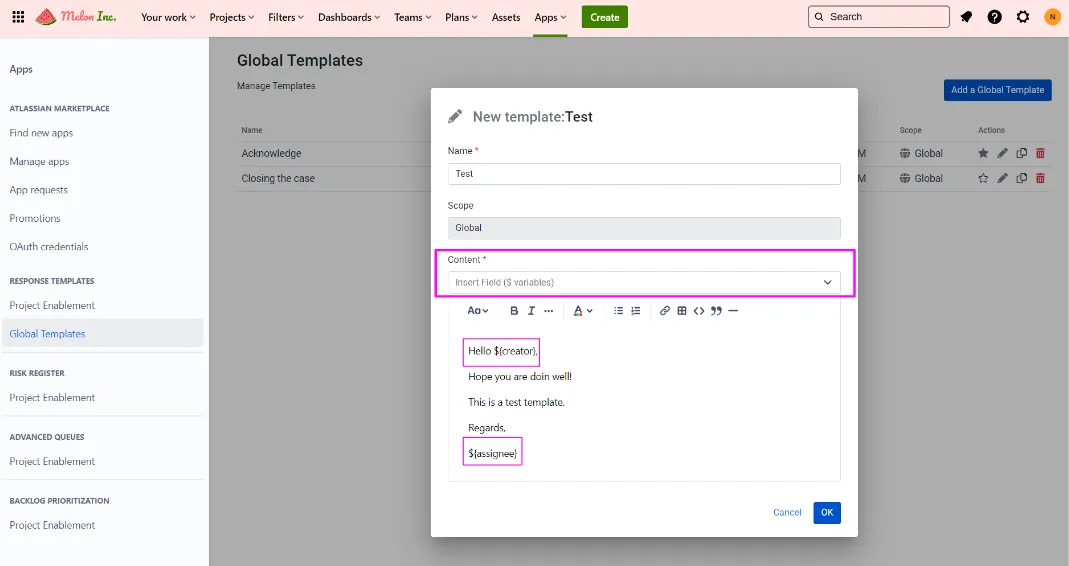
For example, This functionality enables you to seamlessly insert variables such as reporter and assignee names into your response template. Consequently, whenever that specific response template is utilized, the names of the reporter and assignee will be automatically inserted.
Incorporating user and project data in this manner adds a personalized touch to your templates and streamlines the communication process.
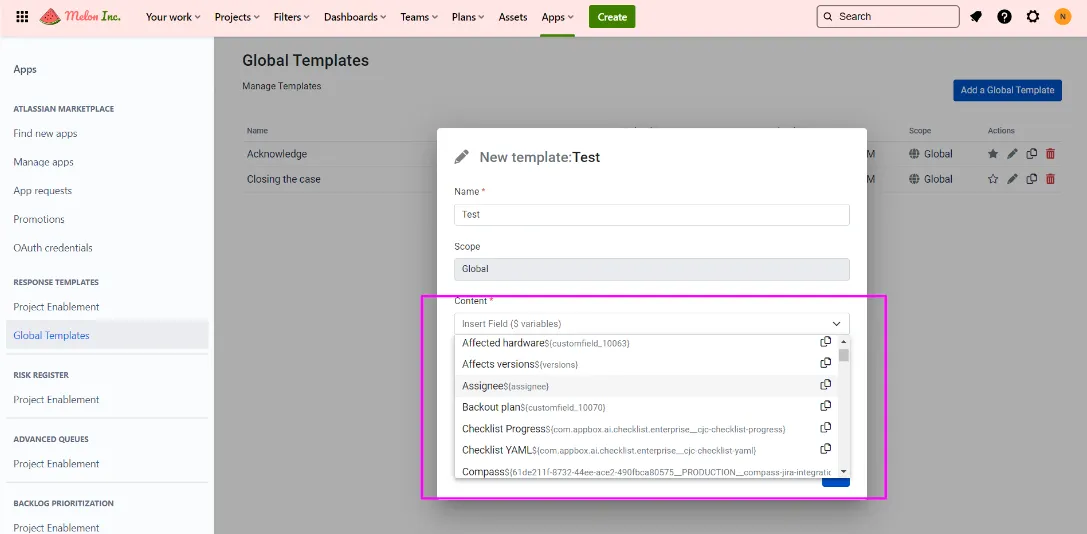
From this point, you have the ability to insert the desired variable(s) into your template. When you apply the template, the corresponding values will be automatically inserted. Feel free to include as many variables as necessary within your template to capture the required information accurately. This flexibility allows you to customize and personalize your templates according to your specific needs.
The Template Variables List:
Section titled “The Template Variables List:”Please find below the template variable list that is supported.
01 – Affects versions: ${versions}
02 – Assignee: ${assignee}
03 – Components: ${components}
04 – Created: ${created}
05 – Creator: ${creator}
06 – Current Date Time [Short]: ${current_date_time_short}
07 – Current Date Time [Long]: ${current_date_time_long}
08 – Current Date [Long]: ${current_date_long}
09 – Current Date [Short]: ${current_date_short}
10 – Current Month: ${current_month}
11 – Current Template Name: ${current_template_name}
12 – Current Time [Long]: ${current_time_long}
13 – Current Time [Short]: ${current_time_short}
14 – Current User Account Id: ${current_user_account_id}
15 – Current User Name: ${current_user_name}
16 – Current Year: ${current_year}
17 – Description: ${description}
18 – Due date: ${duedate}
19 – Environment: ${environment}
20 – Fix versions: ${fixVersions}
21 – Issue Key: ${issue_key}
22 – Issue Type: ${issue_type}
23 – Labels: ${labels}
24 – Last Viewed: ${lastViewed}
25 – Original estimate: ${timeoriginalestimate}
26 – Priority: ${priority}
27 – Project Key: ${project_key}
28 – Project Lead Name: ${project_lead_name}
29 – Project Name: ${project_name}
30 – Project Type: ${project_type}
31 – Remaining Estimate: ${timeestimate}
32 – Reporter: ${reporter}
33 – Resolution: ${resolution}
34 – Resolved: ${resolutiondate}
35 – Security Level: ${security}
36 – Status: ${status}
37 – Status Category Changed: ${statuscategorychangedate}
38 – Summary: ${summary}
39 – Time Spent: ${timespent}
40 – Updated: ${updated}
41 – Votes: ${votes}
42 – Work Ratio: ${workratio}
43 – Σ Original Estimate: ${aggregatetimeoriginalestimate}
44 – Σ Remaining Estimate: ${aggregatetimeestimate}
45 – Σ Time Spent: ${aggregatetimespent}
Custom fields
Section titled “Custom fields”Custom fields can be used as variables too. Jira numbers custom fields differently on every site, so the same field has a different variable on each one. For example, Story Points might be ${customfield_10016} on one site and another number on yours.
To get the right variable, open the variables dropdown in the template editor and pick the custom field by name.