
Brainstorm (AI)
Brainstorm User Guide
Introduction 🚀
Section titled “Introduction 🚀”Brainstorm is a powerful tool that allows users to jot down notes and convert them into Jira issues (Stories, Tasks, Bugs, or anything else).
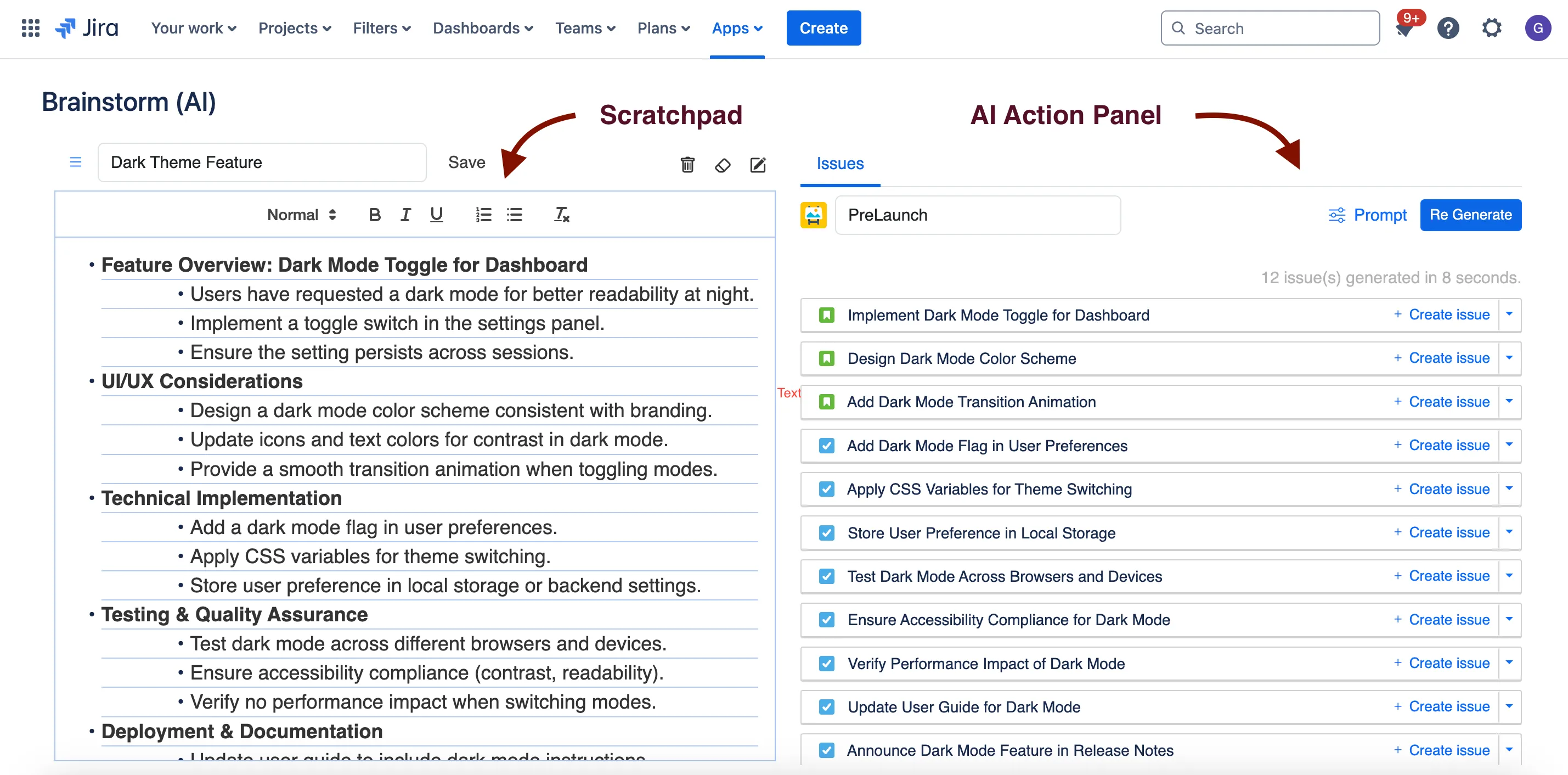
Brainstorm has two Key parts: a ScratchPad (on the left) and an AI Action Panel (on the right).
Key Features ✨
Section titled “Key Features ✨”-
Write notes and convert them into Jira issues (stories, tasks, etc.).
-
Customize the prompt to control how issues are generated.
-
Create and manage multiple Scratchpads.
-
Expand and edit issue details before creating them in Jira.
Getting Started 🚦
Section titled “Getting Started 🚦”Go to top level menu, Apps > Brainstorm (AI)
Writing Notes and Generating Jira Issues
Section titled “Writing Notes and Generating Jira Issues”-
Type your notes freely in the Scratchpad.
-
Click Generate Issues to see a list of suggested Jira issues.
-
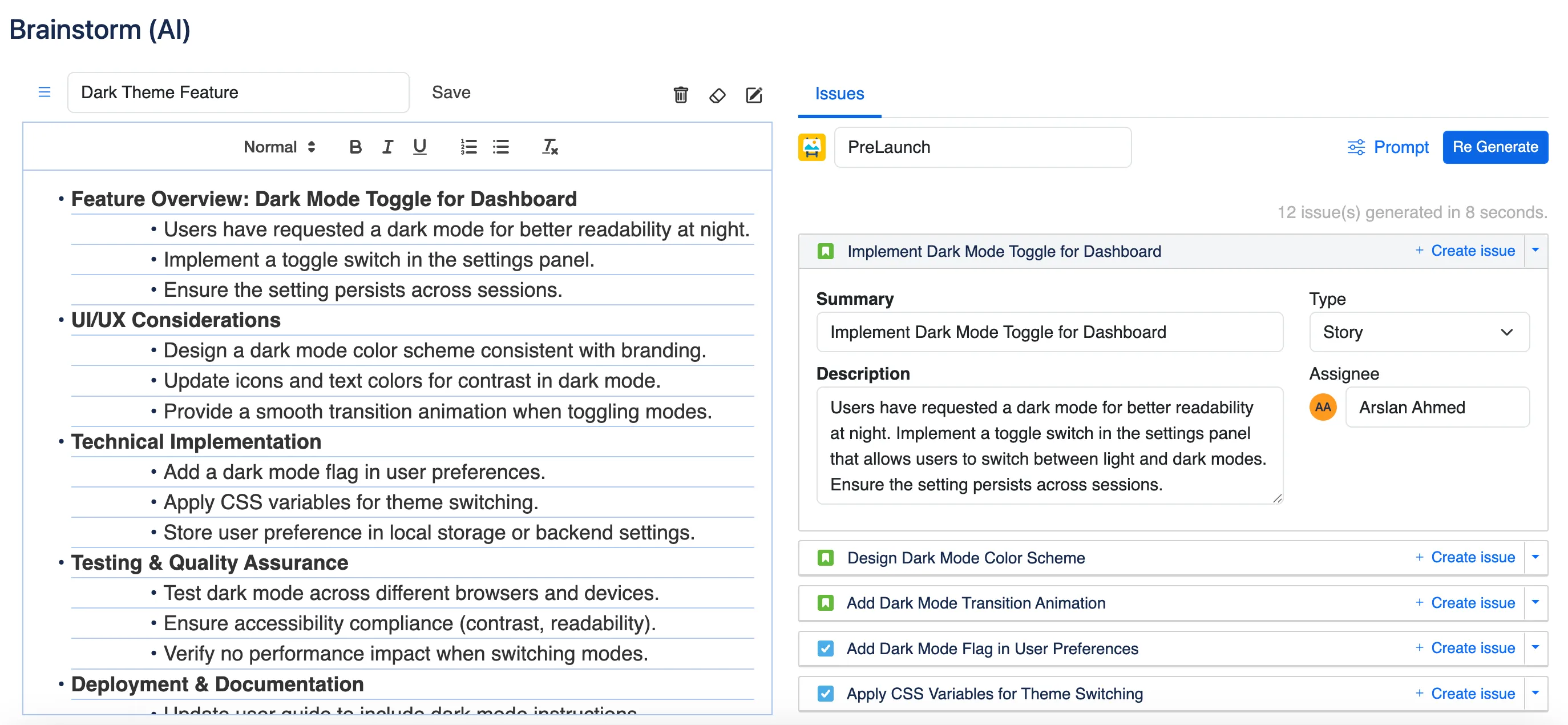
Expand an issue to refine details such as type, assignee, or description.
Creating Jira Issues
Section titled “Creating Jira Issues”You have two ways to create Jira issues from the generated list:
1. Direct Issue Creation ⚡
Section titled “1. Direct Issue Creation ⚡”-
Click the Create Issue button.
-
The issue is immediately created in Jira, and a link is added next to it.
2. Using the Jira Issue Modal
Section titled “2. Using the Jira Issue Modal”-
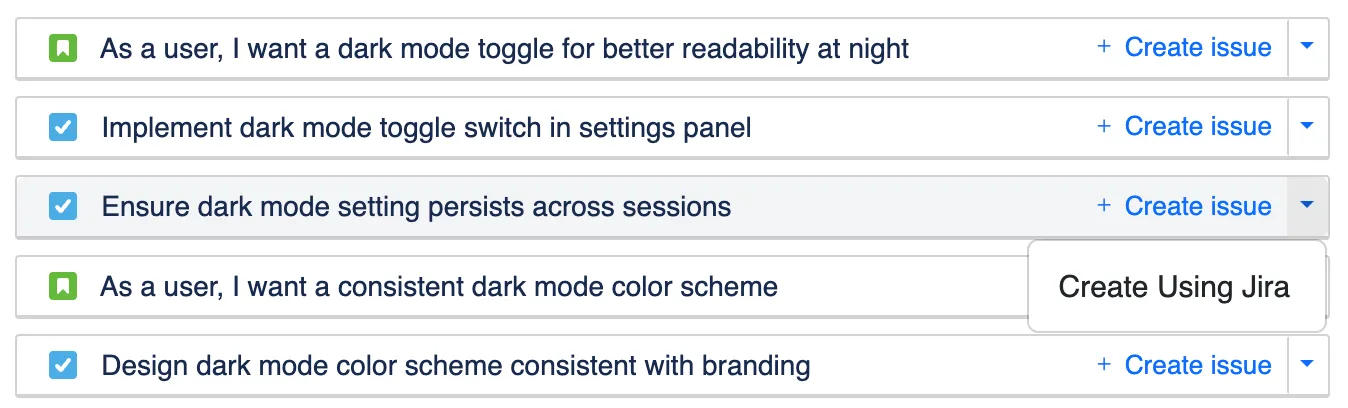
Click the dropdown next to Create Issue and select Create using Jira.
-
The Jira Issue modal will open with pre-filled details.
-
Make any final adjustments and click Create.
Customizing the Prompt ⚙️
Section titled “Customizing the Prompt ⚙️”-
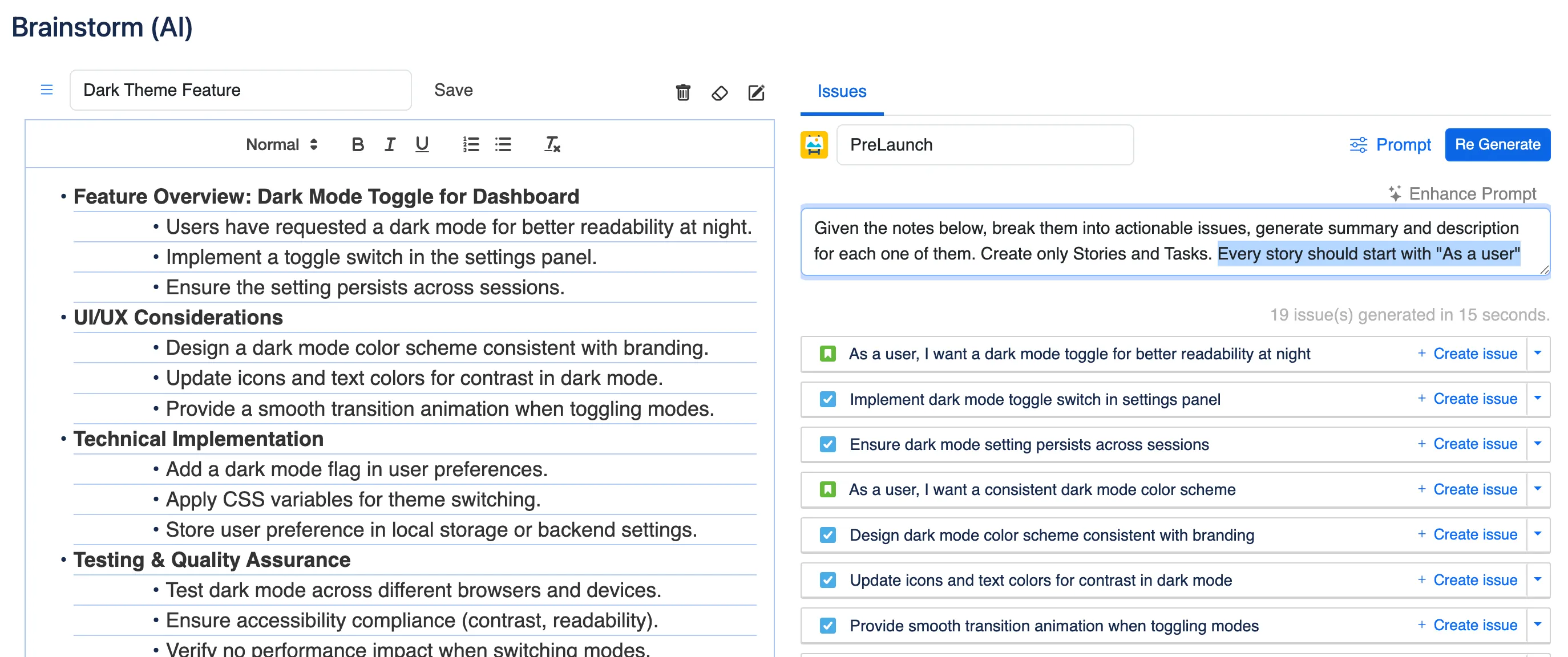
Click on the Prompt Settings button.
-
Modify the prompt to better fit your issue generation needs.
Enhancing the Prompt with AI 🤖
Section titled “Enhancing the Prompt with AI 🤖”-
Click the Enhance Prompt button.
-
AI will suggest improvements to refine the issue-generation process.
-
Review the enhanced prompt and click Use Prompt to apply it.
Managing Scratchpads 🔄
Section titled “Managing Scratchpads 🔄”-
Rename ✏️: Click the Scratchpad name and enter a new name.
-
Delete ❌: Click the delete icon next to a Scratchpad to remove it.
-
Erase 🗑️: Clears all notes but keeps the Scratchpad active.
-
Switching 🔀: Easily switch between different Scratchpads using the side panel.
Create a new Scratchpad 🆕
Section titled “Create a new Scratchpad 🆕”-
Click the New Scratchpad button.
-
Enter a name for your Scratchpad.
-
Begin writing your notes.
Brainstorm simplifies issue creation in Jira by allowing users to structure their thoughts before committing them as tickets. With AI enhancements and flexible customization options, it serves as a powerful tool for efficient project management.
Start using Brainstorm today and optimize your Jira workflow! 🚀