
Desk Genie
Overview
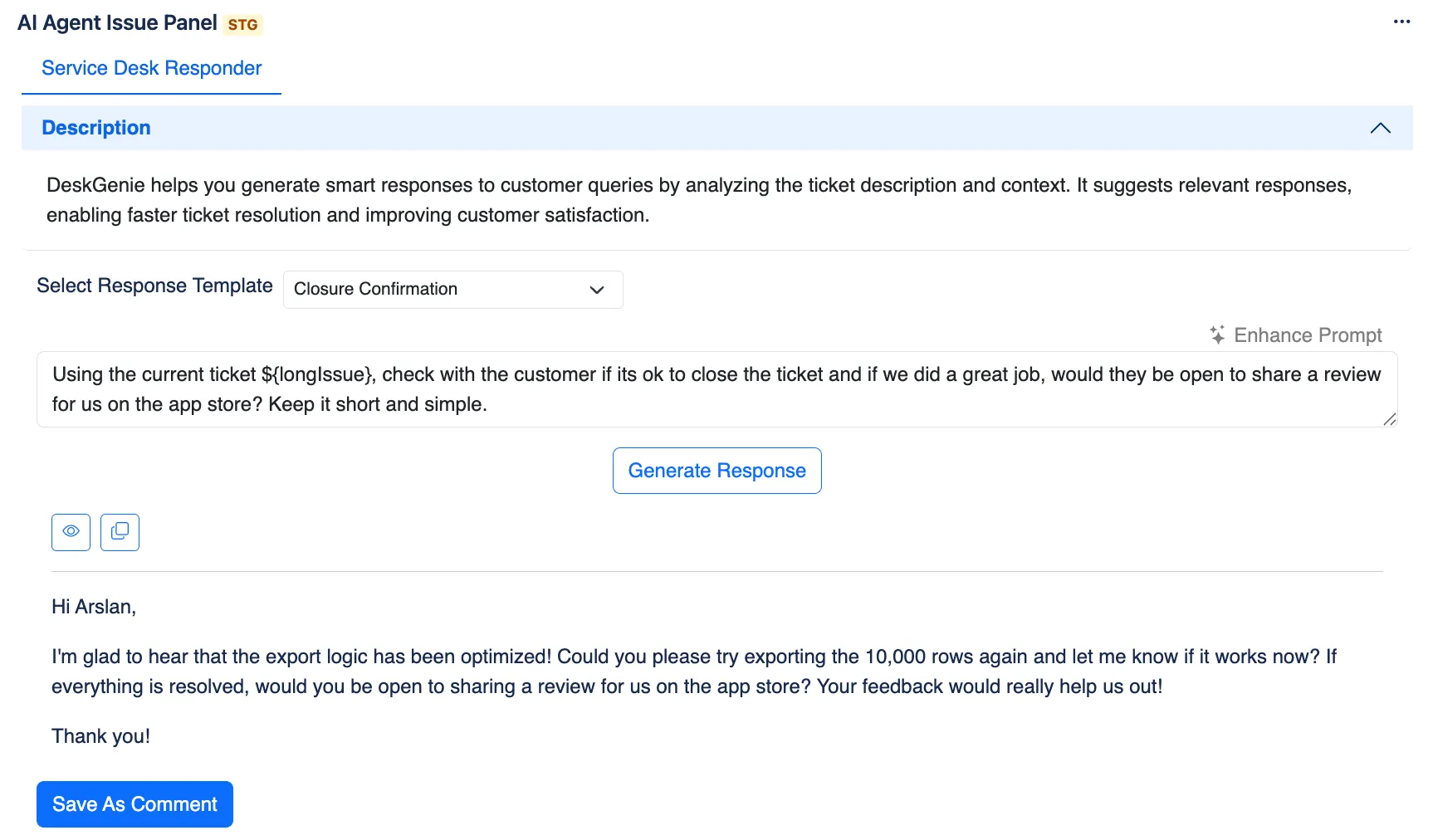
Section titled “Overview”The DeskGenie agent helps support teams generate smart and contextual responses to customer queries. By analyzing the ticket description and comments, DeskGenie suggests relevant, pre-formatted responses that can be tailored for specific scenarios. This enables faster ticket resolution, improved customer satisfaction, and consistent communication.
With DeskGenie, your team can:
-
Automatically generate accurate and helpful responses for customer queries.
-
Utilize pre-configured templates for standard replies like ticket closure, issue updates, or troubleshooting.
-
Save responses directly to Jira tickets as comments, ensuring seamless workflow integration.
Configuration Settings
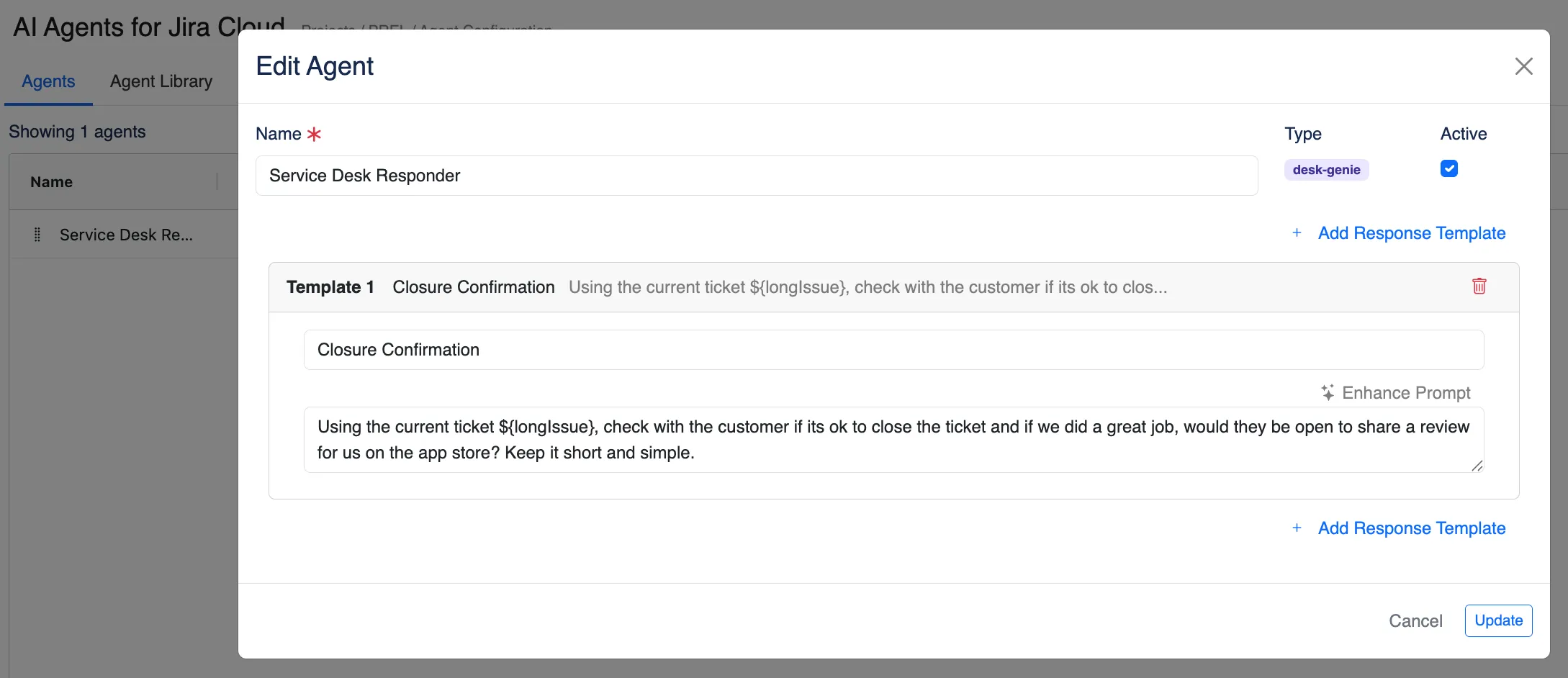
Section titled “Configuration Settings”To configure the DeskGenie agent, navigate to AI Agents for Jira > Agents and select DeskGenie. Use the following options:
-
Name
- Provide a recognizable name for the agent (e.g., Service Desk Responder).
-
Active
- Enable or disable the agent using the Active toggle.
-
Response Templates
Templates define the type and content of the responses generated by DeskGenie. Teams can add, modify, or remove templates as needed.-
Template Example: Closure Confirmation
Prompt:
“Using the current ticket ${longIssue}, check with the customer if it’s ok to close the ticket and if we did a great job, would they be open to share a review for us on the app store? Keep it short and simple.” -
Add Response Template:
Click + Add Response Template to create additional templates. Each template includes:-
Name: Define the purpose of the template (e.g., Issue Resolved, Further Information Needed).
-
Prompt: Write a detailed AI instruction using dynamic variables like:
-
${longIssue}: Includes issue summary, description, and comments.
-
${issue.assignee}, ${issue.reporter}: Adds user-specific context.
-
-
-
-
Enhance Prompt
- Use the Enhance Prompt option to refine or adjust the default prompt for improved AI responses.
Example: Add specific customer interaction details, tone requirements, or response length constraints.
- Use the Enhance Prompt option to refine or adjust the default prompt for improved AI responses.