Installation guide
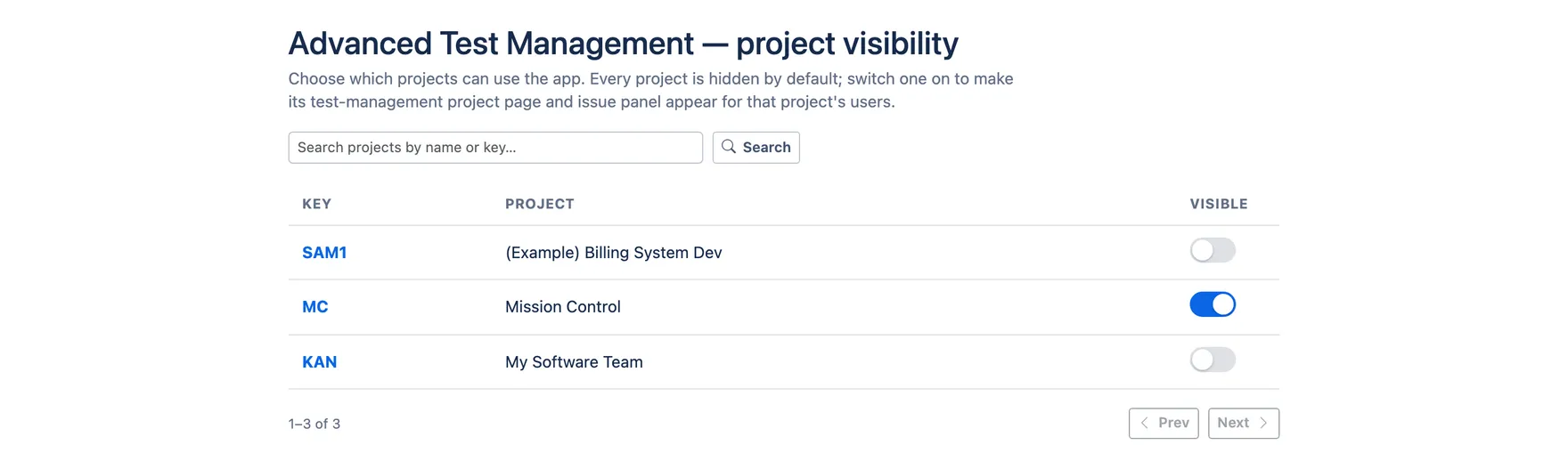
- Install the app from the Atlassian Marketplace. Every project starts hidden, so nobody sees the app until you switch a project on.
- Run setup in a project. In the project, open Project settings → Apps → Advanced Test Management and click Run setup. It creates the work item types, link types and custom fields the app needs, and needs project admin rights. See Run setup.
- Switch the project on. On the same page, turn on Show Advanced Test Management in your project. The project page and the issue panel then appear for everyone in that project.
Until setup has run, the project page says so and offers the button: