Issue panel
Switching a project on puts the app in two places: the project page, and a panel on the work items it owns. The panel is where you edit a Test Case and where anyone looking at a Test Set or Test Plan can see the state of it without going to the project page.
On a Test Case
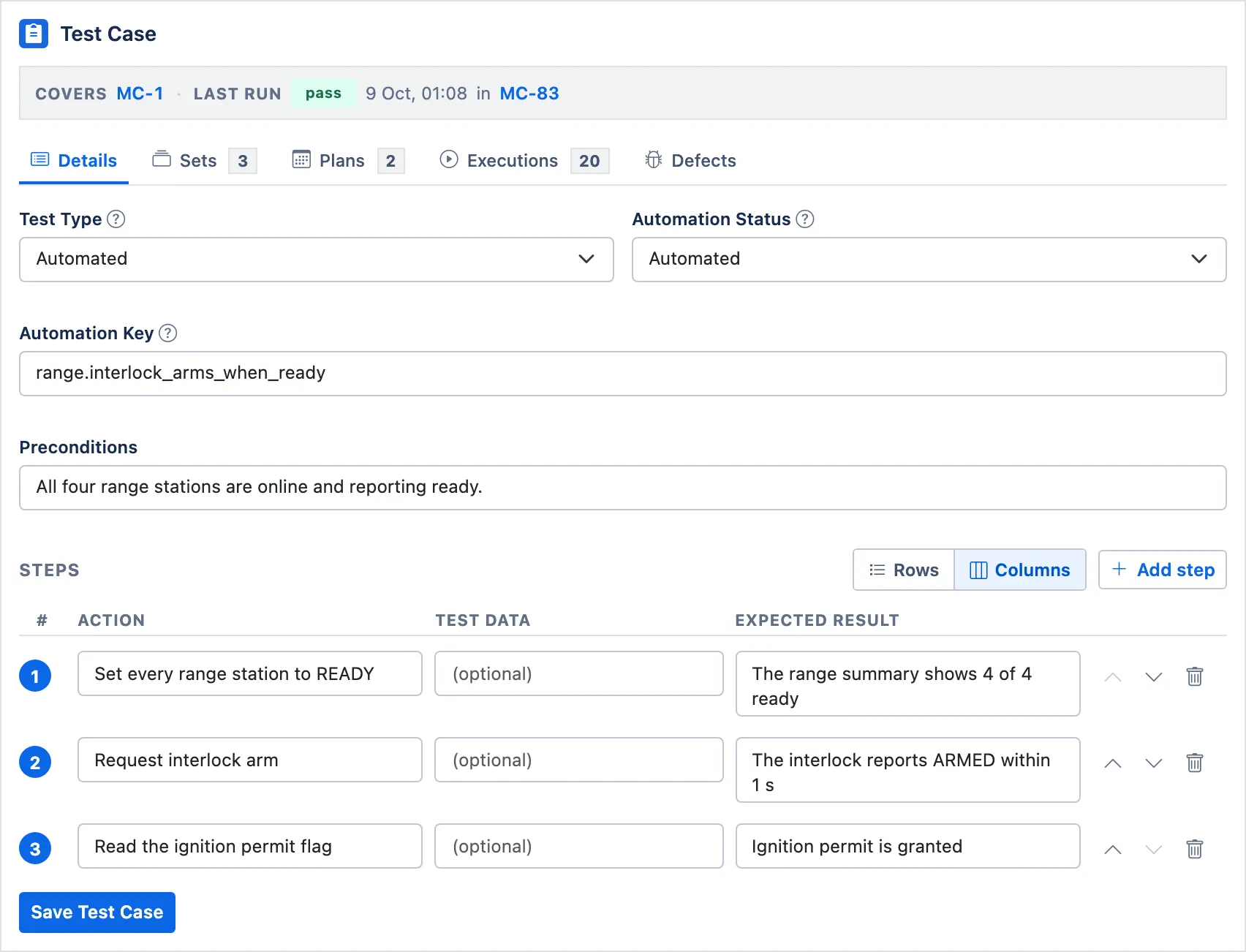
Section titled “On a Test Case”The strip under the title is the short answer: the requirement this case covers, how it last ran, and the execution that produced that result. The tabs beside it count the sets and plans the case belongs to, every execution it has been part of, and the defects raised against it.
Details is the case itself. Test Type, Automation Status and Automation Key sit at the top, then preconditions, then the steps. Each step is an action, optional test data and an expected result; Add step puts another one at the end, the arrows move one up or down, and Save Test Case writes the lot.
On a Test Set
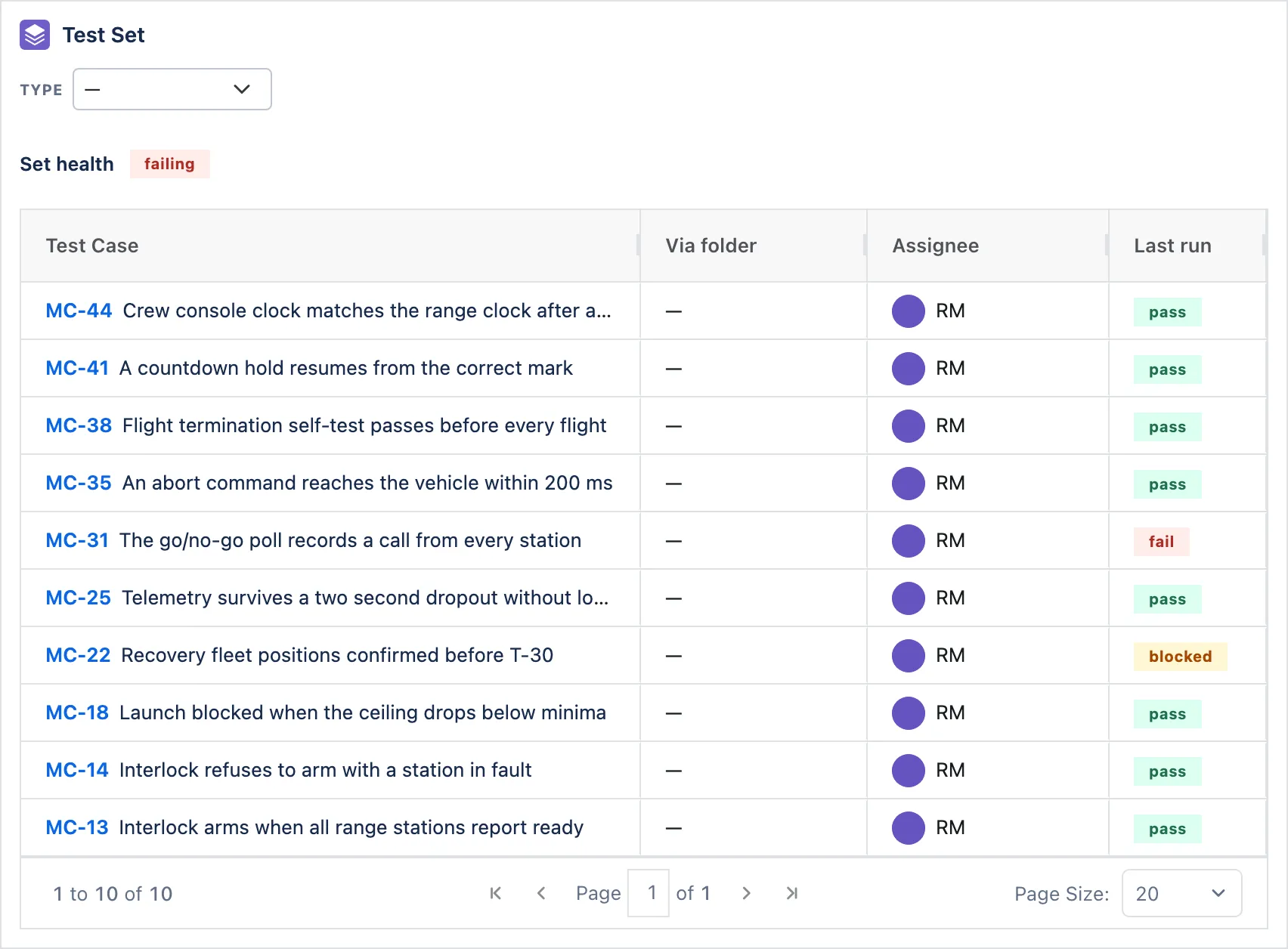
Section titled “On a Test Set”The panel shows the set’s type, its health, and the cases in it with the result each one last recorded. Set health reads the worst thing in the set: failing if any case last failed, then blocked, then partial while some cases have never run, and healthy only when every one of them passed or was skipped. A set nobody has run at all is untested.
On a Test Plan
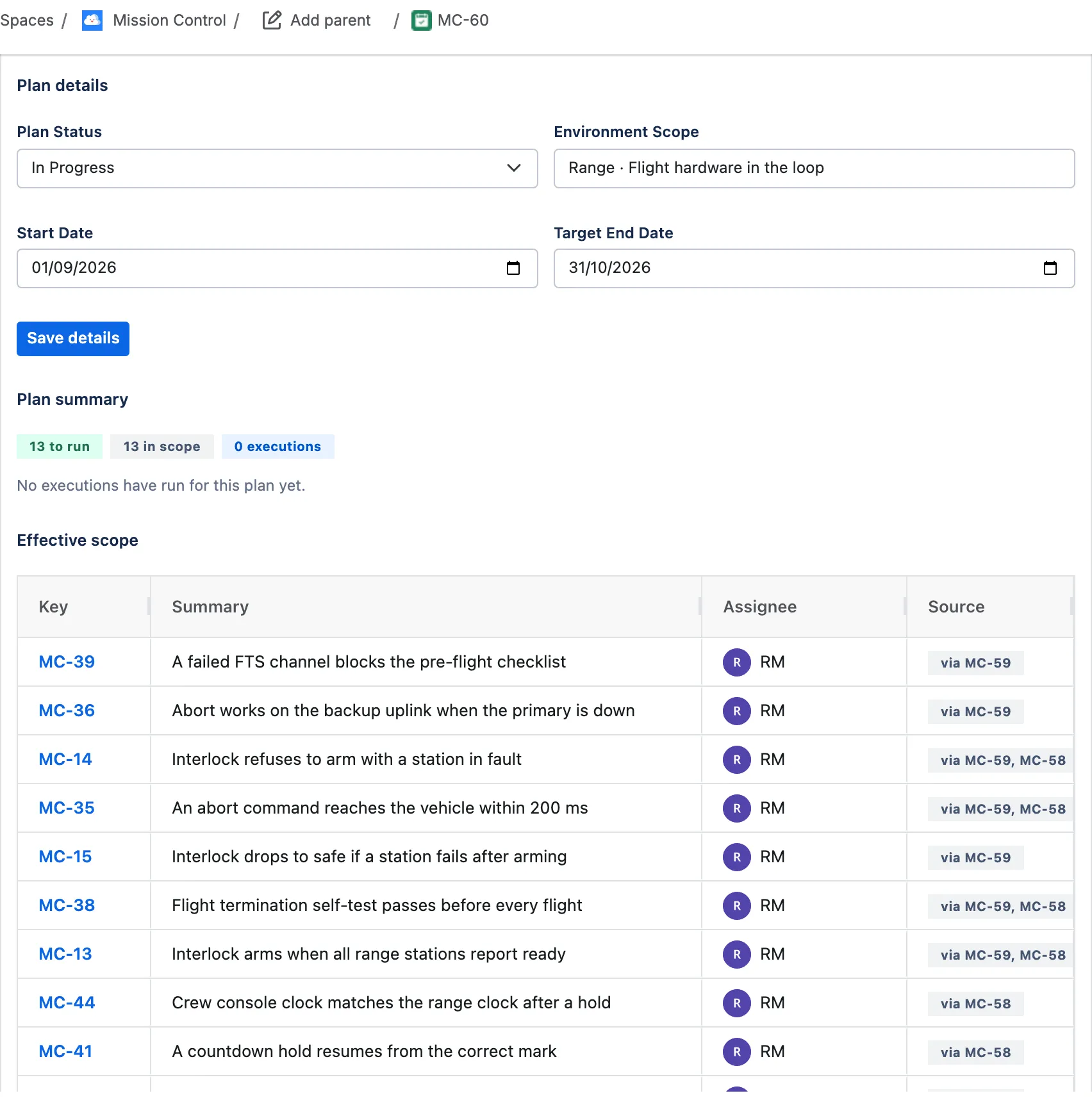
Section titled “On a Test Plan”A plan’s panel is where its campaign fields live: status, environment scope and the start and target end dates. Below them, the summary counts what is left to run, and the effective scope lists every case the plan will run with the set each one came from.