Test Sets & Plans
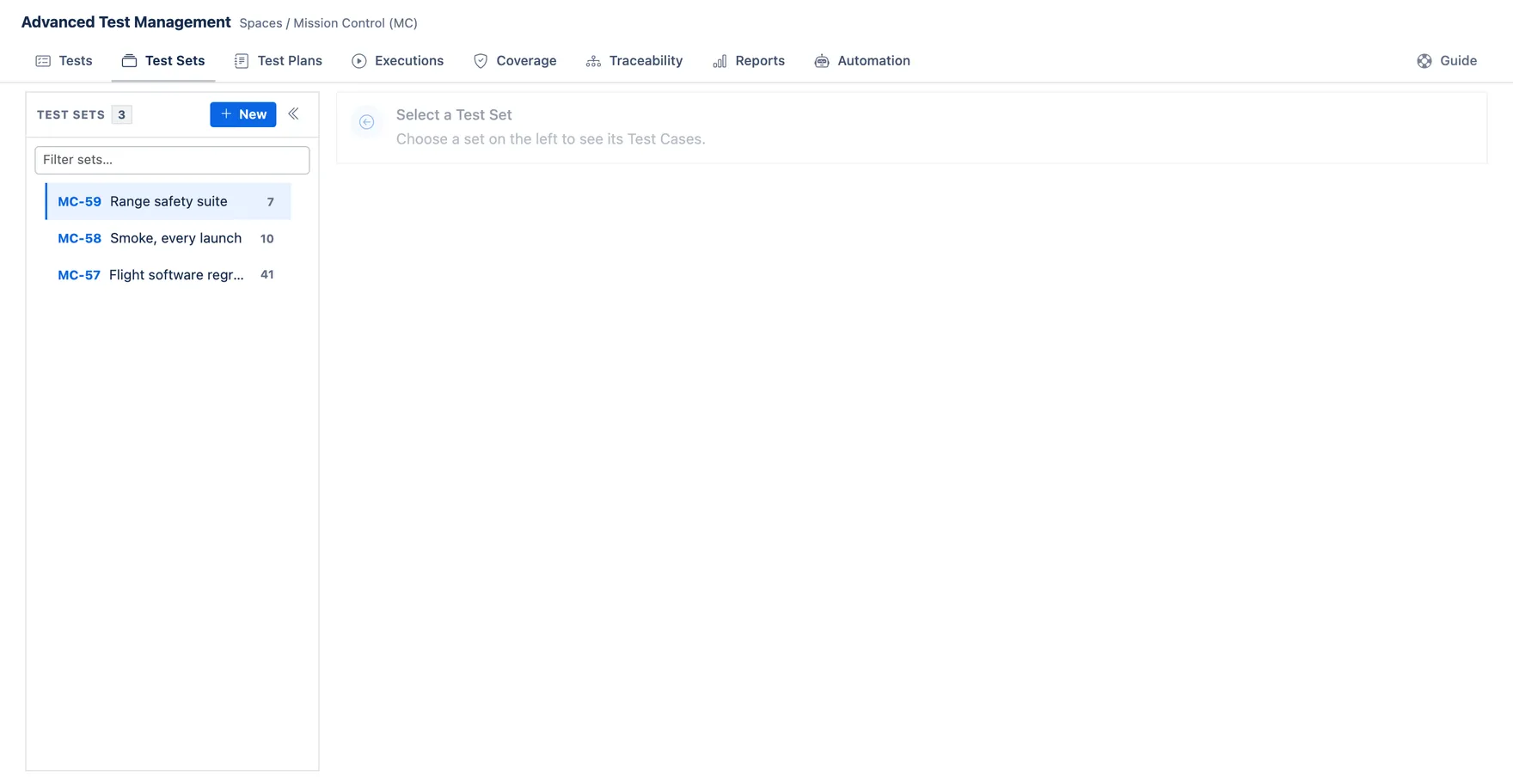
Both tabs use a master–detail layout: pick a Set or Plan on the left, work with its cases on the right.
Test Sets
Section titled “Test Sets”- Create a set, then add existing cases with the searchable picker (search by key or summary), or create & add a brand-new case in one step.
- Give it a Test Set Type (Smoke, Regression, Release…) to keep suites organised.
- A case can belong to many sets — sets are just reusable groupings.
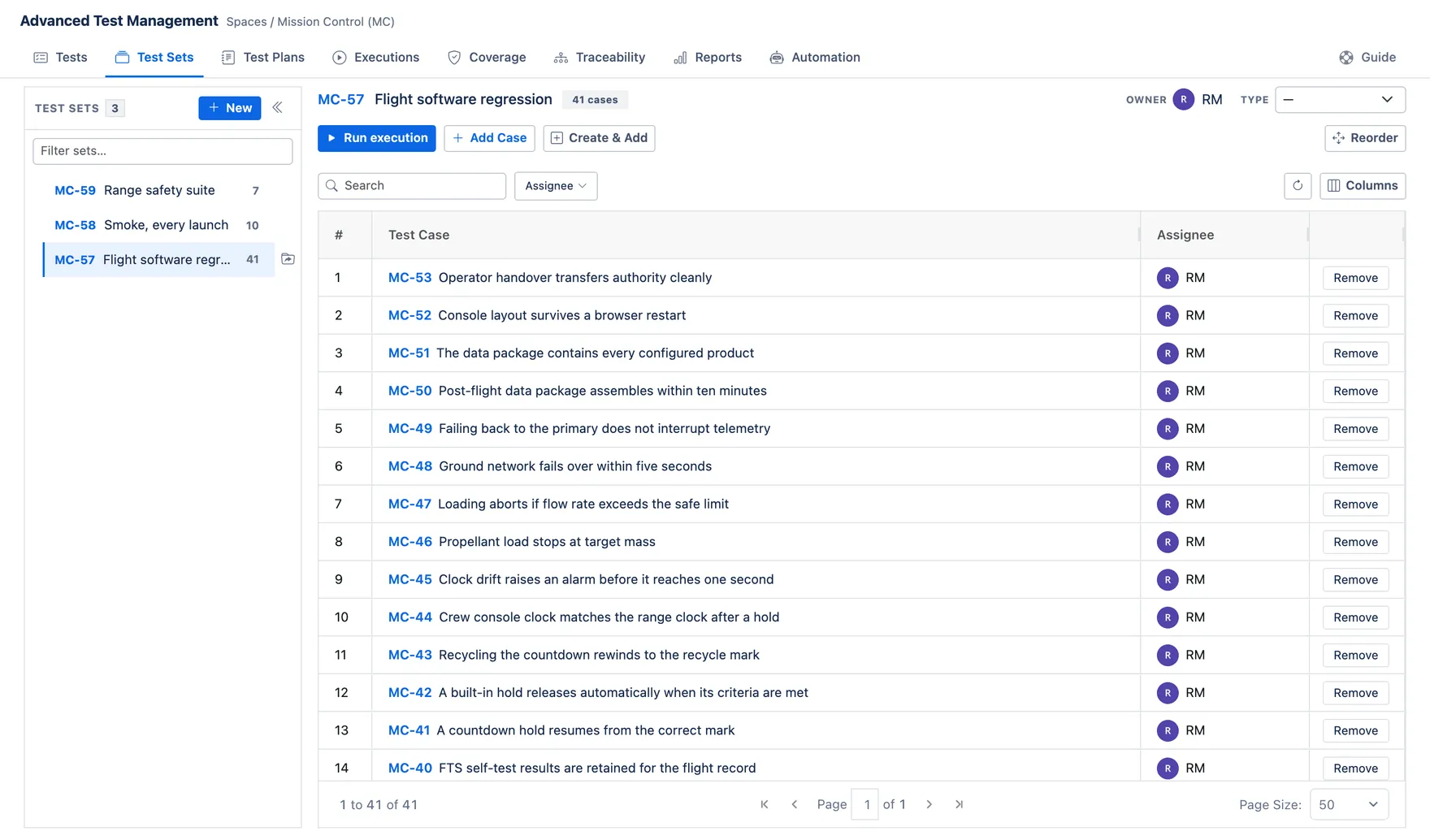
The number beside each set is how many cases it holds. Run execution starts a run of the whole set.
Run order
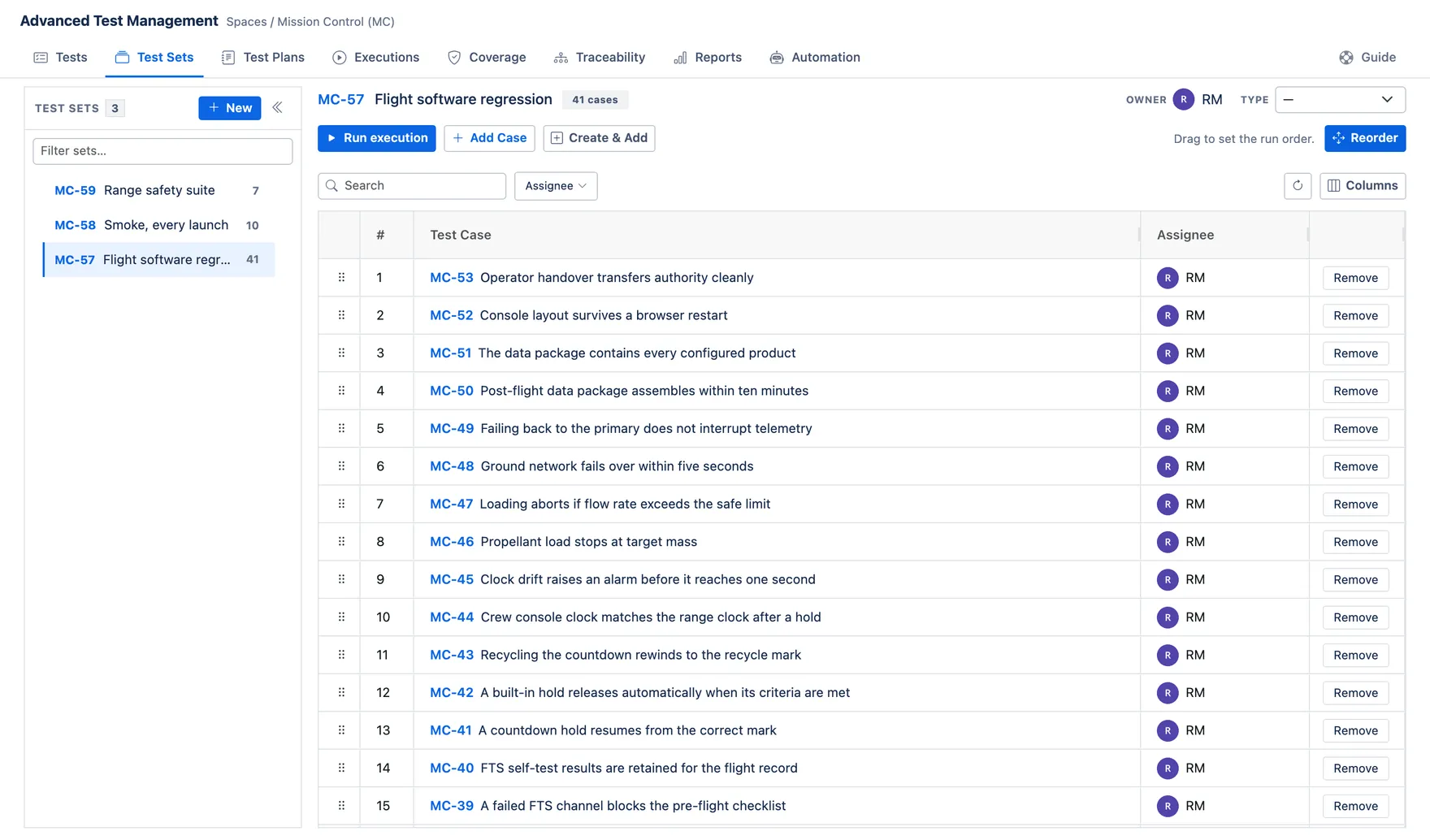
Section titled “Run order”The numbers down the left are the order the cases run in when you press Run execution, so the order is worth getting right.
The list pages like every other grid, and you cannot drag a case from one page to another. Press Reorder and the whole set drops onto a single page with drag handles, so you can move a case anywhere in it. Press it again to go back to pages. It switches itself off when you open a different set, so you never land on an unpaged list of several hundred cases by accident.
Folder sets do not offer it. Their rolled-up list is read only, and was never draggable.
Test Plans
Section titled “Test Plans”- A plan represents a campaign — set an Environment Scope and Start / Target End dates.
- Pull in sets or individual cases, then launch executions for the whole plan.
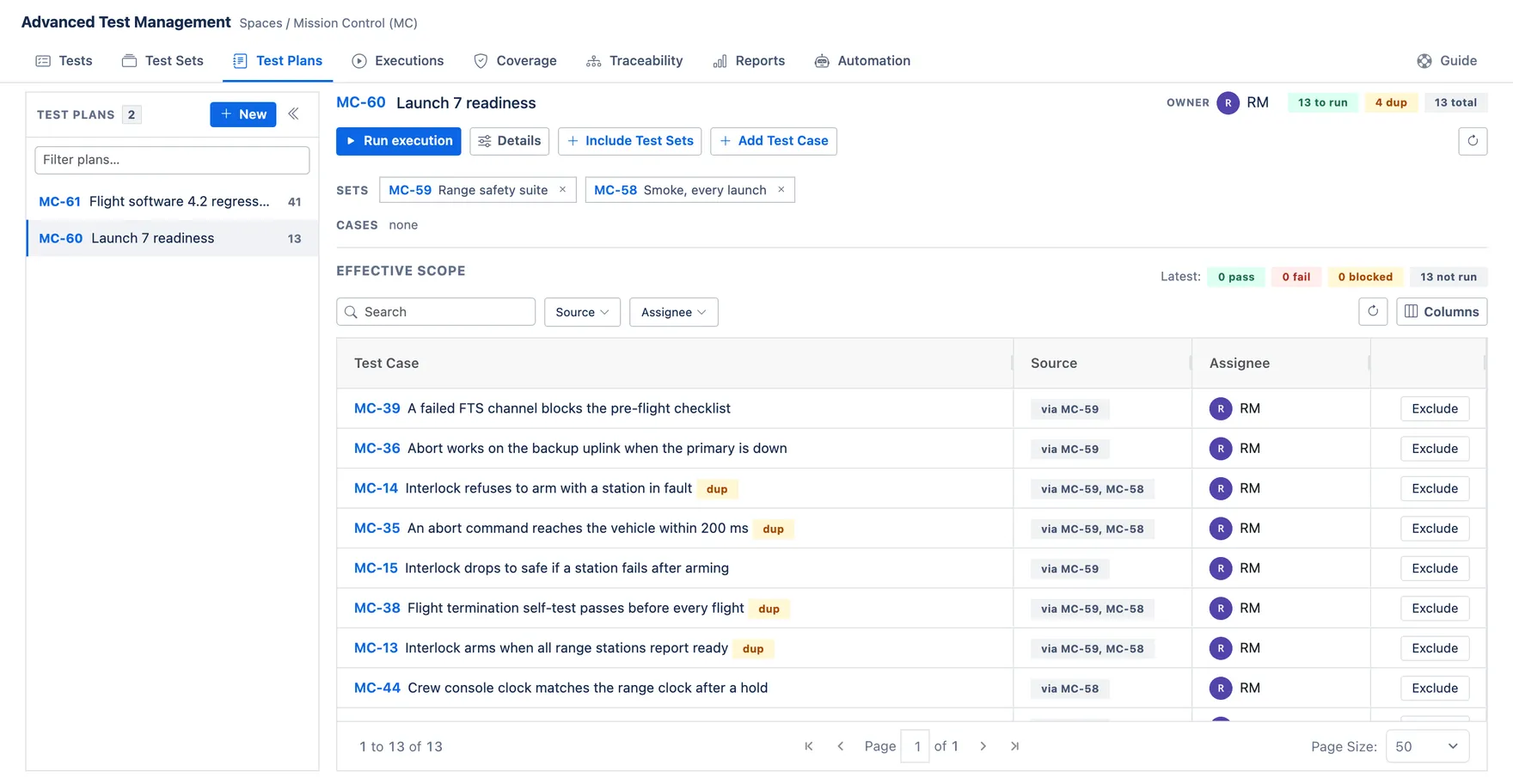
- The number beside a plan represents its scope: the distinct test cases that will actually run. This includes all cases from the selected sets, plus any individually added cases, with each case counted only once and any excluded cases removed. Hover over the number to see the breakdown.
Include Test Sets picks whole sets into the plan. A set already in the plan is marked added, so you can see at a glance what is in and what is not.
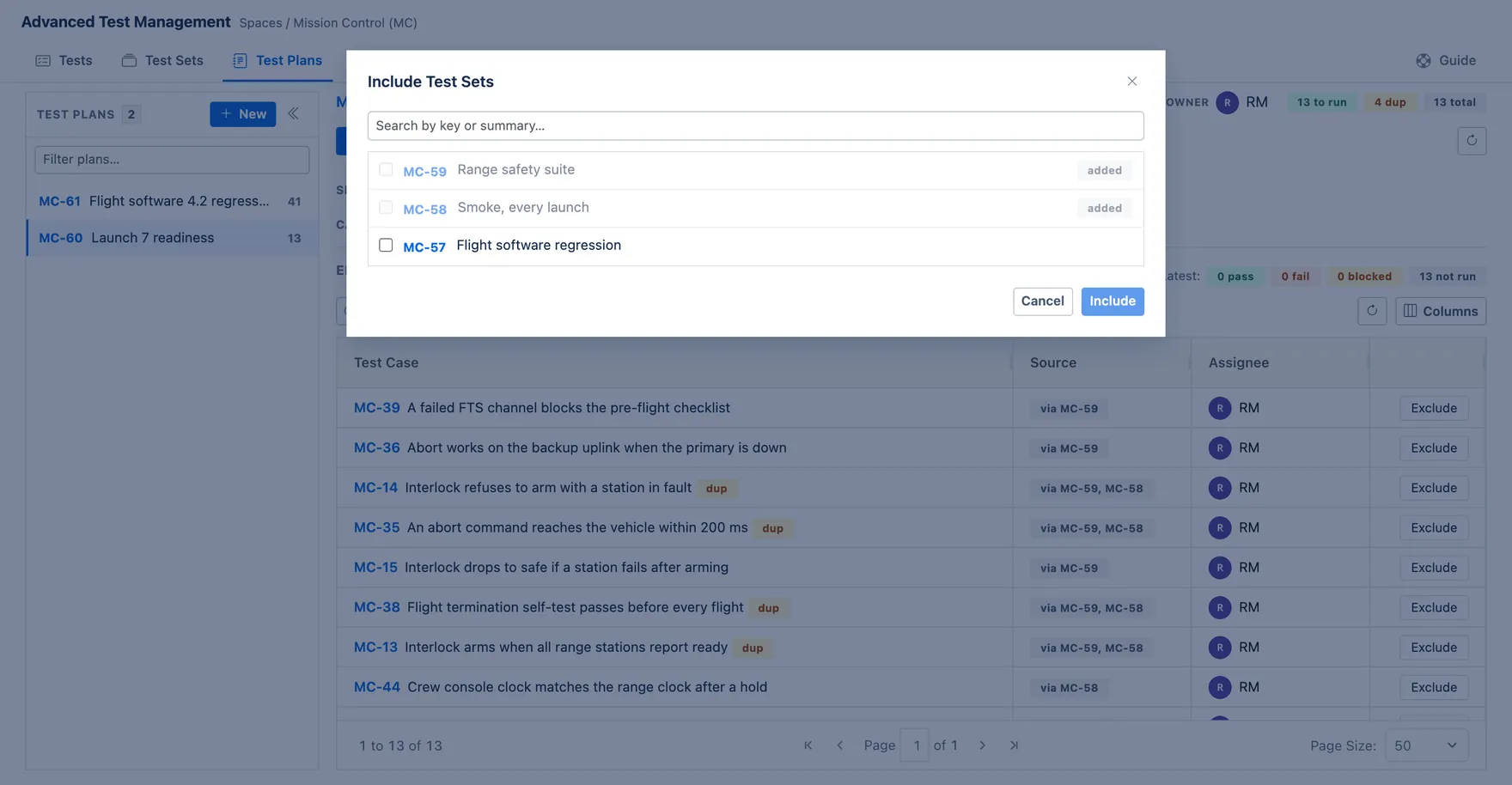
Effective scope is the result: every case the plan will run, with a Source column saying which set brought it in. A case that arrived from two sets is marked dup and still runs once. Exclude drops a case from this plan without touching the set it came from.
Adding cases in bulk
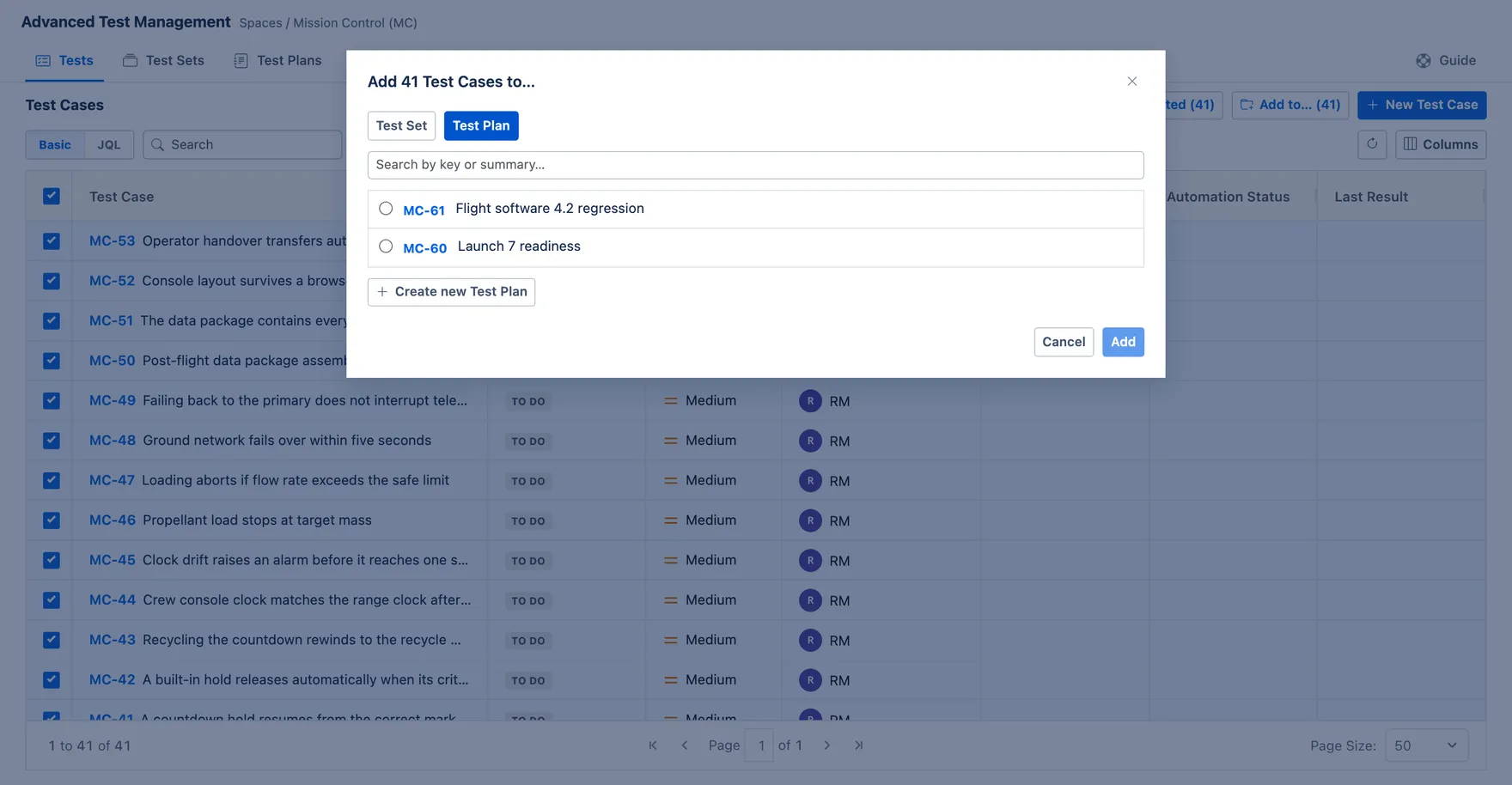
Section titled “Adding cases in bulk”From the Tests tab, tick the cases you want and press Add to…. The dialog has a tab each for Test Set and Test Plan.
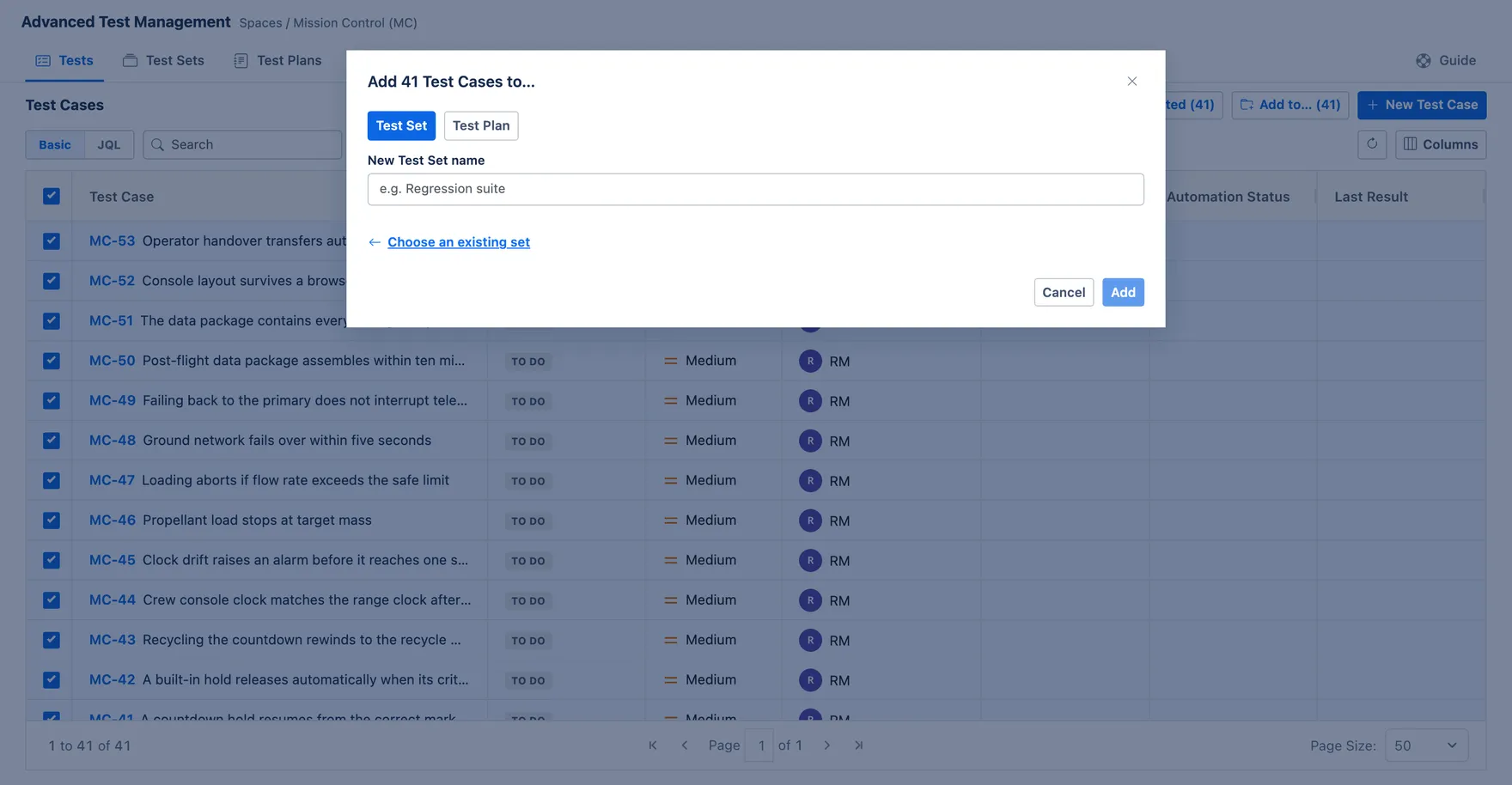
Either name a new one, or choose an existing set or plan from the list.