
Administrator guide
Admins shape the CRM for everyone. Their pages live under Settings, at the bottom of the navigation. Select it and the navigation steps into the settings menu; Go back returns to the CRM.
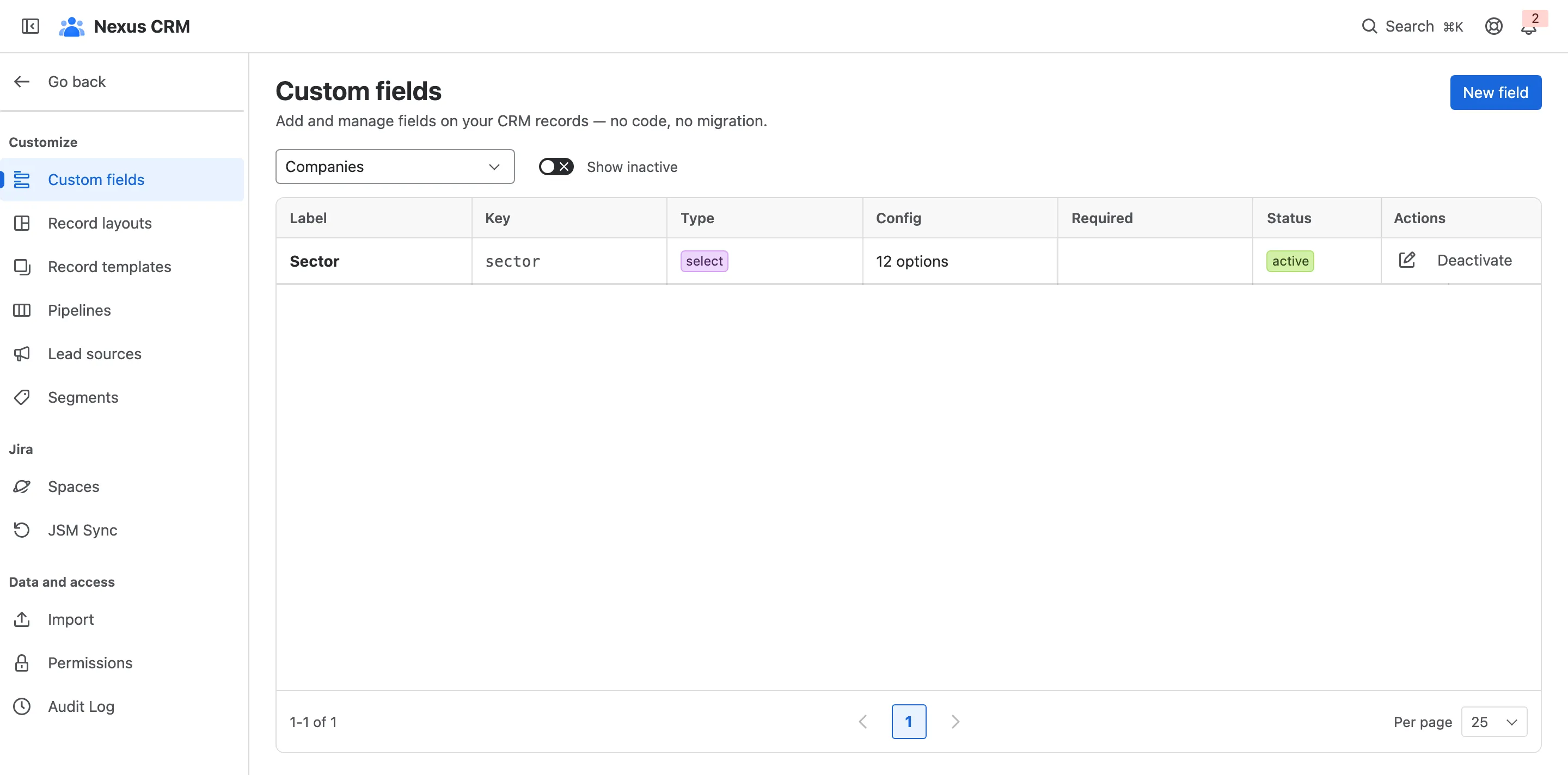
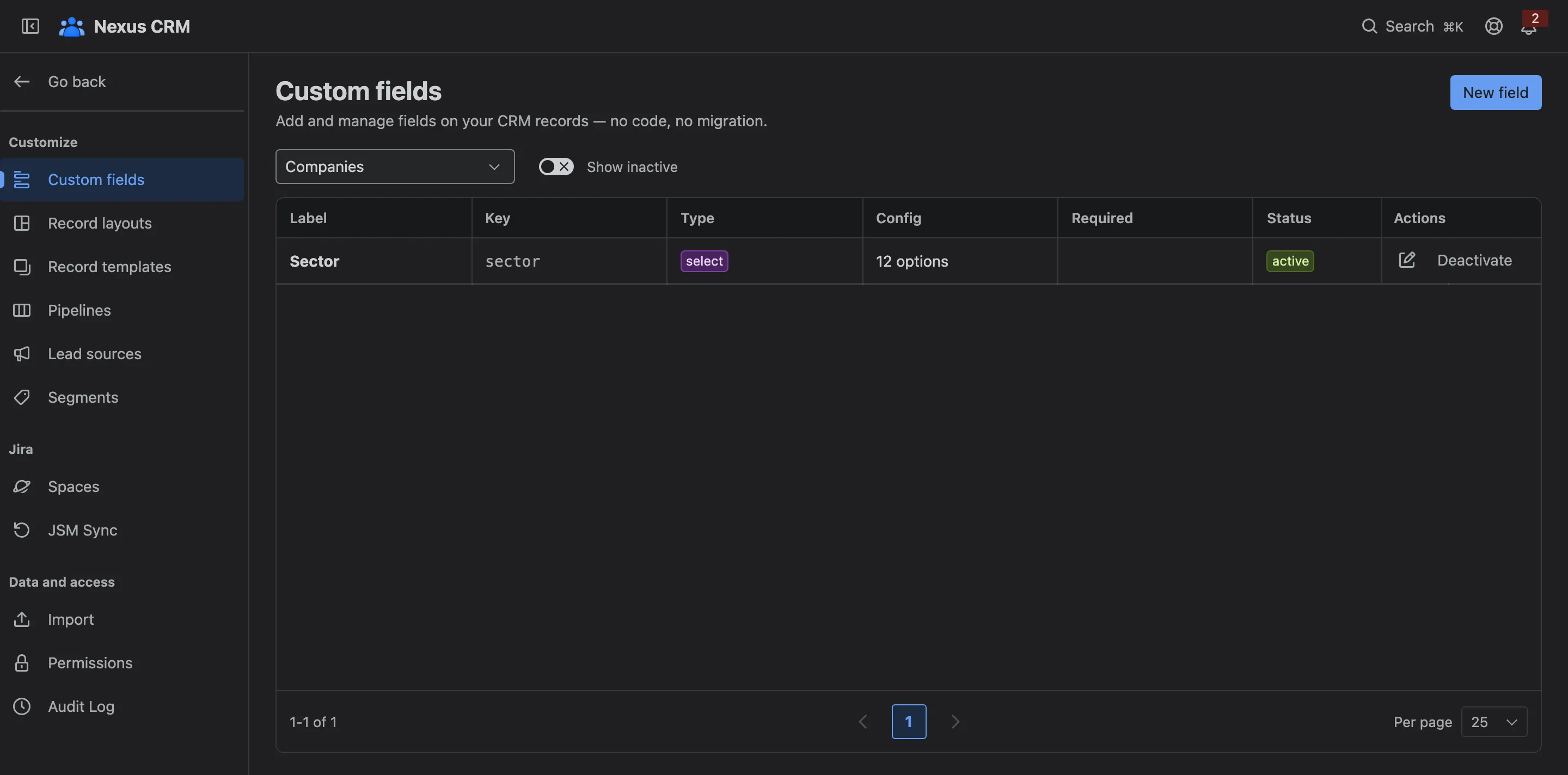
The Settings menu
Section titled “The Settings menu”| Group | Page | What it’s for | Who can open it |
|---|---|---|---|
| Customize | Custom fields | Add your own fields to companies, contacts, leads and deals | Settings: Admin |
| Record layouts | Arrange the fields on each form | Settings: Admin | |
| Record templates | Pre-fill new records | Settings: Admin | |
| Pipelines | Sales processes, their stages and teams | Pipelines: Admin | |
| Lead sources | Where leads come from | Settings: Admin | |
| Segments | Groups, labels and roles for contacts | Settings: Admin | |
| Jira | Spaces | Turn Nexus CRM on for each Jira space | Settings: Admin |
| JSM Sync | Bring service desk customers into the CRM | Settings: Admin | |
| Data and access | Import | Load records from CSV | Write on any record type |
| Permissions | Who can do what | Permissions: Admin | |
| Audit Log | Every change, and restoring deleted records | Settings: Read (restore needs Admin) |
The levels in the last column come from each person’s role (see Permissions). Jira site admins can open everything. Pages a person can’t open don’t appear in their menu.
Setting up for the first time
Section titled “Setting up for the first time”A sensible order for a new site:
- Turn Nexus CRM on for your spaces, so your team sees the CRM on their work items: Placement in work items.
- Decide who gets in. Allow everyone with a default role, or only the people you assign: Permissions.
- Shape your sales process. Rename the Sales pipeline’s stages, or start one from a template: Pipelines and stages.
- Add the fields your team needs, and place them on the forms: Custom fields, Record layouts.
- Bring your data in: Import from a spreadsheet, and JSM Sync for service desk customers.
The Getting started checklist on Home tracks the first steps for you.