
Placement in work items
Nexus CRM is off in every Jira space until someone turns it on, so it never appears where nobody asked for it. When it’s on, you choose how it shows on that space’s work items.
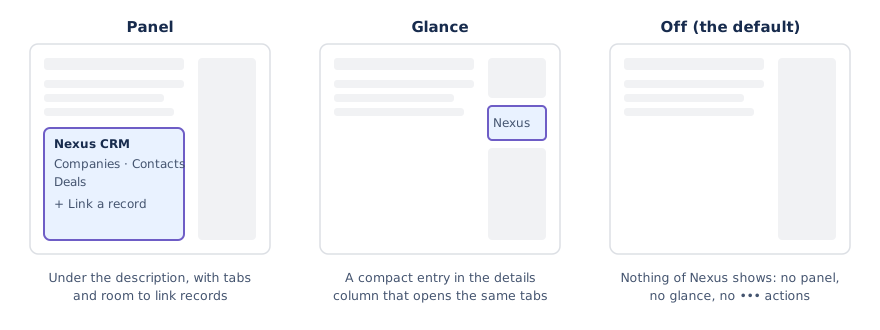
| Setting | On the space’s work items |
|---|---|
| Panel | Nexus CRM sits under the description, with tabs for linked companies, contacts and deals, and room to link more. |
| Glance | A compact Nexus CRM entry in the details column opens the same tabs. Good for busy work item screens. |
| Off | Nothing: no panel, no glance, no actions in the ••• menu. |
Every space in one place
Section titled “Every space in one place”Settings → Jira → Spaces lists every Jira space you can browse.
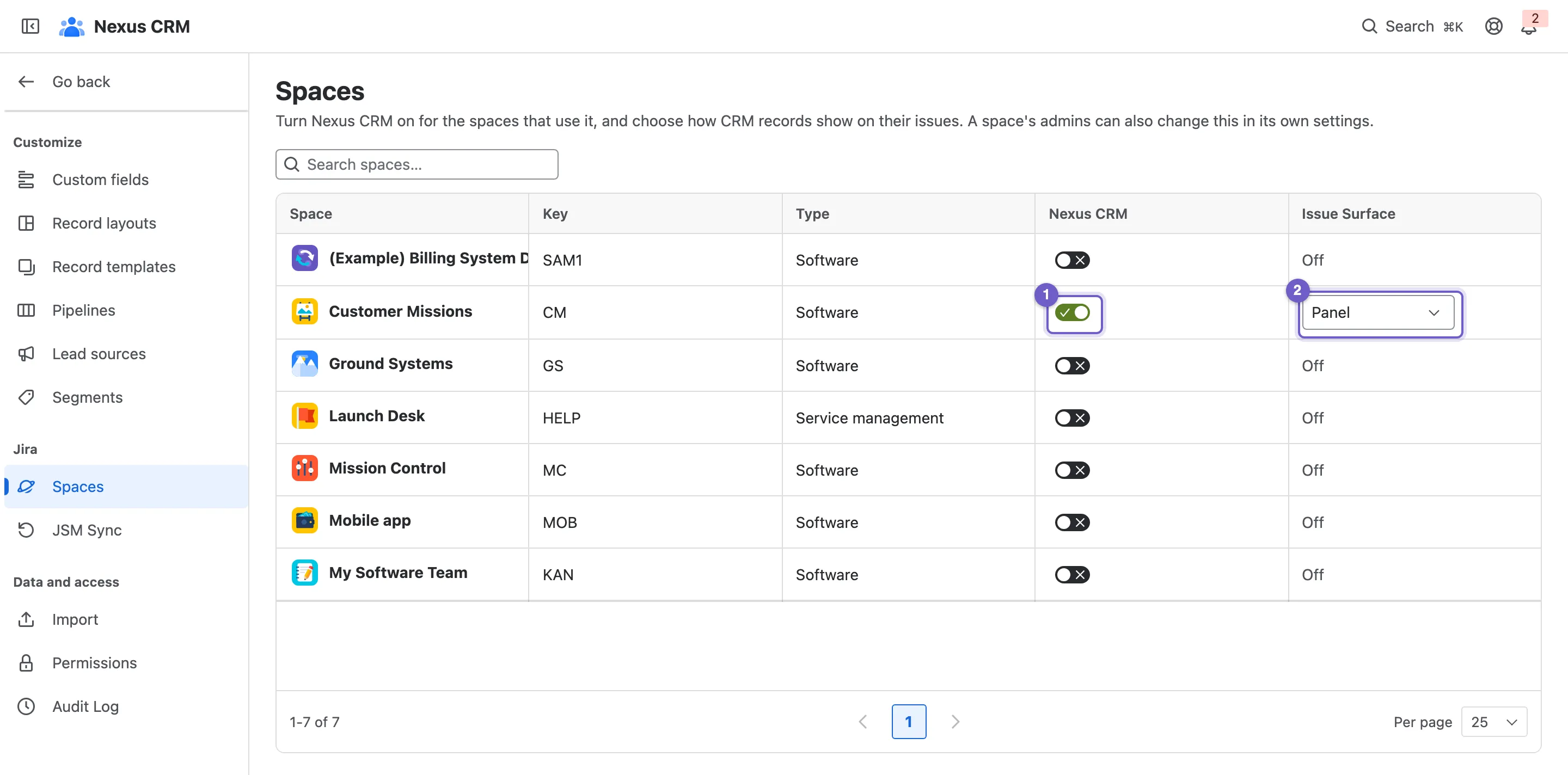
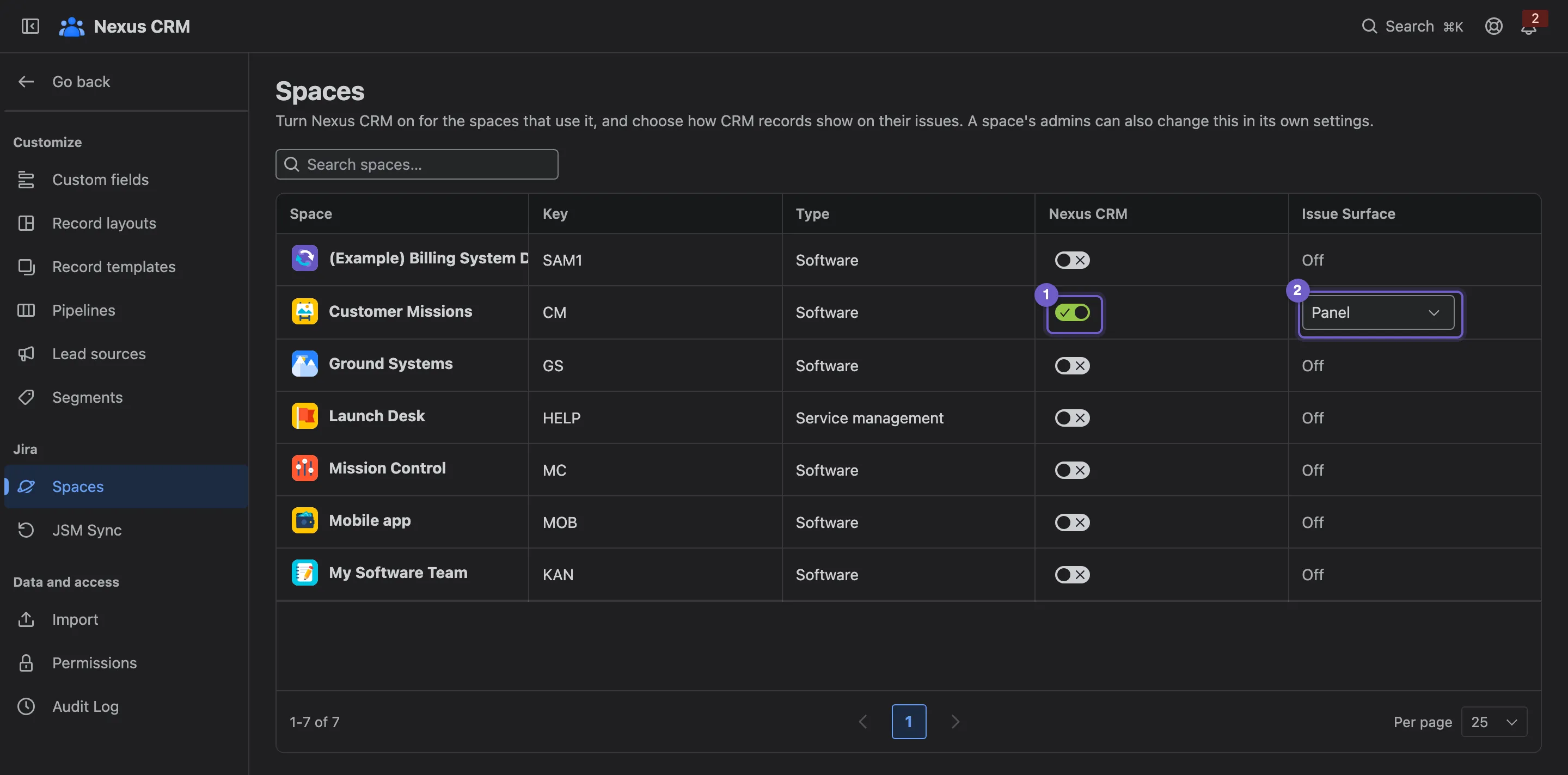
- Nexus CRM turns it on or off for that space.
- Issue surface picks Panel or Glance. It reads Off while the space is turned off.
- Search spaces… by name or key.
- A space, with its key and type: Software, Service management, Business or Product discovery.
A change takes effect the next time someone opens a work item in that space.
From a space’s own settings
Section titled “From a space’s own settings”Space admins can make the same choice without opening Nexus CRM: in the space, go to Space settings → Nexus CRM.
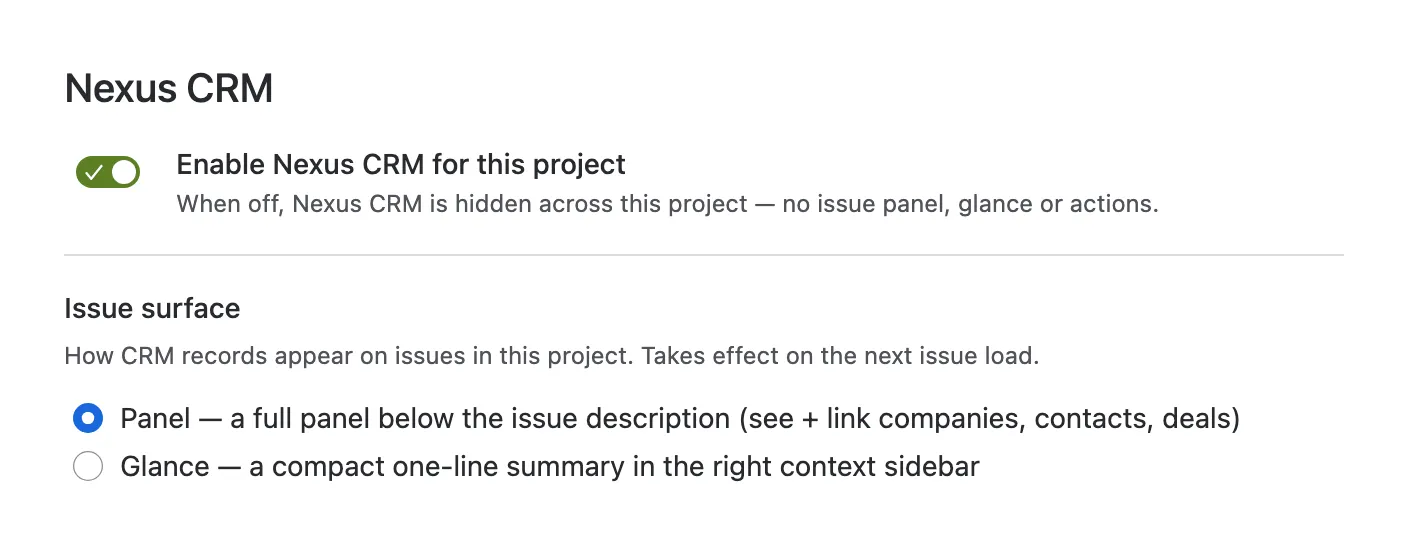
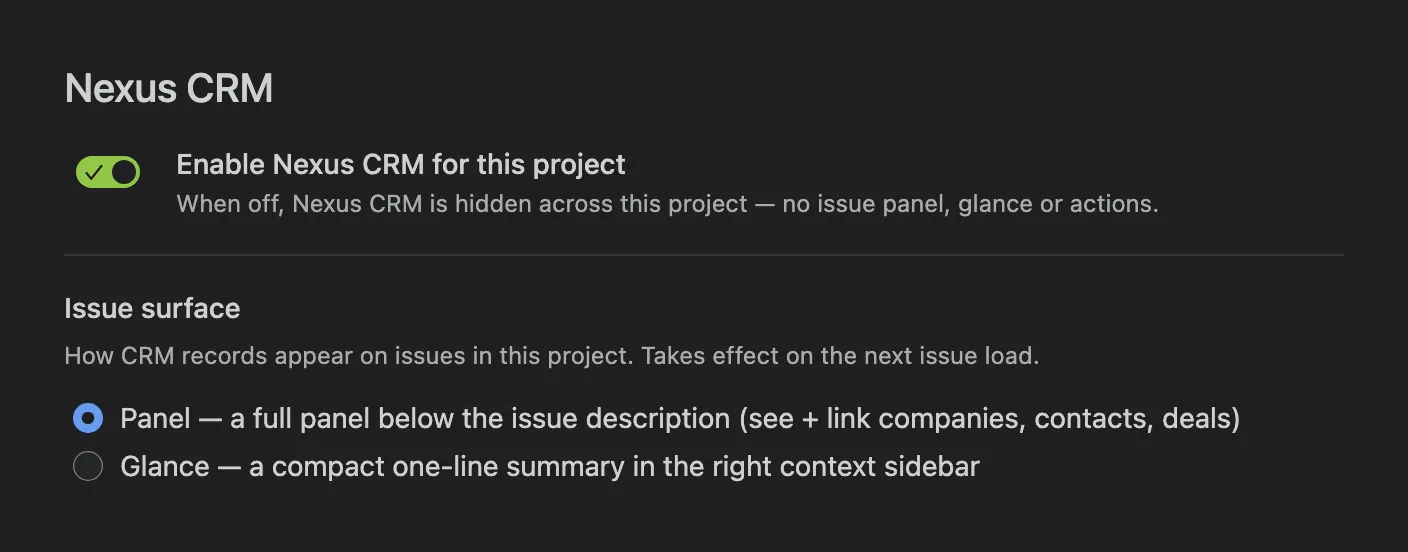
Both places change the same setting, so they always agree. Jira decides who may change it: only that space’s admins, whichever page they use. If you can’t, Nexus CRM says You need to be a space admin to change this.
Which to choose
Section titled “Which to choose”- Use Panel where people work closely with customers: account management, delivery, customer success. Linking a record is one click away.
- Use Glance on service desks and busy boards, where the details column is the natural place to look. On a service desk, the glance also shows who the requester is in the CRM.
- Leave internal-only spaces off.