
Lists, filters and export
Companies, Contacts, Leads, Deals and Activities all share one kind of list. Learn it once and it works everywhere.
The grid
Section titled “The grid”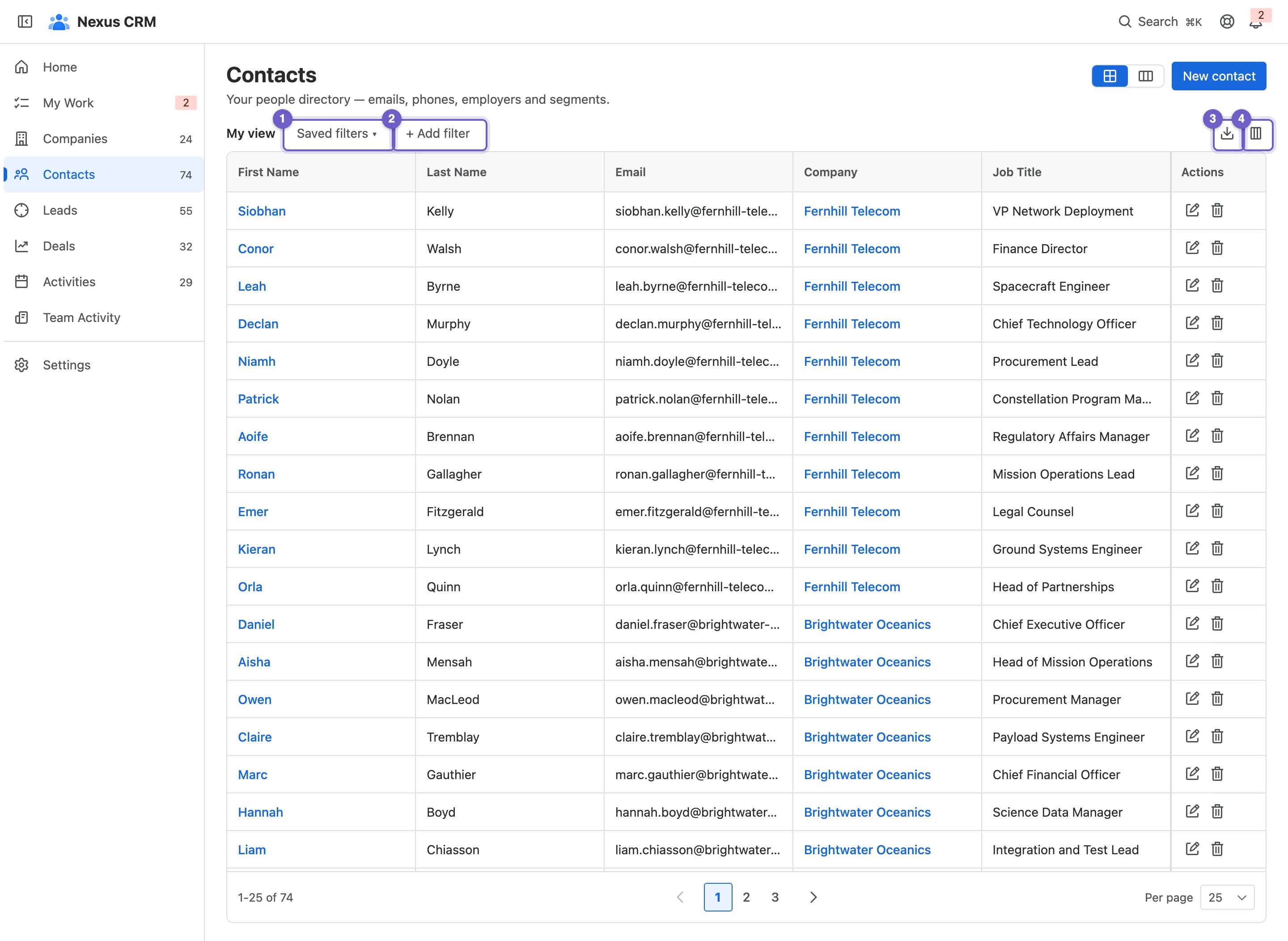
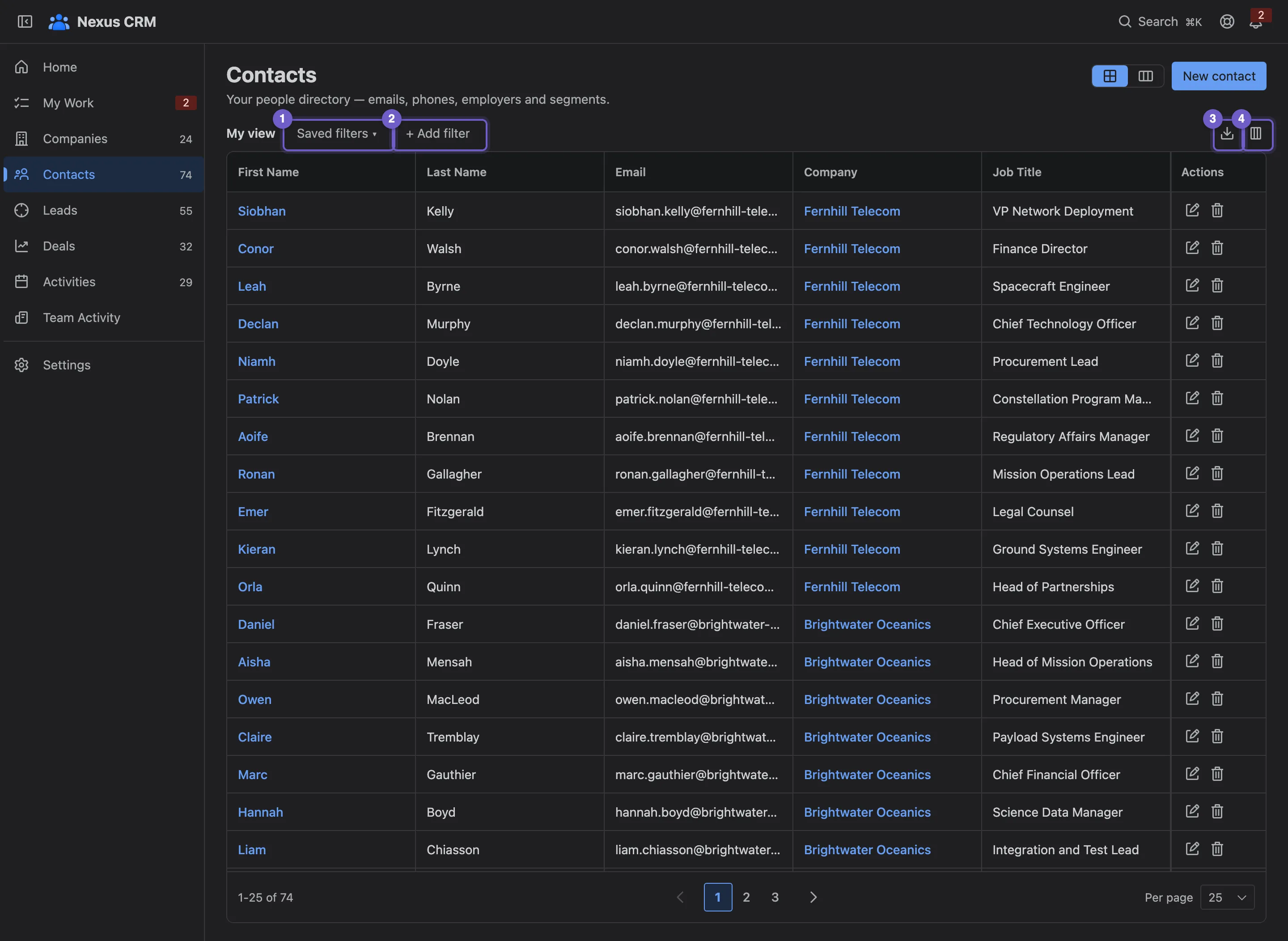
- Saved filters. Apply one you or your team saved.
- + Add filter. Narrow the list.
- Export. Download what you see as CSV.
- Columns. Choose and order them.
- Grid or board. Remembered for you, for each list.
- Sort by selecting a column header. Resize a column by dragging its edge.
- Pages. Choose 5 to 100 rows a page.
Names link to their records, and so do references: a contact’s company opens the company. Selects show as coloured labels and people as avatars. On deals, a totals bar adds up the values for each currency.
Everything you change here (columns, their order and width, the sort) is saved for you and follows you to any device.
Filters
Section titled “Filters”Select + Add filter, pick a field, a condition and a value. The conditions depend on the field: text has contains, starts with and is; numbers and money have =, > and <; dates have before and after; people have is me; and every field has is empty.
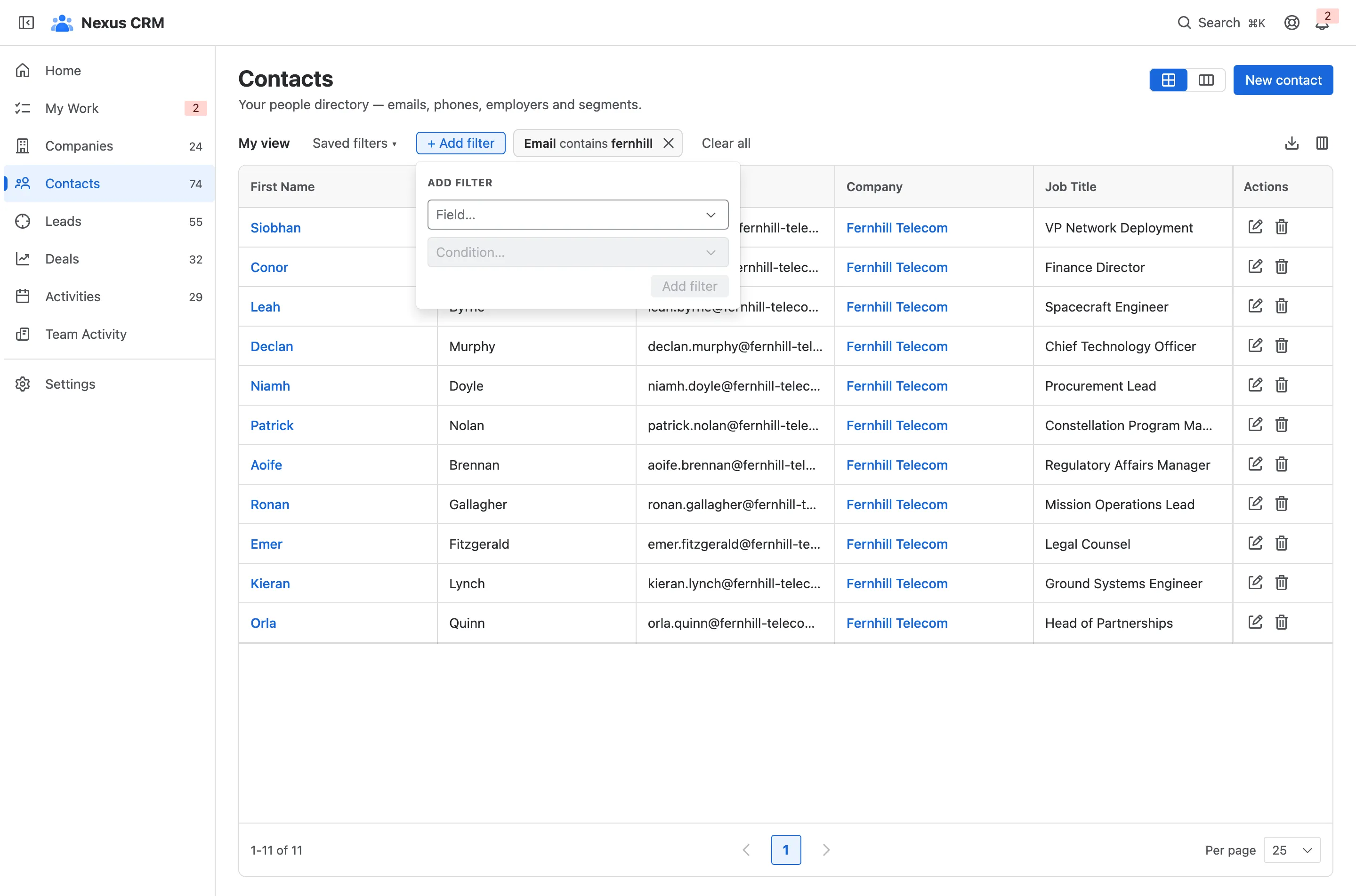
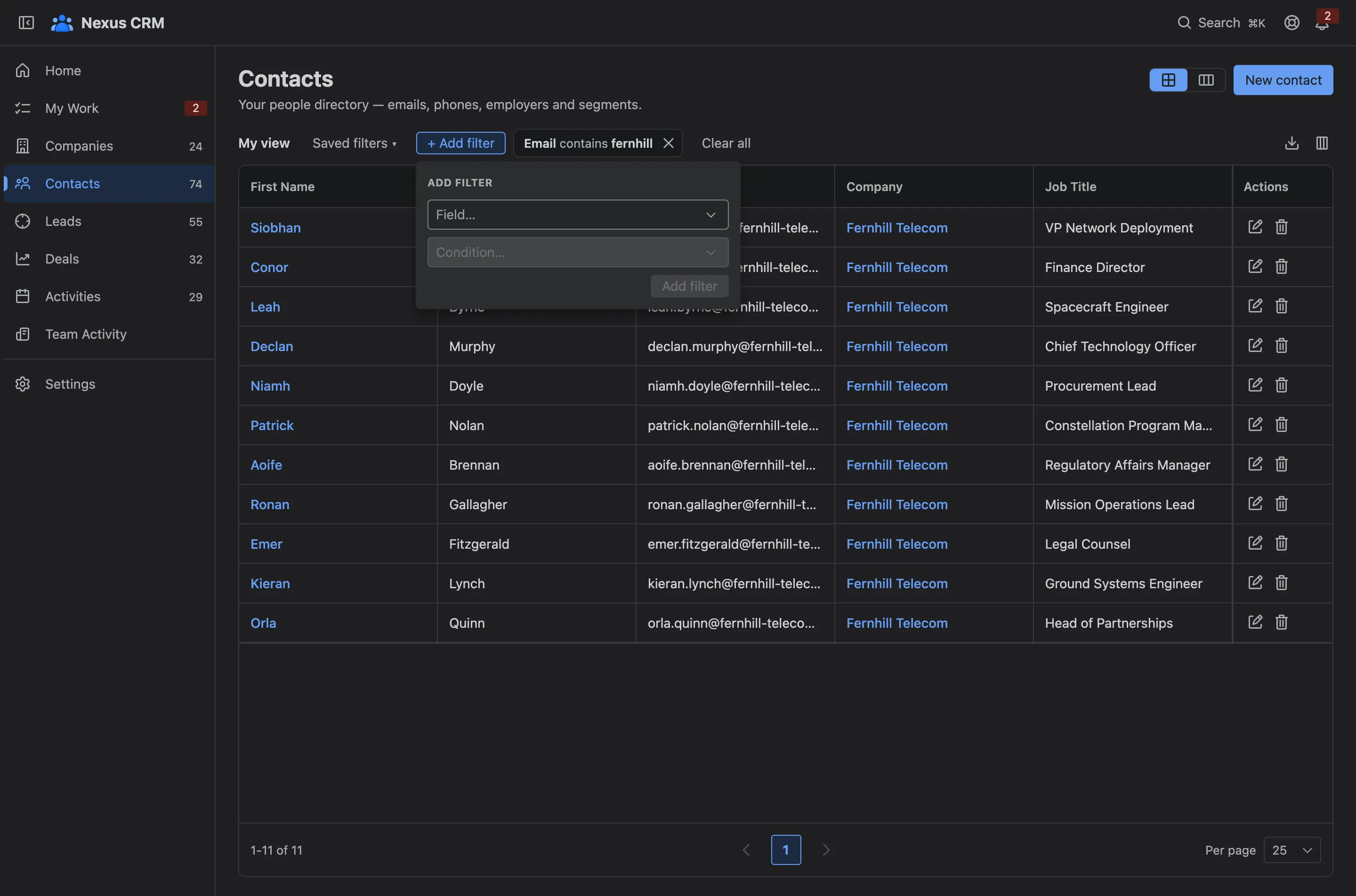
Each filter shows as a chip. Add as many as you need: a row must match all of them. Remove one with its ✕, or Clear all.
Saved filters
Section titled “Saved filters”A filter you use often can be kept.
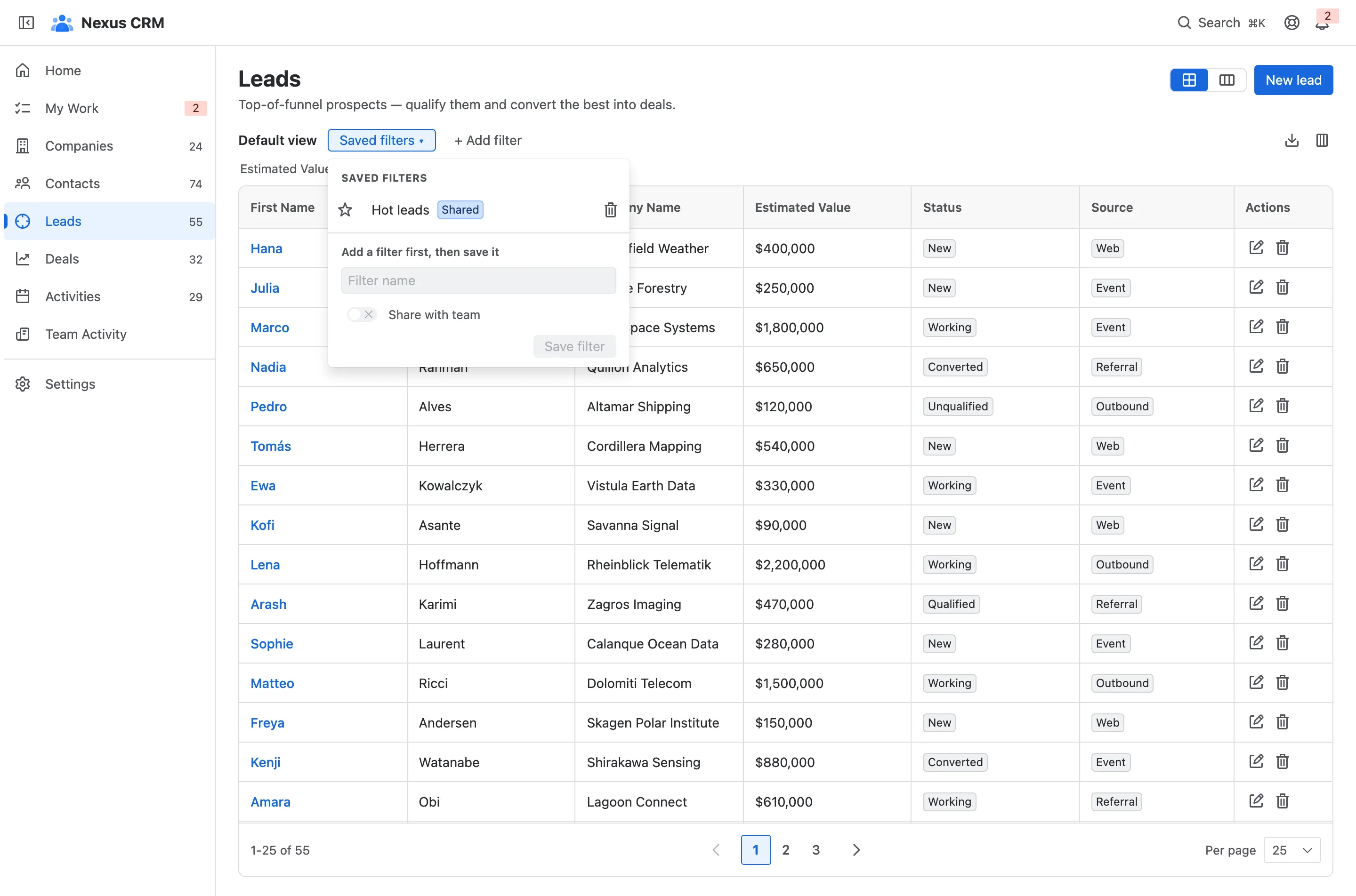
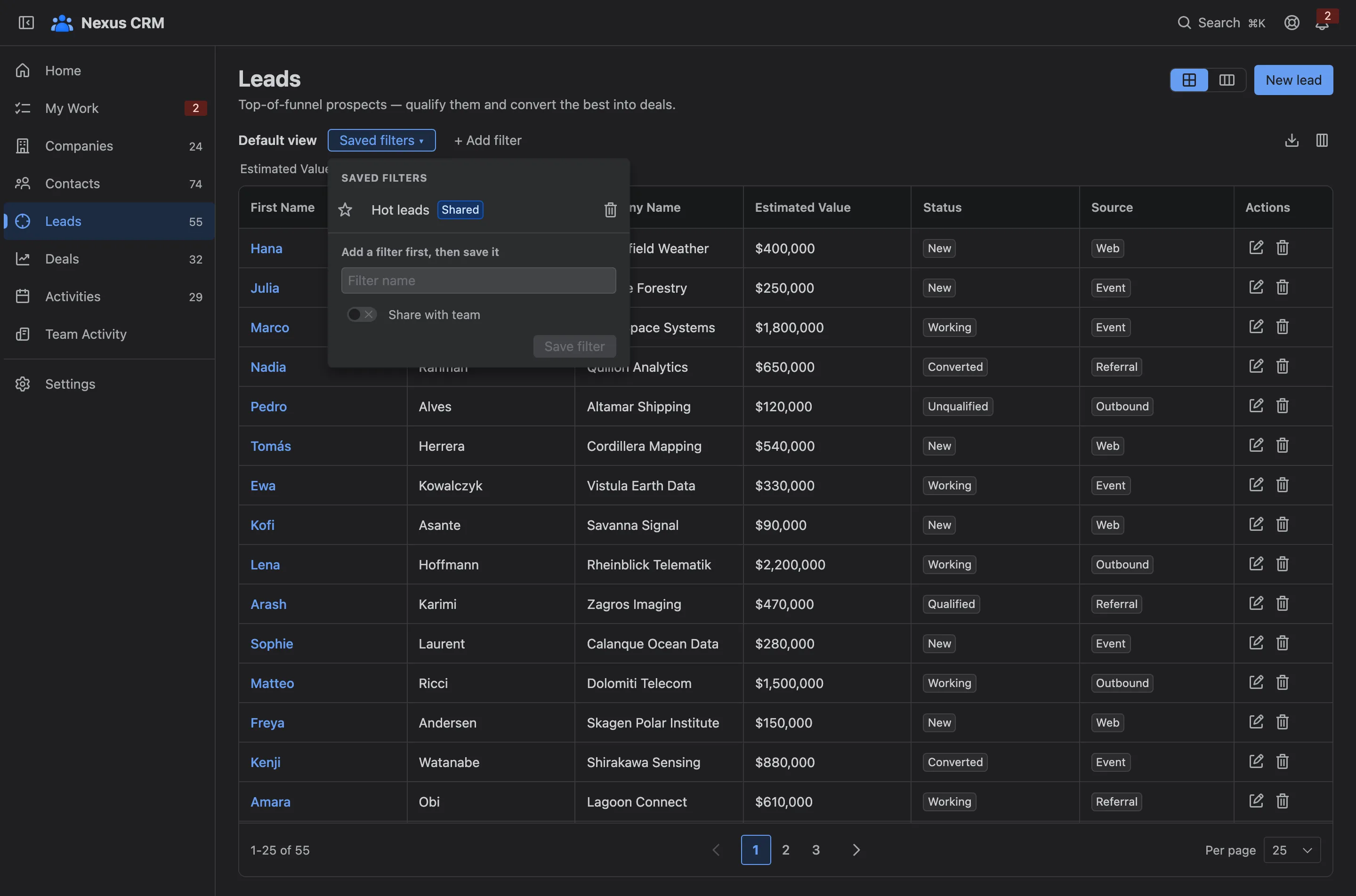
- Your saved filters. Select one to apply it.
- Shared. A filter someone shared with the team.
- Star your favourites to keep them at the top.
- Save filter. Name the current filter, and turn on Share with team to let everyone use it.
Only the person who saved a filter can delete it.
Columns
Section titled “Columns”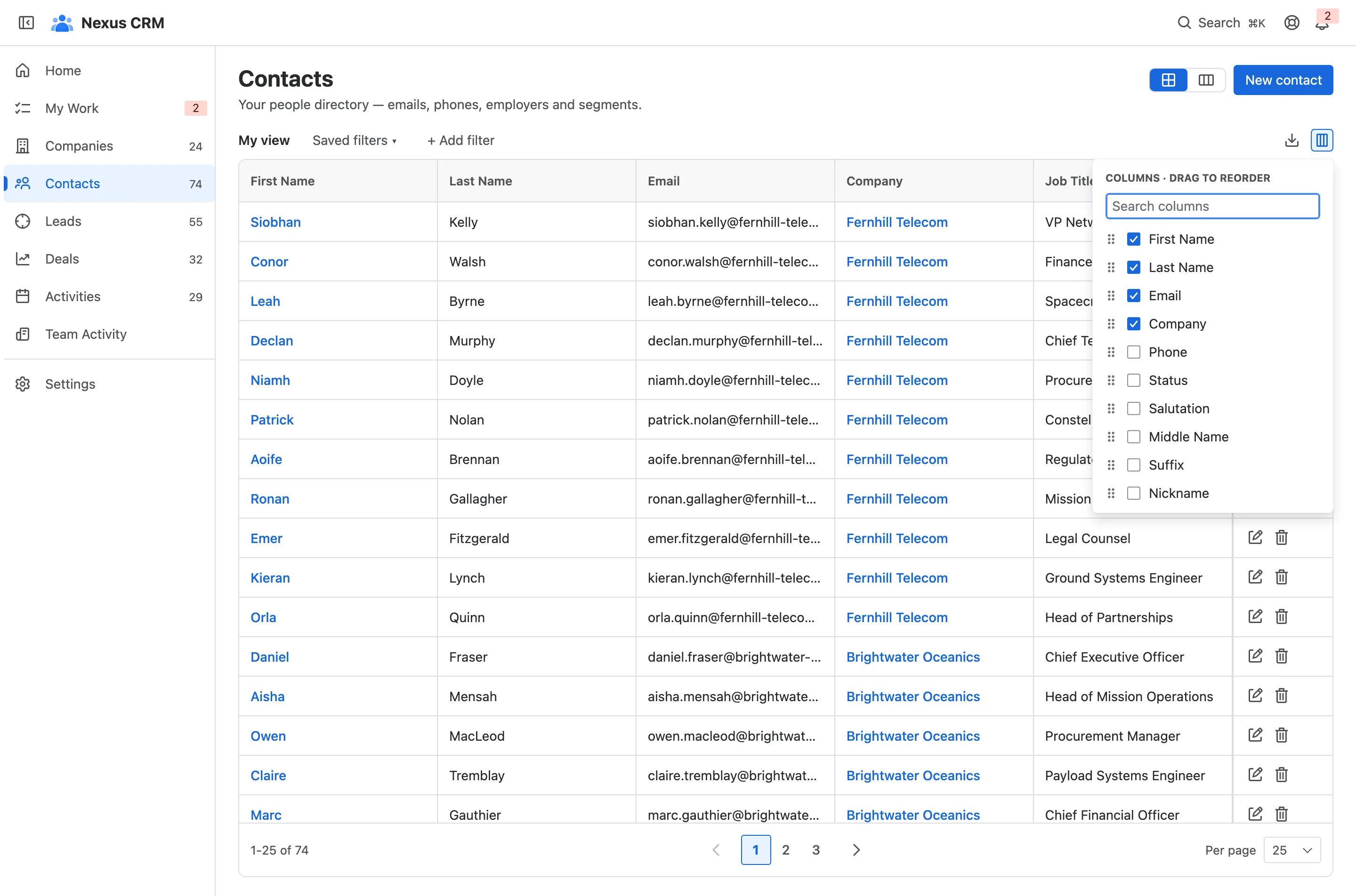
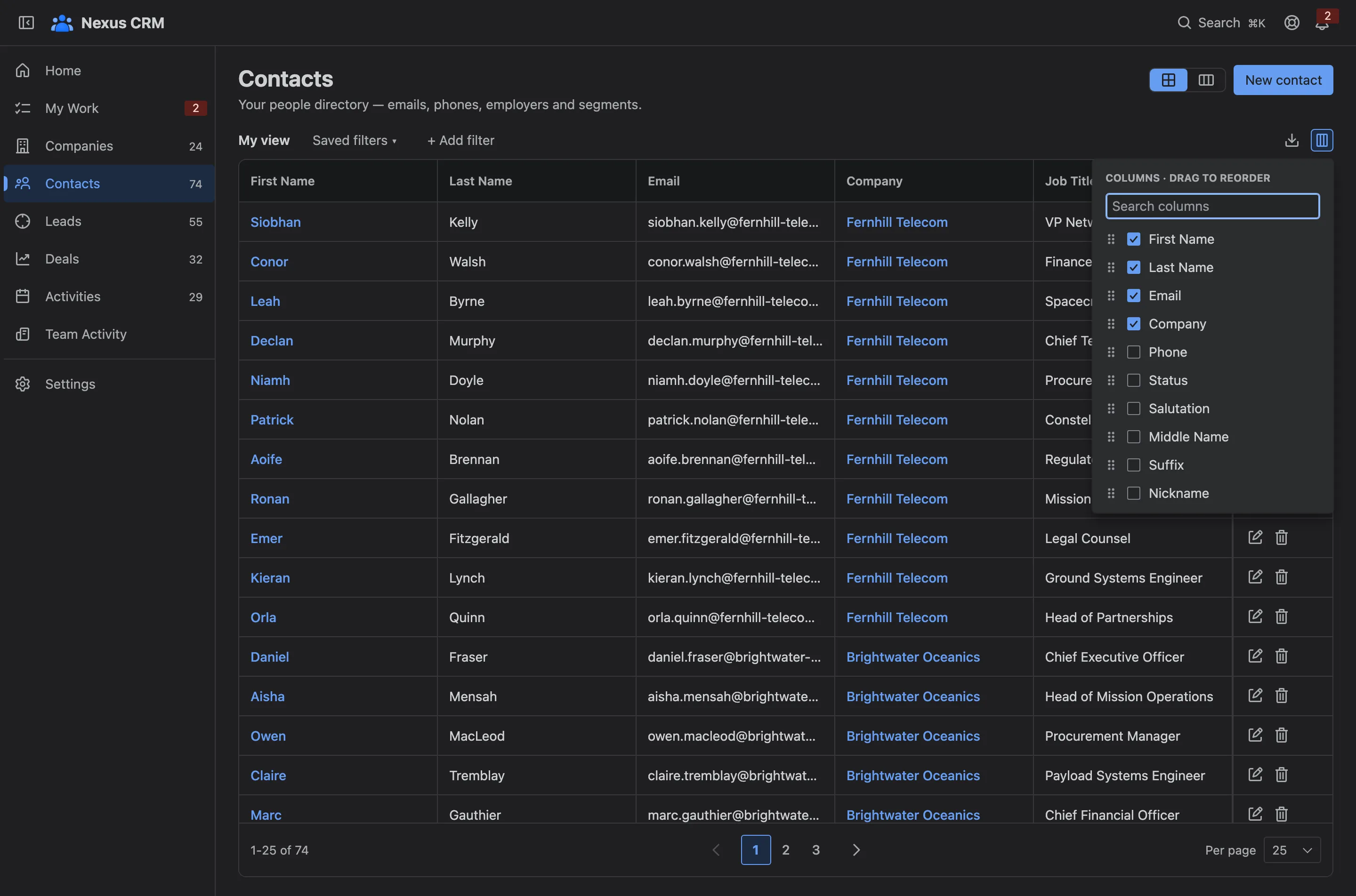
Search for a column, tick it to show it, and drag the handle to reorder. Custom fields are columns too.
Export
Section titled “Export”Export offers two files:
- Export CSV: every row that matches your filters, not just the page on screen, with the columns you see.
- Export CSV + Nexus ID: the same, plus each record’s ID and raw values, ready to import back and update those records.
Fields your role hides are never exported.
The board
Section titled “The board”Companies, Contacts and Leads can also show as a board.
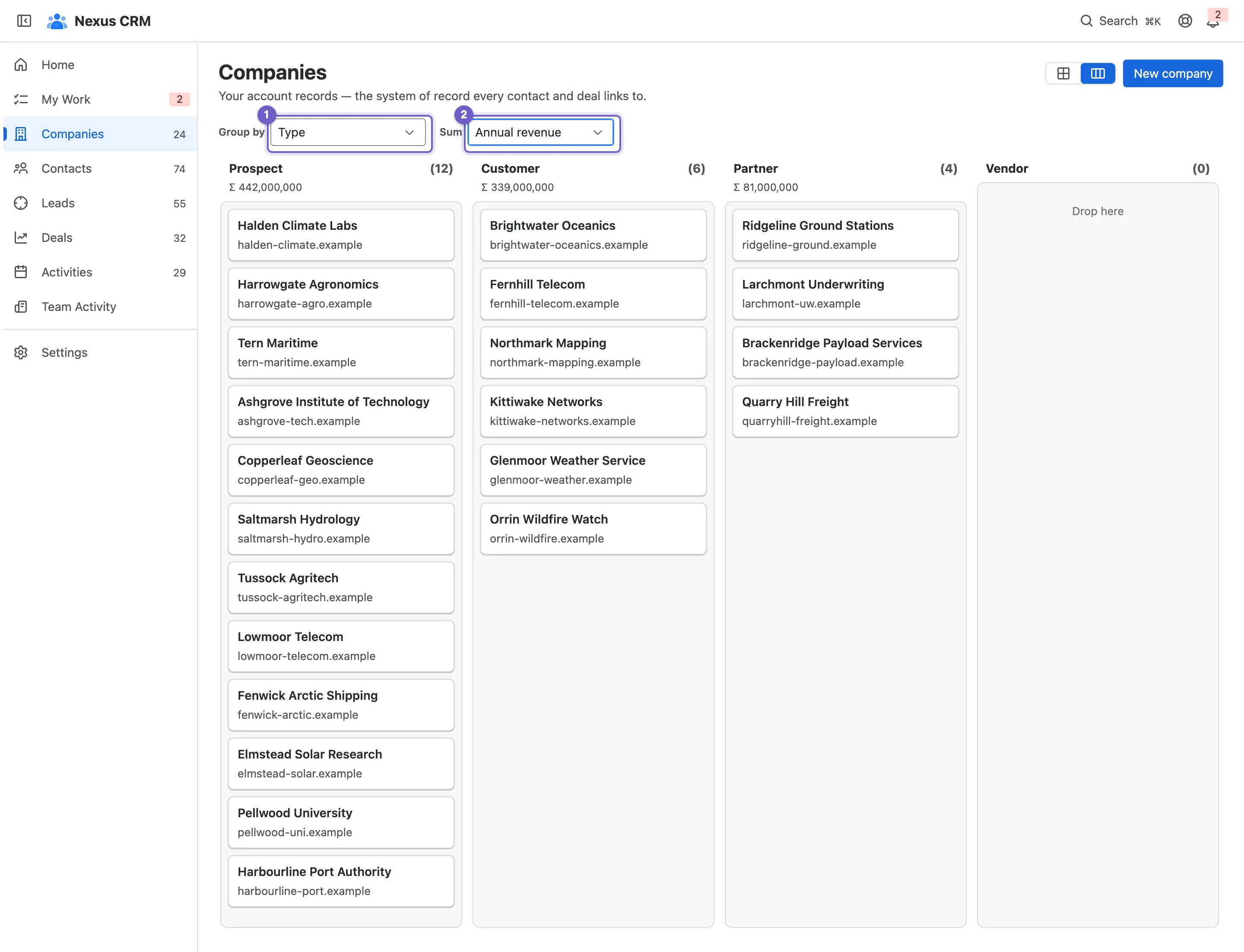
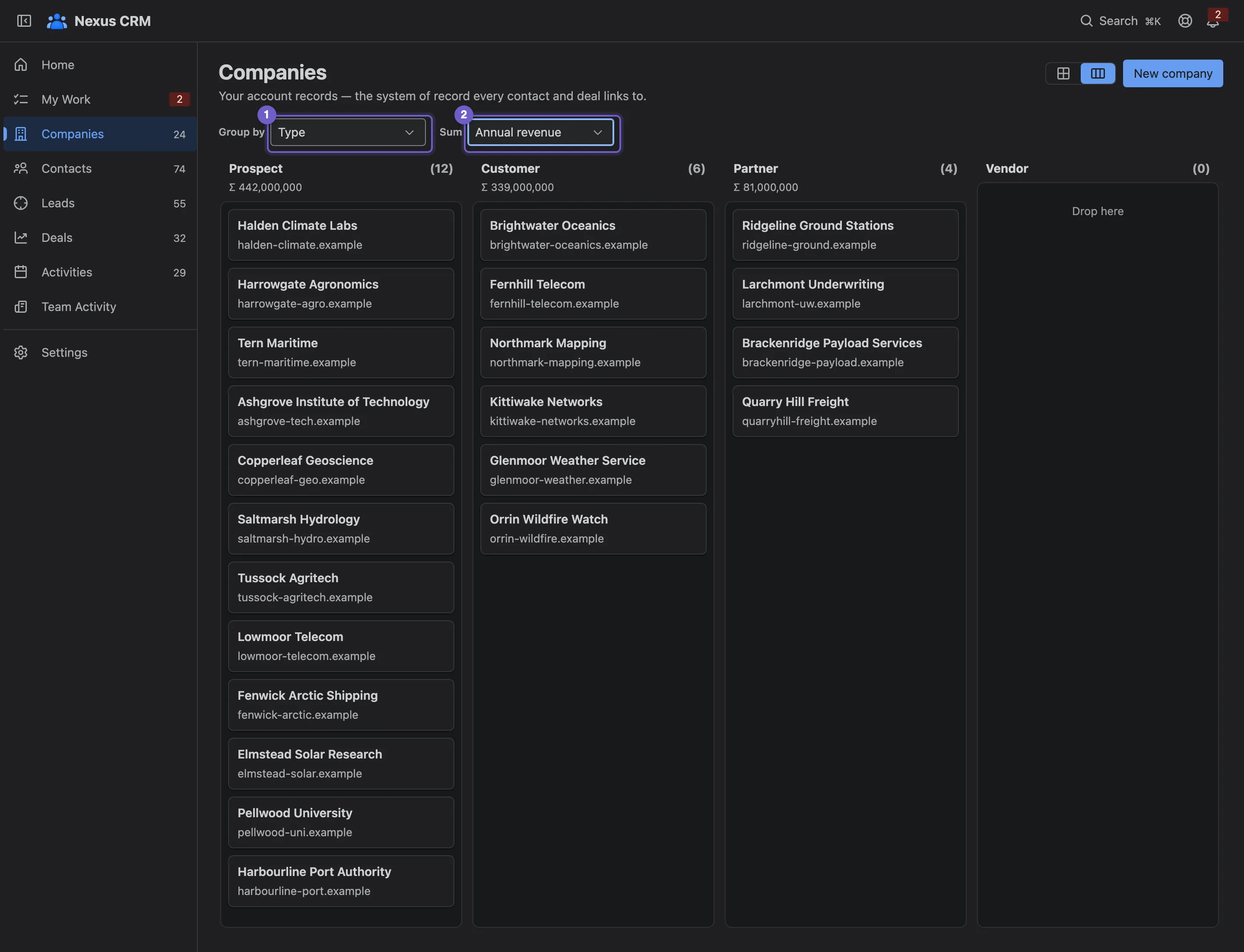
- Group by a select field, such as Type, Industry or Status.
- Sum any number or money field. Each column shows its count and total.
- Drag a card to another column to change that field.
The deal board is special: it always groups by stage. See Deals and pipelines.