
Companies
A company is an organisation you work with: a customer, a prospect or a partner. It’s the hub of the CRM. Its people, their deals, linked Jira work and every activity all roll up to it.
The Companies list
Section titled “The Companies list”Companies in the navigation lists every company. Like every list in Nexus CRM, it can be a grid or a board, and it has filters, saved filters, columns and export. Those are explained once, in Lists, filters and export.
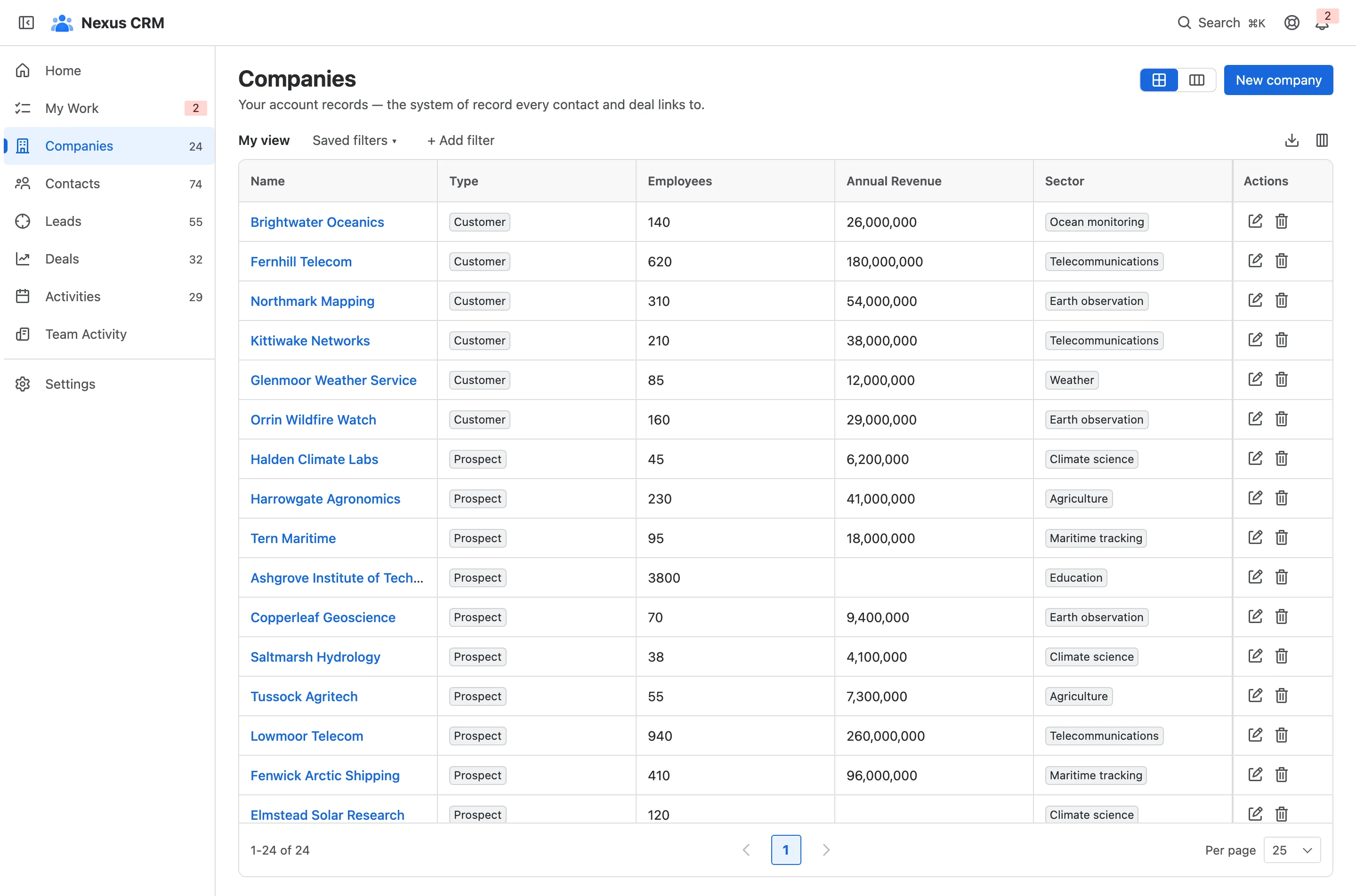
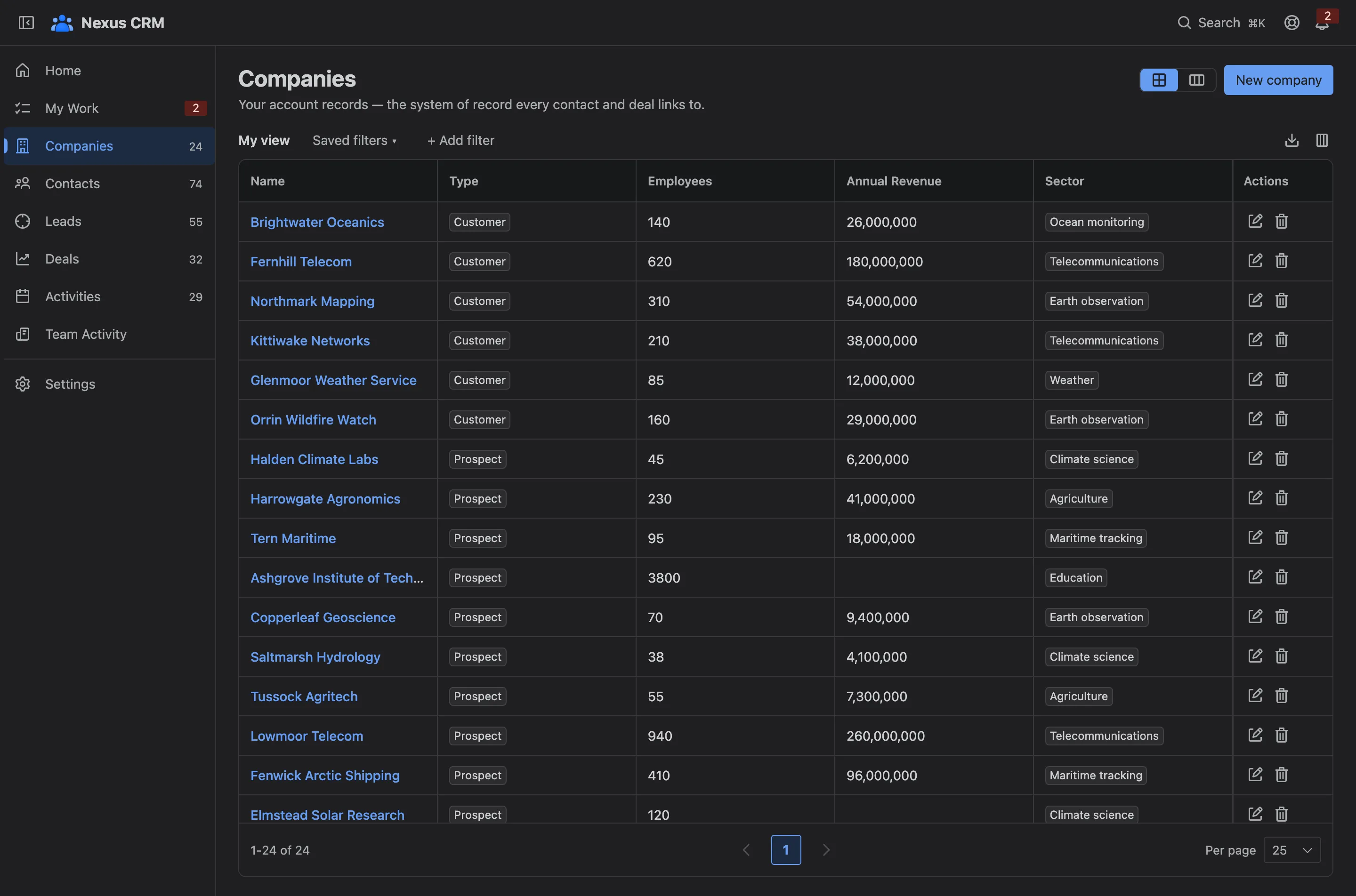
- Grid or board. The board groups companies by Type, and you can drag a card to change it.
- New company.
- Filters and saved filters. Narrow the list, and keep a filter you use often.
- Export and columns.
- A company. Select its name to open it.
Adding a company
Section titled “Adding a company”Select New company. The form is grouped into sections, which your admin can rearrange and add fields to (see Record layouts).
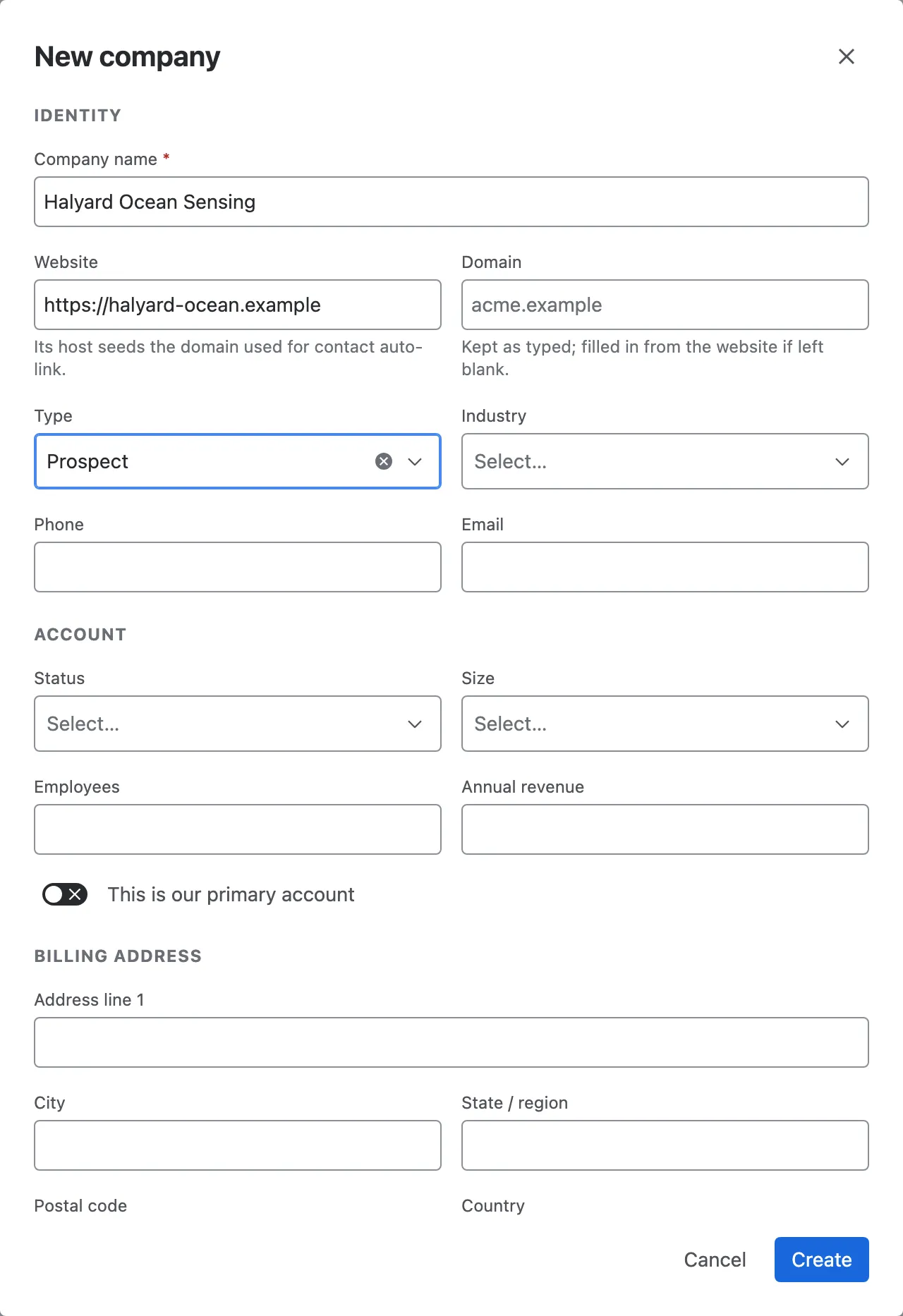
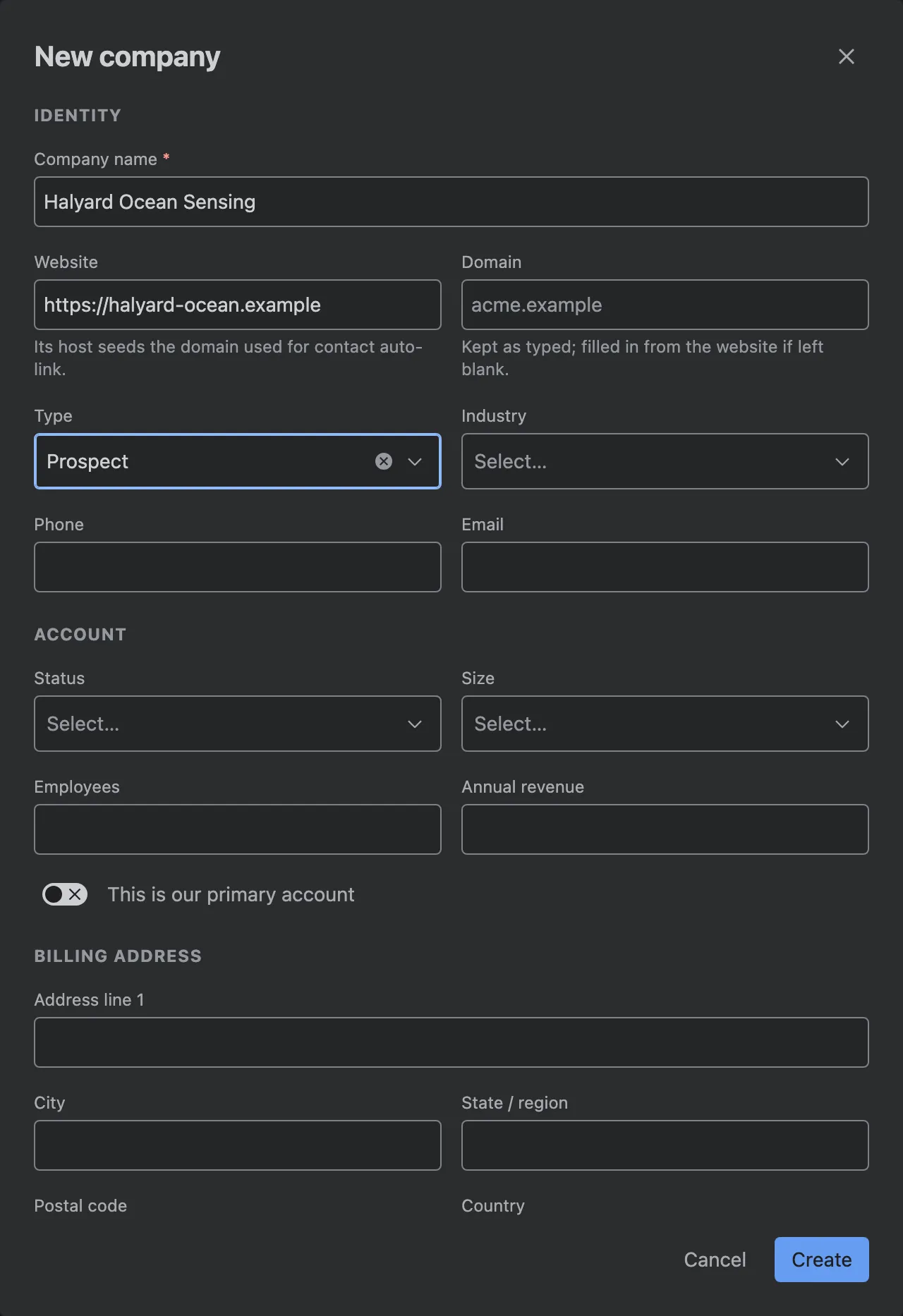
- Start from template. Pre-fills the form from a template your admin set up. Blank record starts empty.
- Website and domain. The domain fills in from the website. It matters: new contacts whose email matches the domain are linked to this company automatically.
- Type and industry. Customer, Prospect or Partner, and the industry.
- Create.
The duplicate check
Section titled “The duplicate check”Before it saves, Nexus CRM looks for a company with the same name or domain, ignoring case and punctuation.
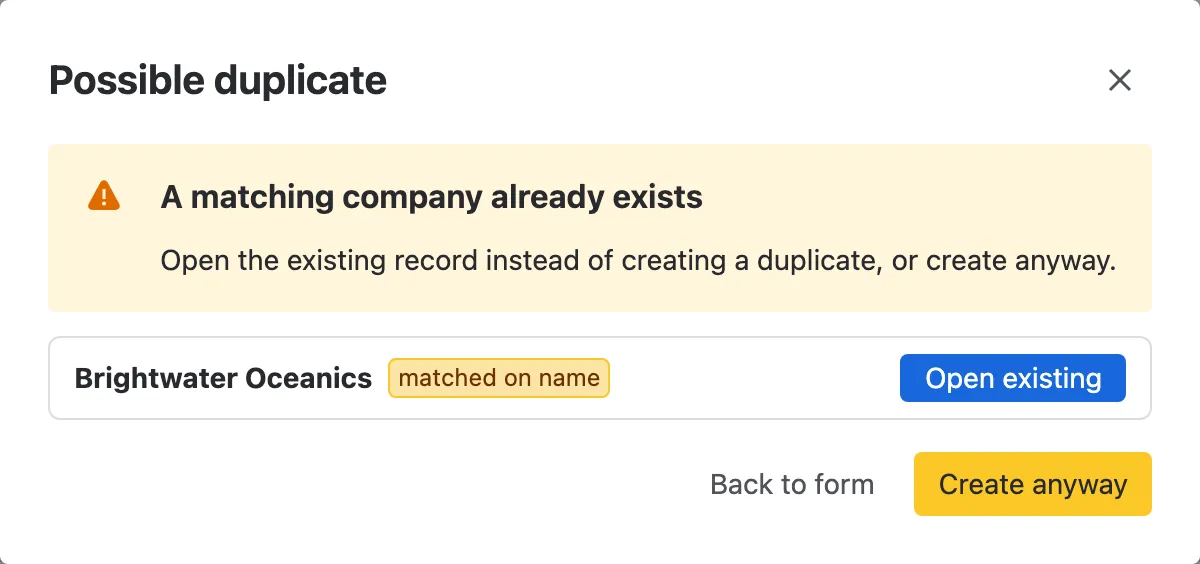
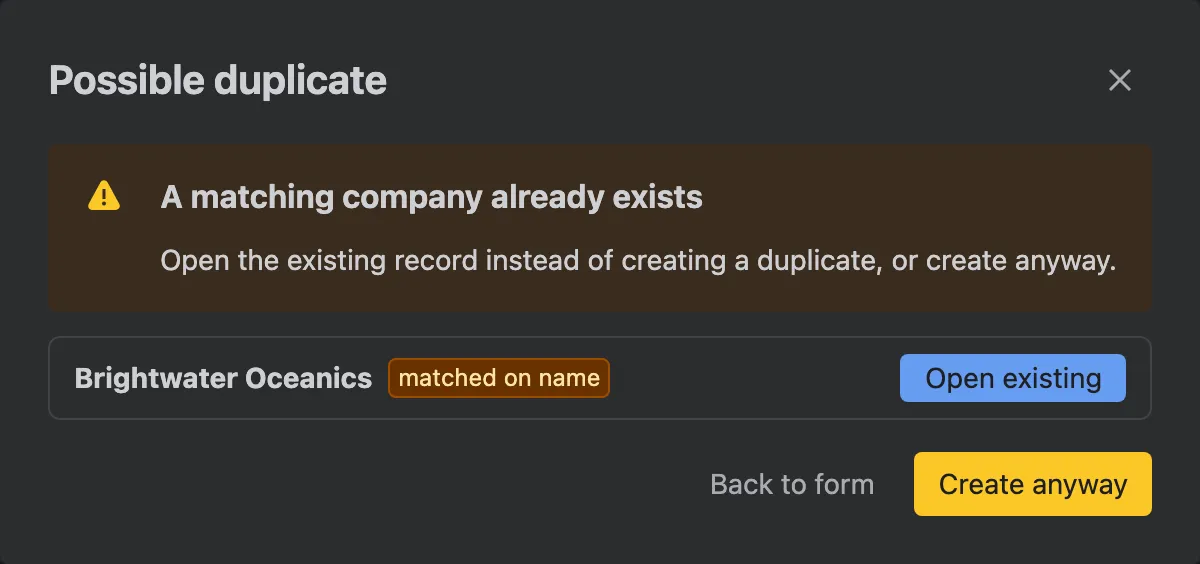
- The match, and what it matched on.
- Open existing goes to the company you already have.
- Create anyway is for the rare genuine case, such as two companies with the same name.
- Back to form lets you change what you typed.
The company page
Section titled “The company page”Open a company to see everything about it in one place. It opens on its Summary, a dashboard built from the company’s own data.
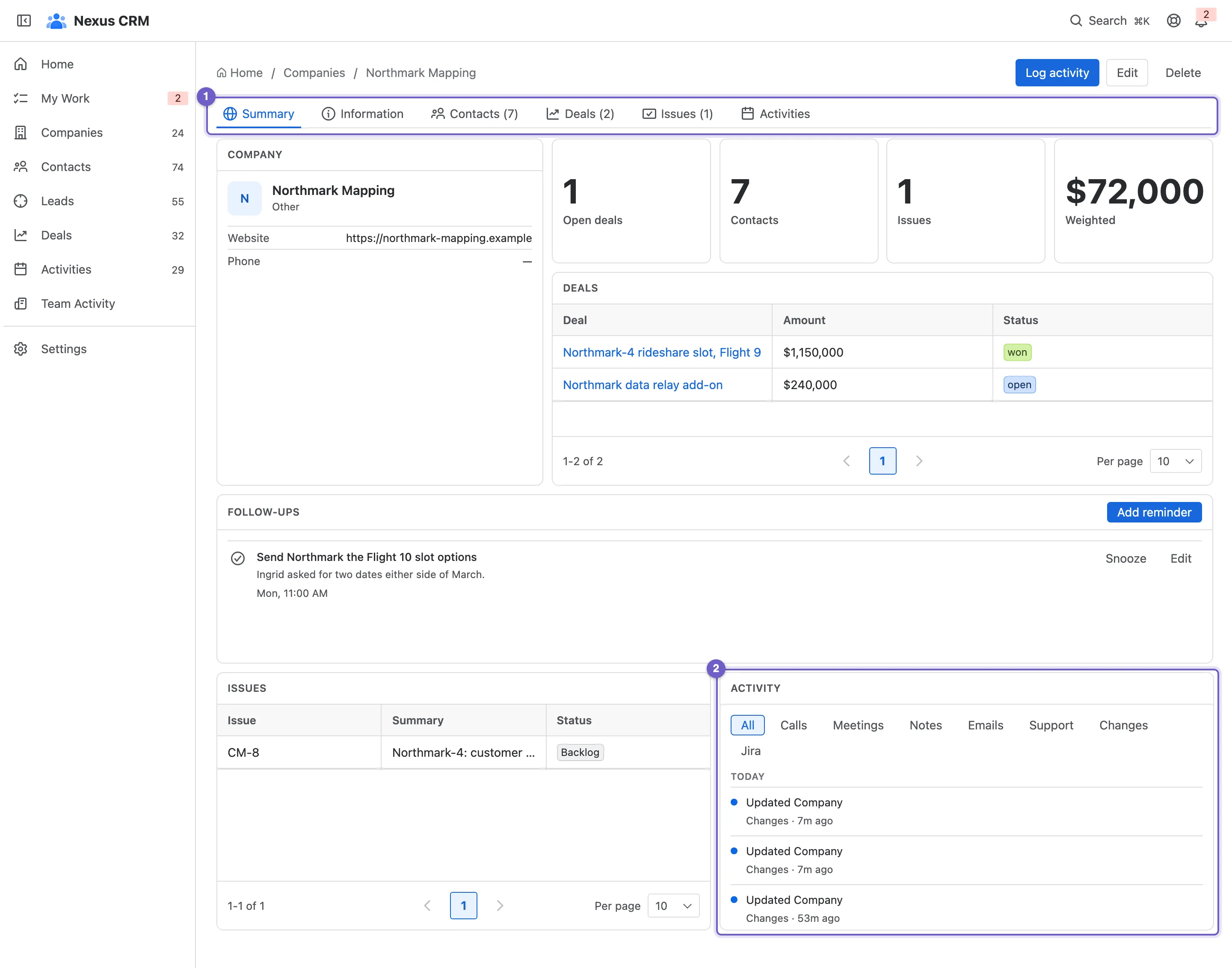
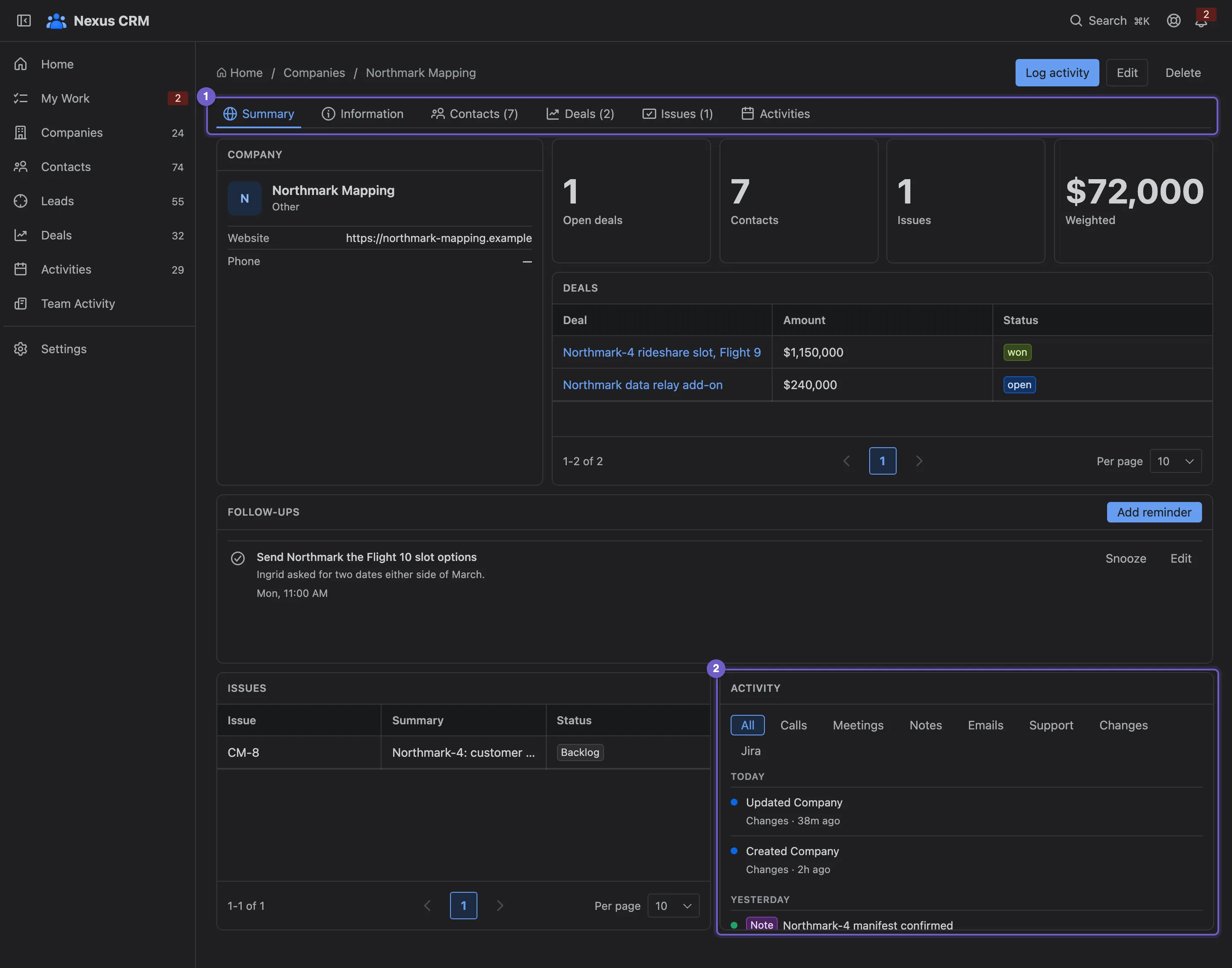
- Tabs. Summary, Information, and everything linked to the company, each with a count: Contacts, Deals, Issues and Activities.
- Activity. What was logged against the company itself. The Activities tab adds everything logged against its contacts and deals.
- Actions. Log an activity against the company, edit it, or delete it.
- The record card. The company’s key fields.
- Numbers. Open deals, contacts, linked issues and the weighted pipeline.
- The Summary tab. Hover over its icon for ⋯ → Edit dashboard: admins can rearrange the Summary for every company. See Dashboards.
People at the company
Section titled “People at the company”The Contacts tab lists everyone linked to the company, with their role and whether this is their primary employer.
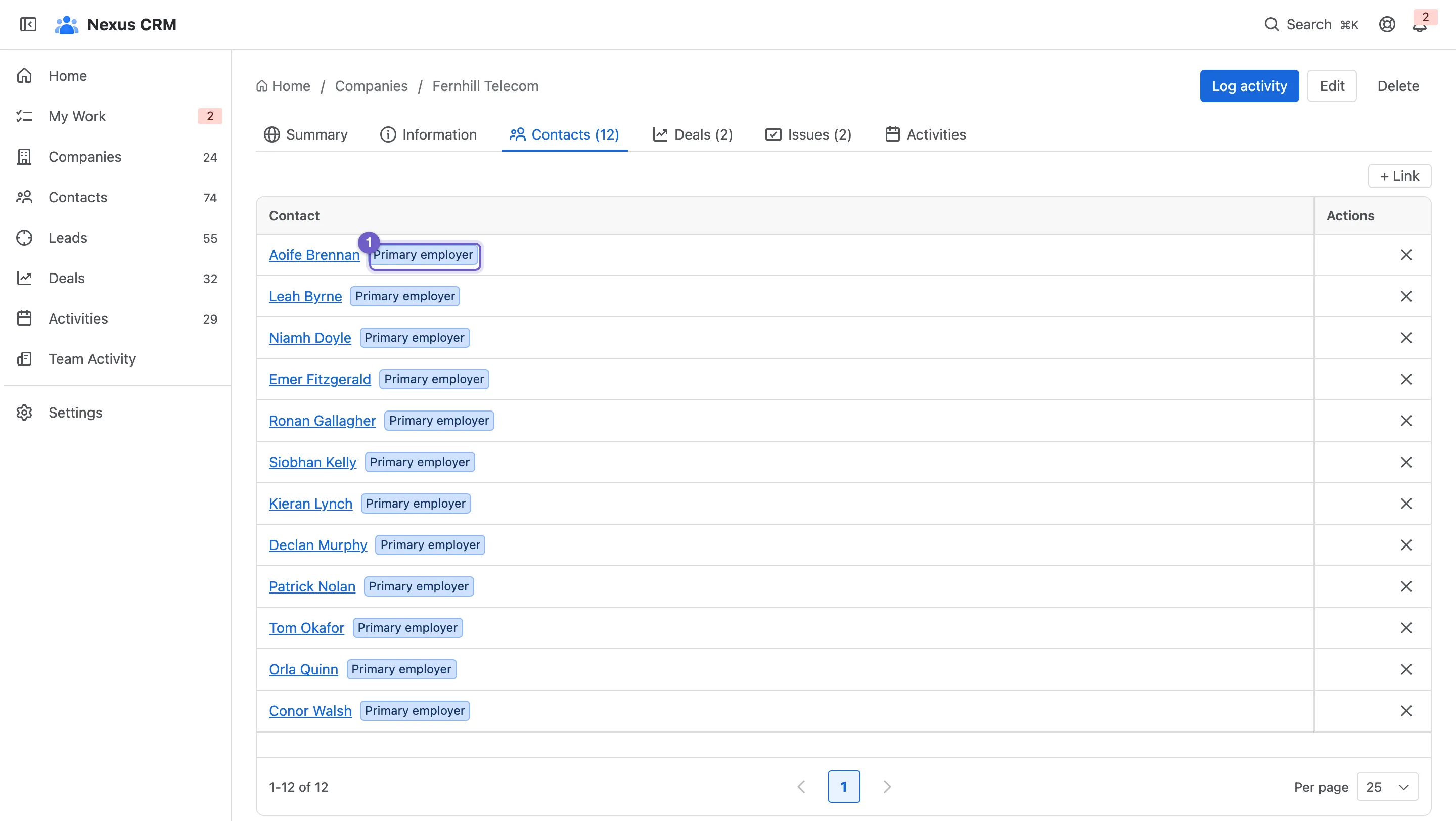
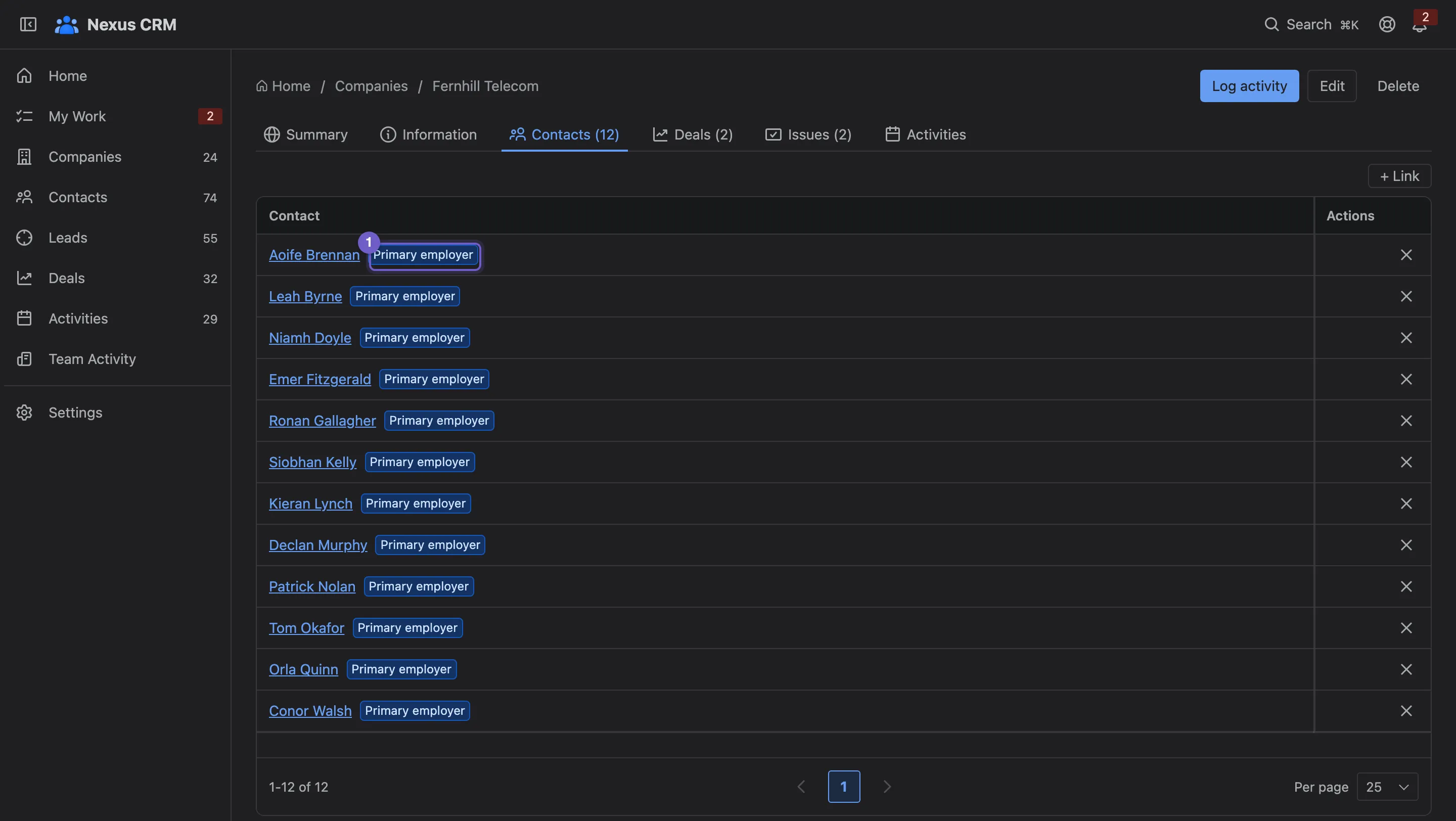
- Primary employer marks the company the person mainly works for.
- + Link adds an existing contact, with an optional role.
- ✕ unlinks a contact. It doesn’t delete them.
The Deals tab works the same way: + Assign gives one of your deals to this company.
Primary account
Section titled “Primary account”Tick This is our primary account on a company to flag it. Only one company can hold the flag at a time: setting it on another clears it here.
Deleting a company
Section titled “Deleting a company”Delete asks first, then removes the company’s links to its contacts and deals. The contacts and deals stay. A company that still has open deals can’t be deleted: close or reassign them first. An admin can bring a deleted company back from the Audit log.