
Import and export
Import
Section titled “Import”Settings → Data and access → Import is open to anyone who can create at least one kind of record. It lists past imports: yours, or everyone’s for admins.
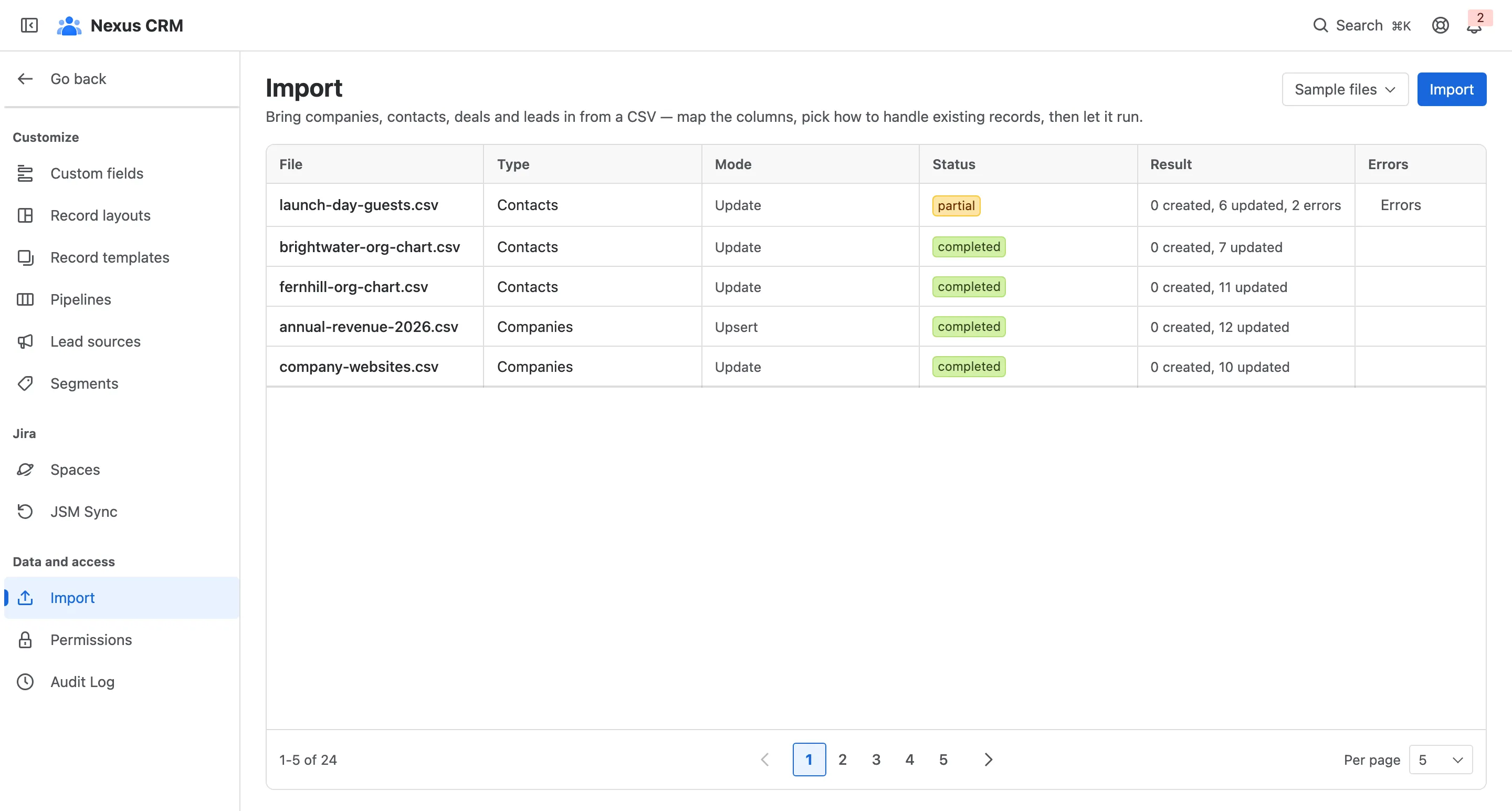
- Import starts the wizard.
- Sample files: an example CSV, and an empty template, for each record type, custom fields included.
- A past import: its file, record type, mode, status and result.
- Errors downloads the rows that failed, with the reason for each.
The wizard
Section titled “The wizard”The wizard has five steps: Setup → Map columns → Existing records → Preview → Progress.
1. Setup. Choose the record type and the CSV file.
2. Map columns. Nexus CRM matches columns to fields by name; check each one and fix any it missed.
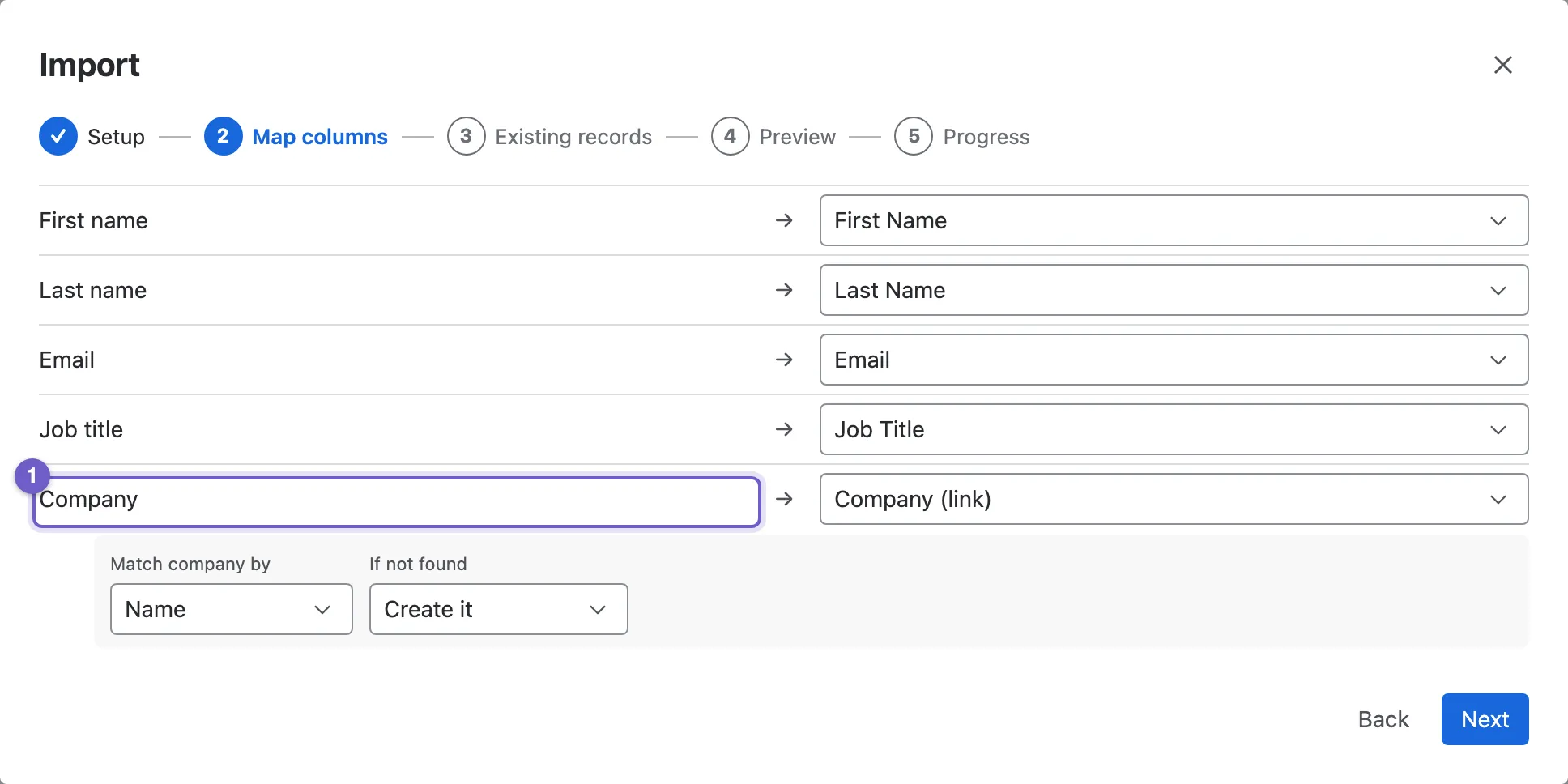
- Link to a related record. A Company column on a contacts file can link each contact to a company: choose what to match on, and what to do when there’s no match: Create it, Skip & warn or Error the row.
- A column from your file, with sample values.
- The field it goes into, or Don’t import.
- Nexus ID (match key), when the file came from Export CSV + Nexus ID.
3. Existing records. Decide what happens when a row matches a record you already have.
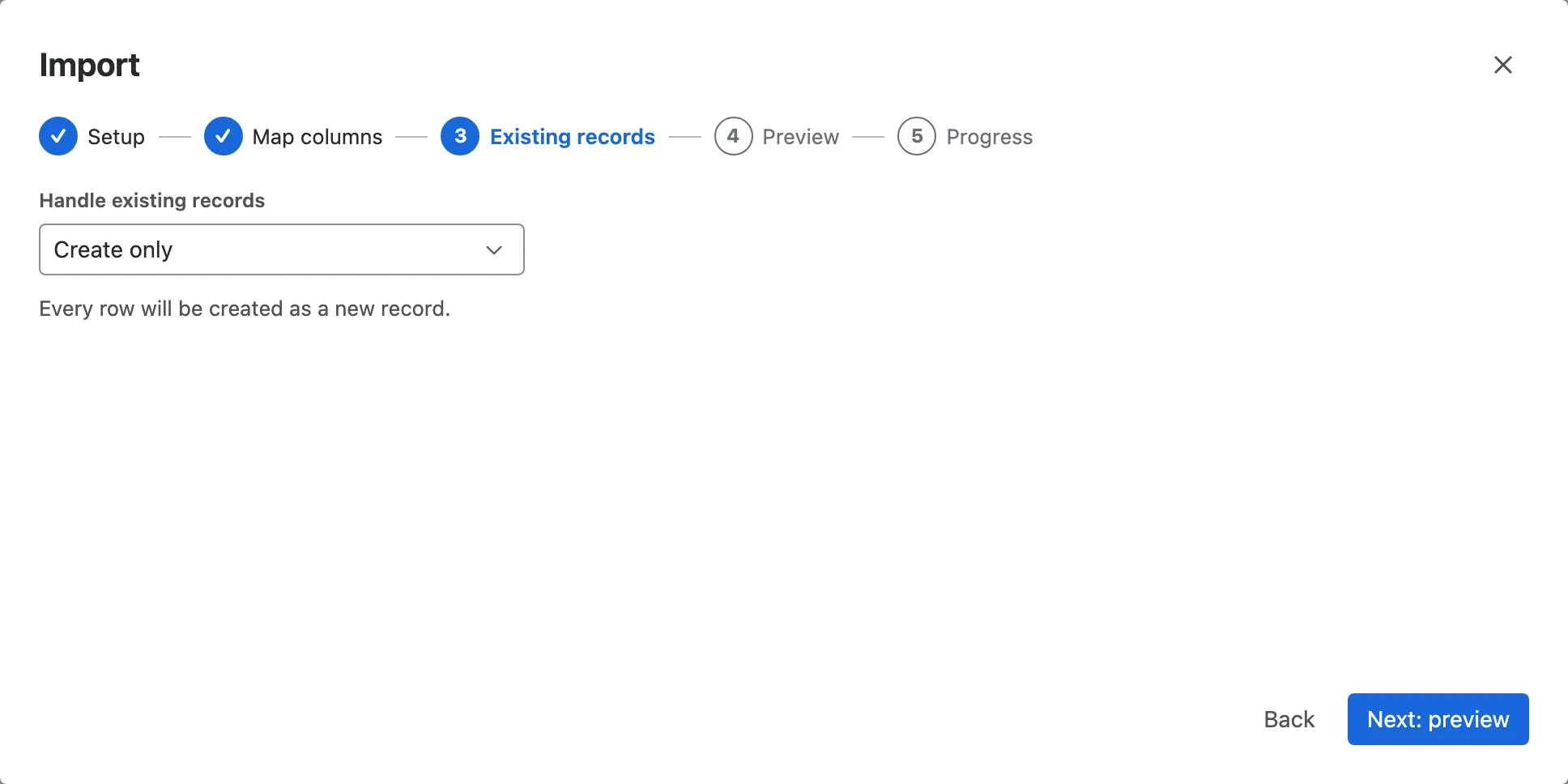
| Mode | A row that matches a record | A row that doesn’t |
|---|---|---|
| Create only | creates a new record anyway | creates it |
| Add new, ignore duplicates | is skipped | creates it |
| Update or create (upsert) | updates the record | creates it |
| Update only | updates the record | is skipped |
| Merge | fills in the record’s empty fields only | creates it |
Rows match on a key: companies on name, domain or Nexus ID; contacts on email or Nexus ID; leads and deals on Nexus ID. When updating, choose whether a row overwrites values or only fills blanks.
4. Preview. Nexus CRM reads a sample and estimates how many rows will be created, updated, skipped, ambiguous or in error, and how many links it will make. Nothing has been written yet. If the import will change existing records, tick I understand this updates existing records.
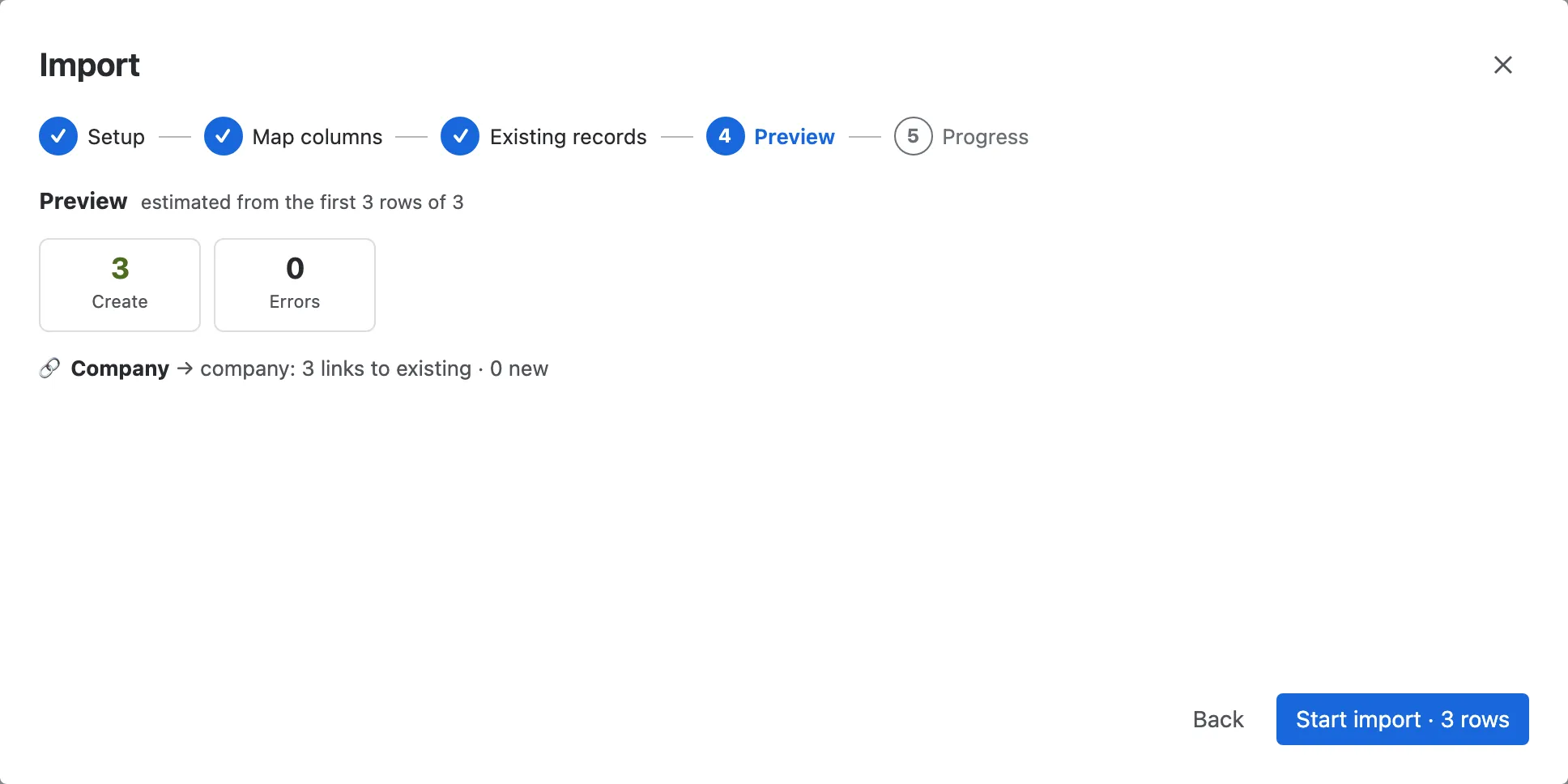
5. Progress. The import runs in the background. Close and it keeps going; come back to the Import page for the result and the error report.
Export
Section titled “Export”Every list’s Export menu downloads what you’re looking at: every row that matches your filters, not just the page on screen.
- Export CSV: the columns you can see, as they read on screen.
- Export CSV + Nexus ID: adds each record’s ID and raw values. Edit the file, then import it with Update only and Nexus ID as the match key to update many records at once.
Fields your role hides are never exported.