Deals and pipelines
A deal is an opportunity: something you hope to sell, for an amount, by a date. Every deal sits in one pipeline, at one stage. Your admin sets up the pipelines and their stages (see Pipelines and stages).
The pipeline board
Section titled “The pipeline board”Deals opens on the board: one column per stage, your deals as cards.
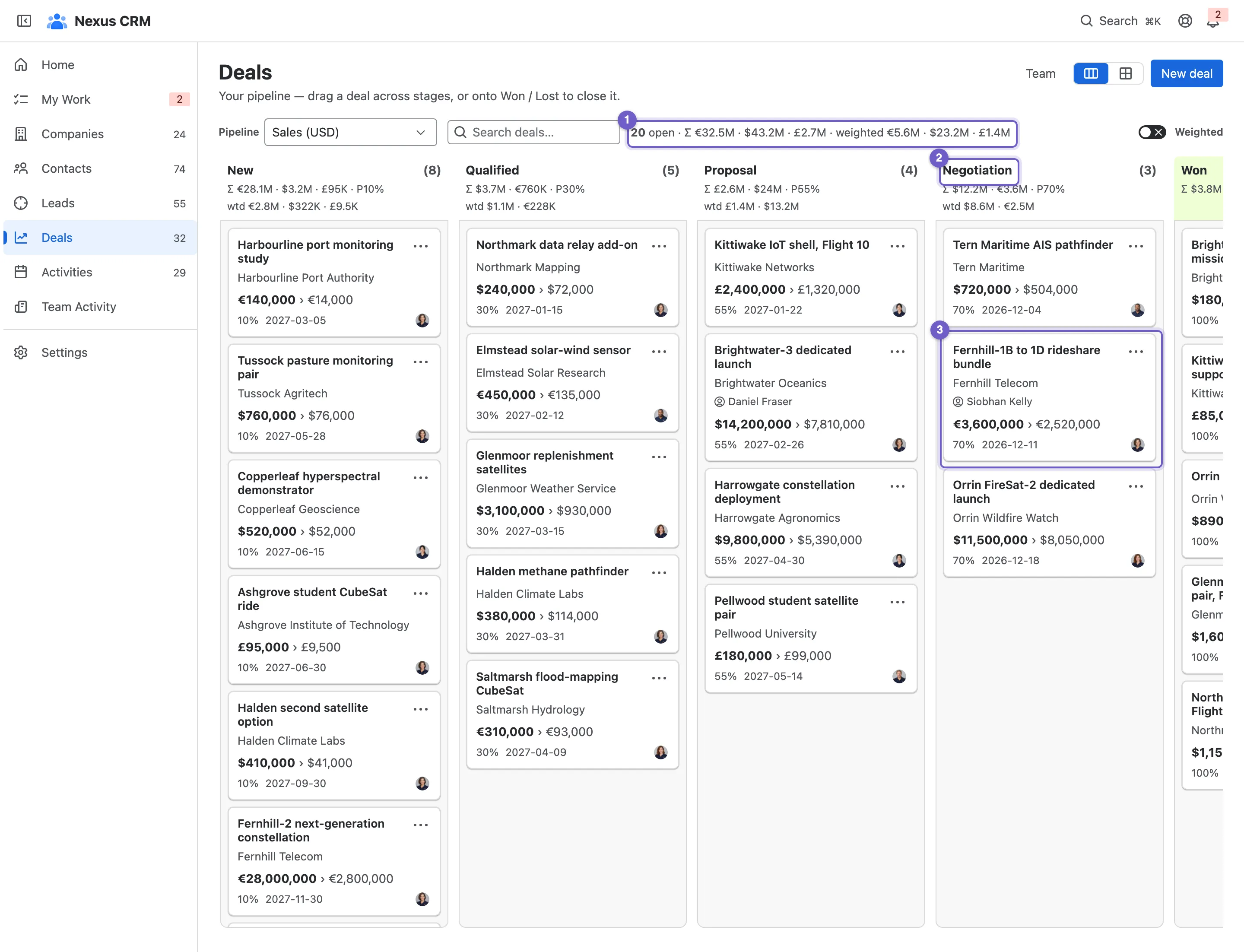
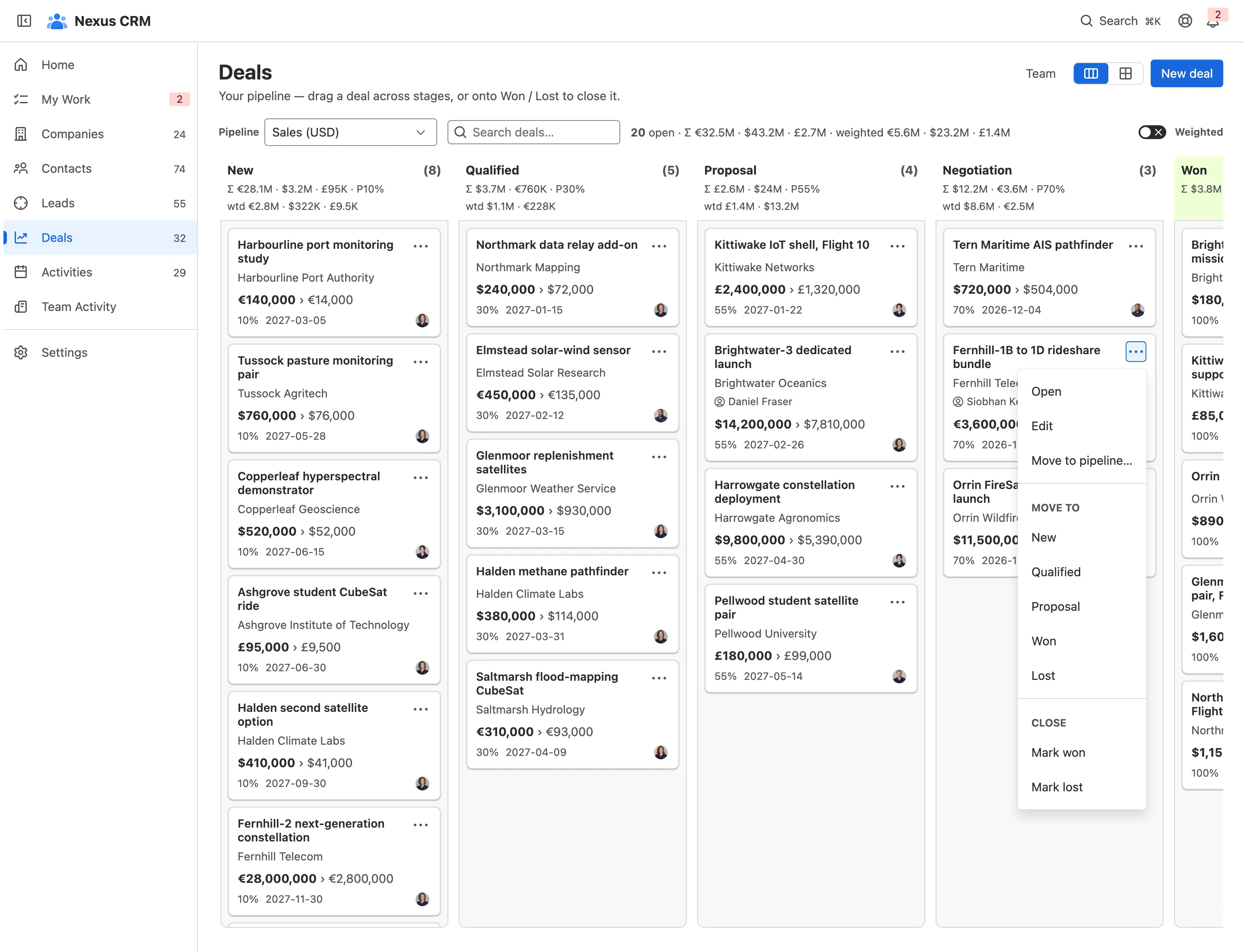
- Forecast band. How many deals are open, their total value and their weighted value, for each currency.
- A stage column. Its deal count, total value, default probability and weighted value.
- A deal card. Value and weighted value, probability, close date, the primary contact and the owner. A red ! means the close date has passed.
- Pipeline. Switch between your sales processes, such as Sales and Partnerships.
- Weighted. Show each card’s weighted value instead of its full value. Remembered for you.
- Search deals… narrows the board by deal or company name. The totals follow the search.
- Team. Who can see and work this pipeline (see Pipelines and stages).
- New deal. Starts in this pipeline, in its currency.
Drag a card to another stage to move the deal. It takes that stage’s default probability, and the totals update. Dropping a card on Won or Lost asks for the outcome (see below).
Weighted value
Section titled “Weighted value”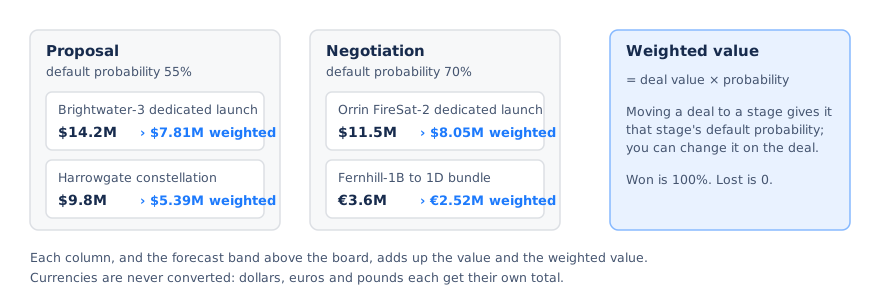
Weighted value is a risk-adjusted read on the pipeline: a $10M deal at 30% counts as $3M. Read the forecast band with Weighted on and the board doubles as a forecast.
The card menu
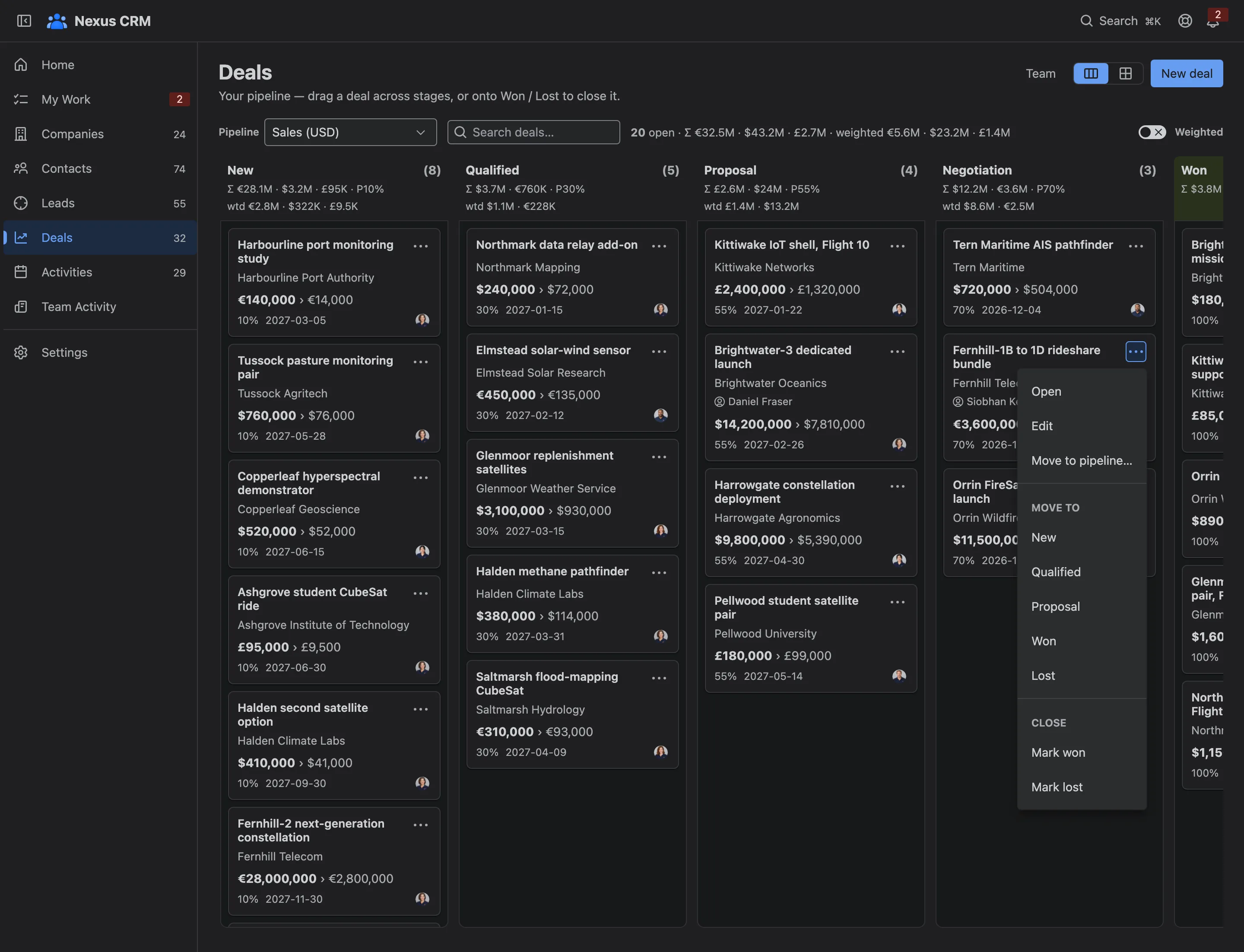
Section titled “The card menu”Every card has a ⋯ menu: Open, Edit, Move to pipeline…, a stage to move to, and Mark won or Mark lost. It’s the keyboard-friendly alternative to dragging.
The board shows up to 500 open deals and the 100 most recently closed. Above that, a note says so; use the grid for the rest.
Adding a deal
Section titled “Adding a deal”Select New deal on the board, or press ⌘K → Create deal anywhere for a quick create. The full form has the deal’s value and currency (any currency per deal; totals are never converted), close date, owner, type, source and next step, plus any fields your admin added. Start from template pre-fills it.
The deal page
Section titled “The deal page”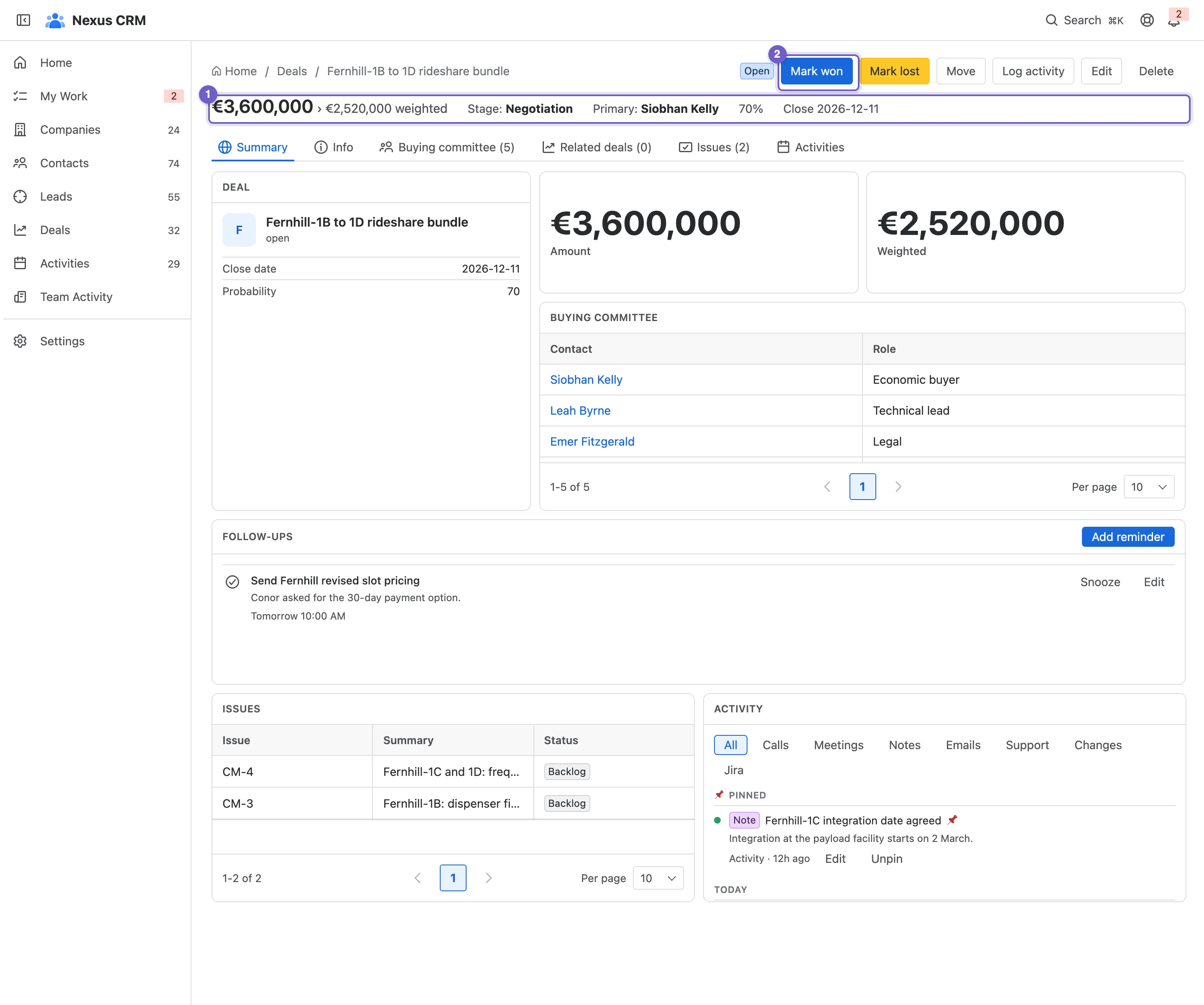
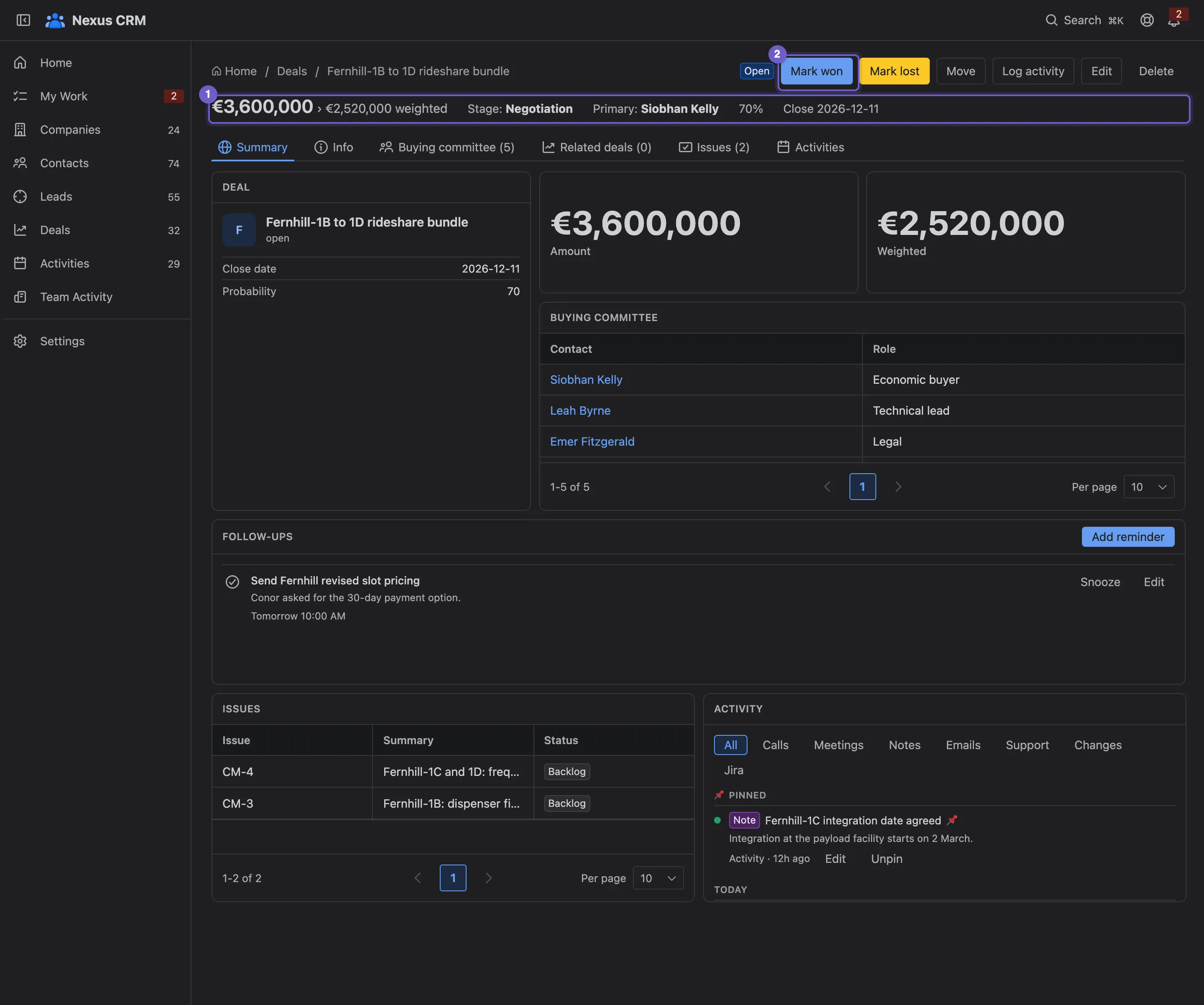
- The deal strip. Value and weighted value, stage, primary contact, probability and close date.
- Mark won and Mark lost close the deal.
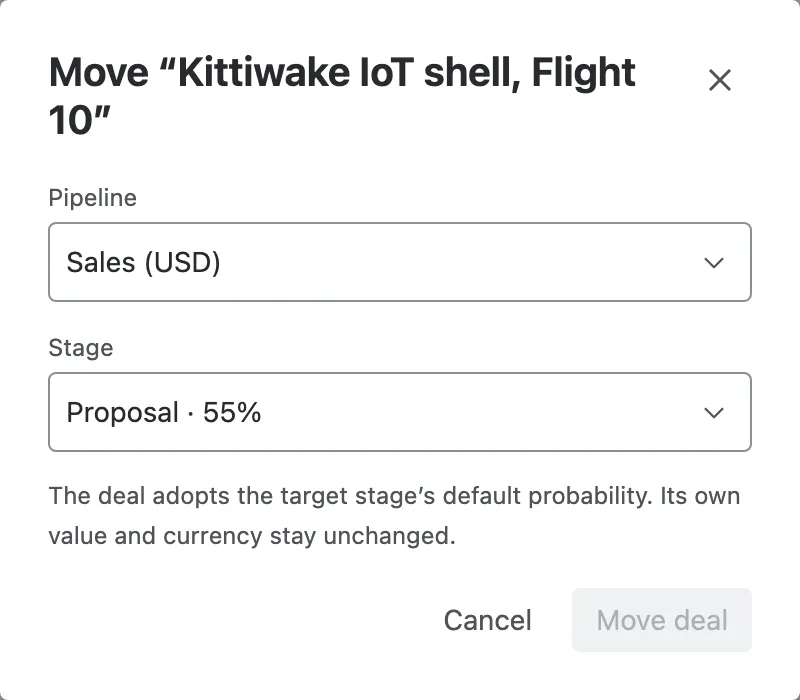
- Move sends it to another pipeline and stage.
- Log activity, Edit and Delete.
- Tabs. Summary, Info, Buying committee, Related deals, Issues and Activities.
Closing a deal
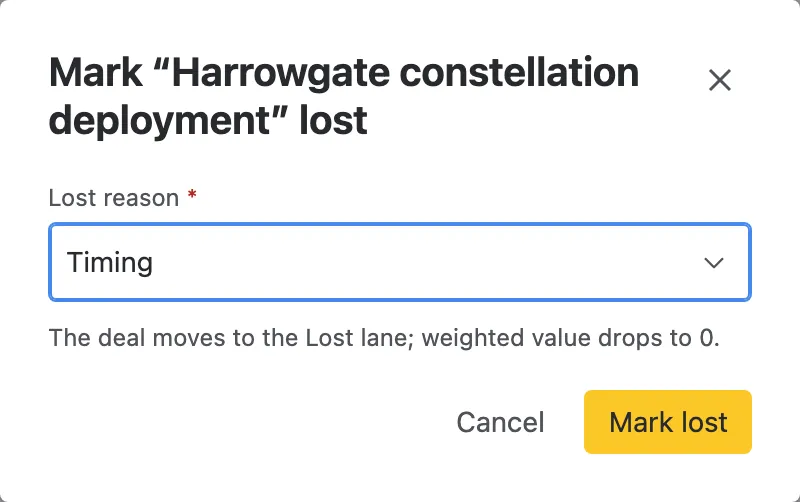
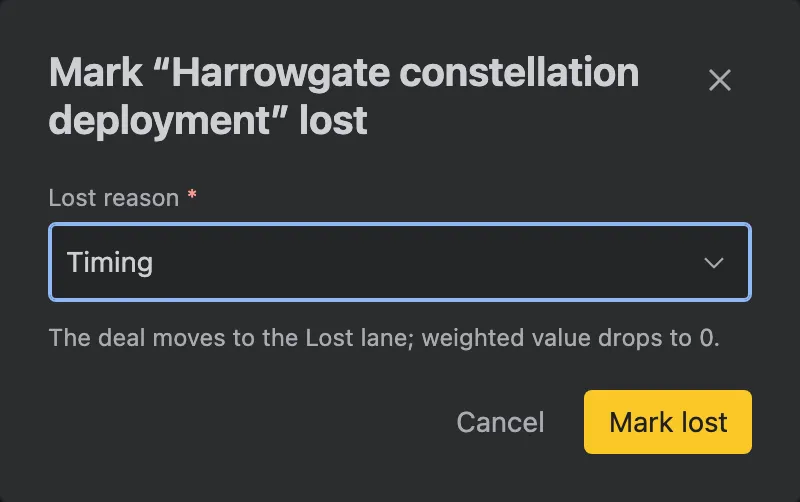
Section titled “Closing a deal”Mark won and Mark lost ask for a reason. For a lost deal it’s required: Price, Timing, Lost to competitor, No budget, No decision, or Other. For a won deal it’s optional. A won deal’s probability becomes 100%; a lost deal’s weighted value becomes 0. Reopen brings a closed deal back.
Buying committee
Section titled “Buying committee”Most deals have more than one person behind them. The Buying committee lists everyone involved, with their role.
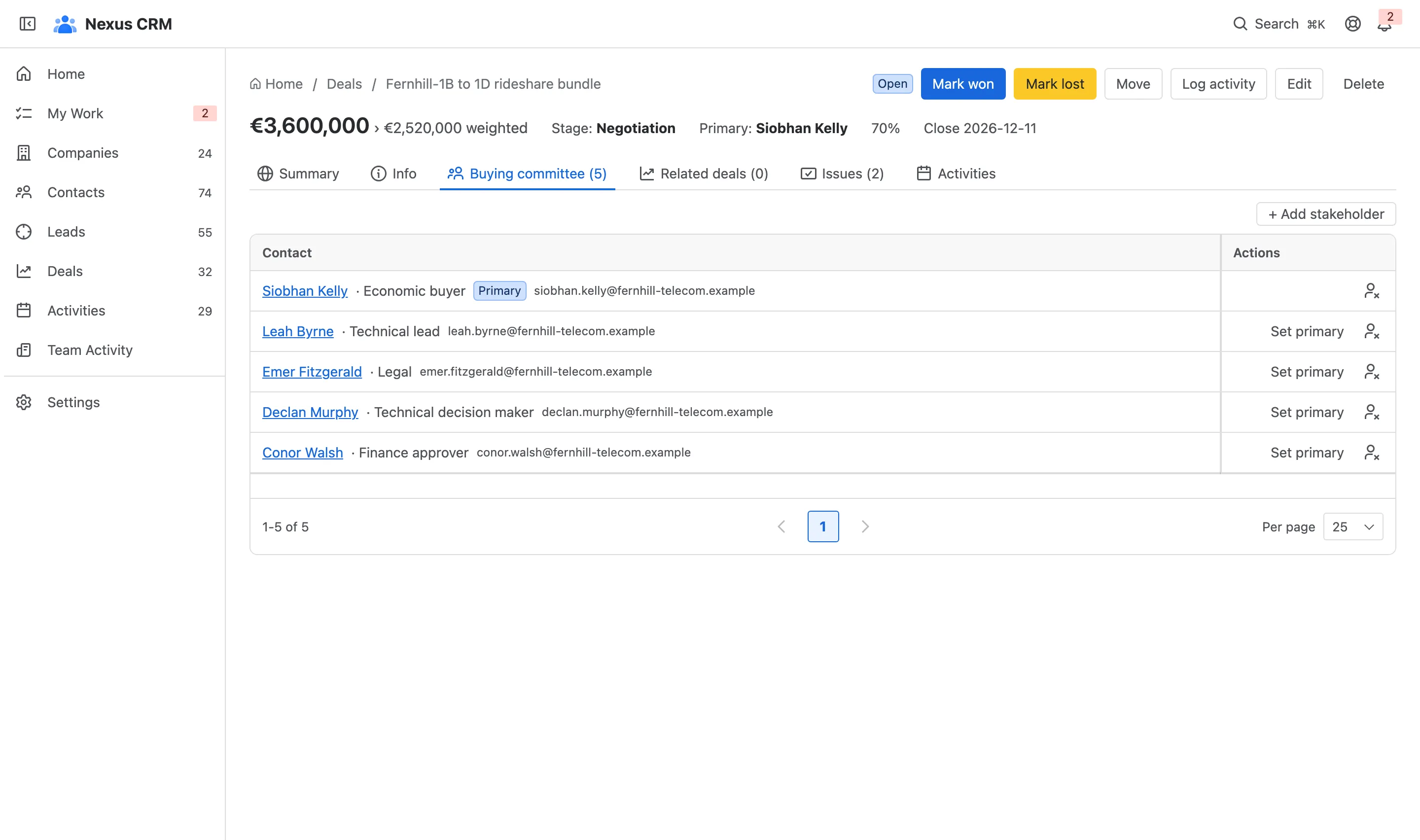
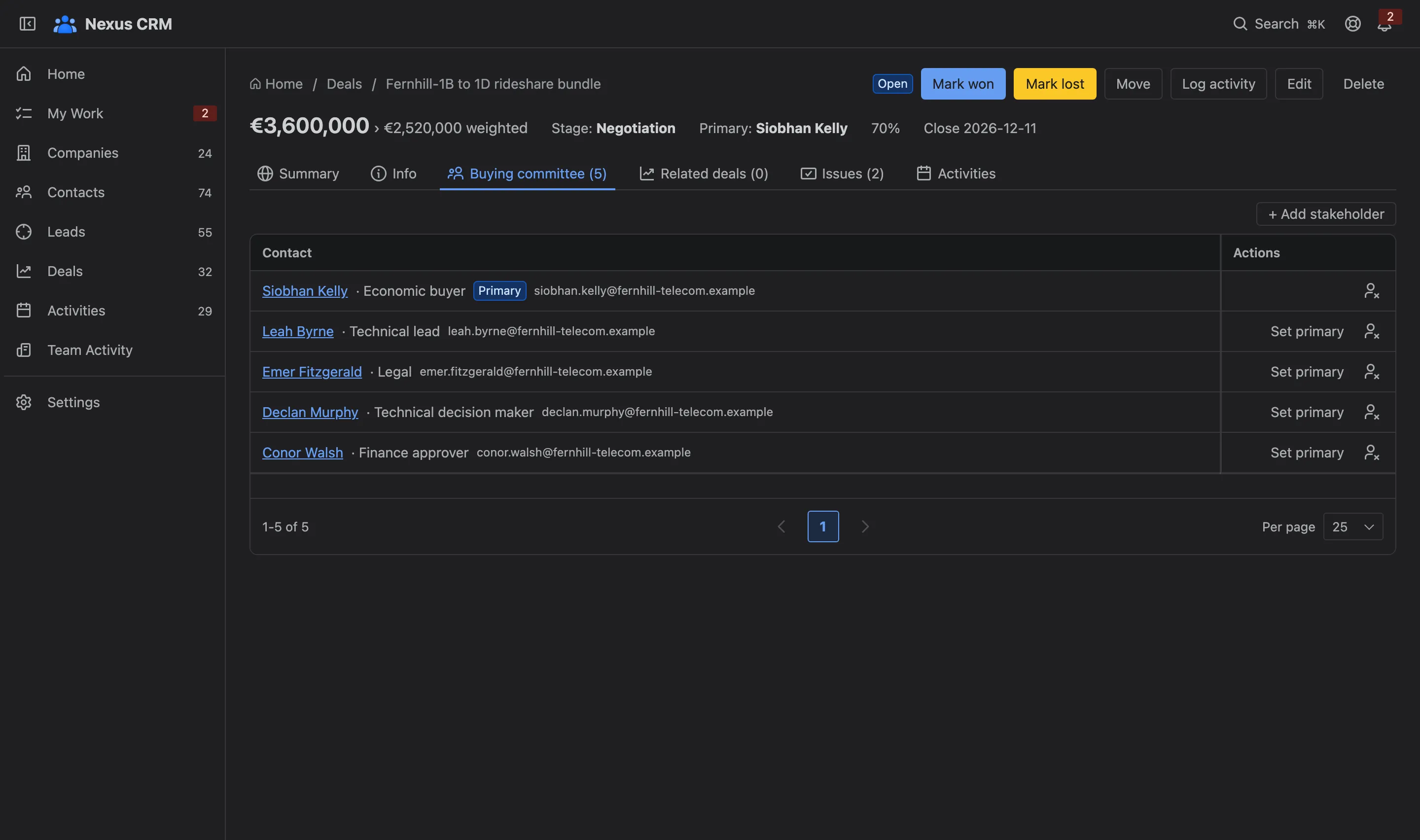
- The primary contact, who shows on the board card and the deal strip. Set primary moves it.
- Their role in the decision, such as Economic buyer, Finance approver or Technical lead.
- + Add stakeholder adds anyone from your contacts.
If someone on the committee works for a different company than the deal’s, Nexus CRM marks them Different company, so a partner or consultant doesn’t go unnoticed.
Related deals
Section titled “Related deals”Related deals links deals that belong together, such as a pathfinder satellite and the option on a second one. + Link deal adds one; the link shows on both deals.
Moving a deal to another pipeline
Section titled “Moving a deal to another pipeline”Move asks for the pipeline and an open stage there. Use it when a partnership turns into a sale, or a renewal belongs in a different process.