
Contacts
A contact is a person. Most belong to a company, some to several, and a contact can sit on the buying committee of any number of deals.
Adding contacts
Section titled “Adding contacts”Select New contact on the Contacts list, or bring many in at once with Import. Nexus CRM checks for a contact with the same email before it creates one, the same way it does for companies.
Linked to their company automatically
Section titled “Linked to their company automatically”When a new contact’s email domain matches exactly one company’s domain, Nexus CRM links them to it as their primary employer. siobhan.kelly@fernhill-telecom.example lands under Fernhill Telecom with no extra step. The link shows an Auto-linked badge, so you can tell it apart from one made by hand.
The contact page
Section titled “The contact page”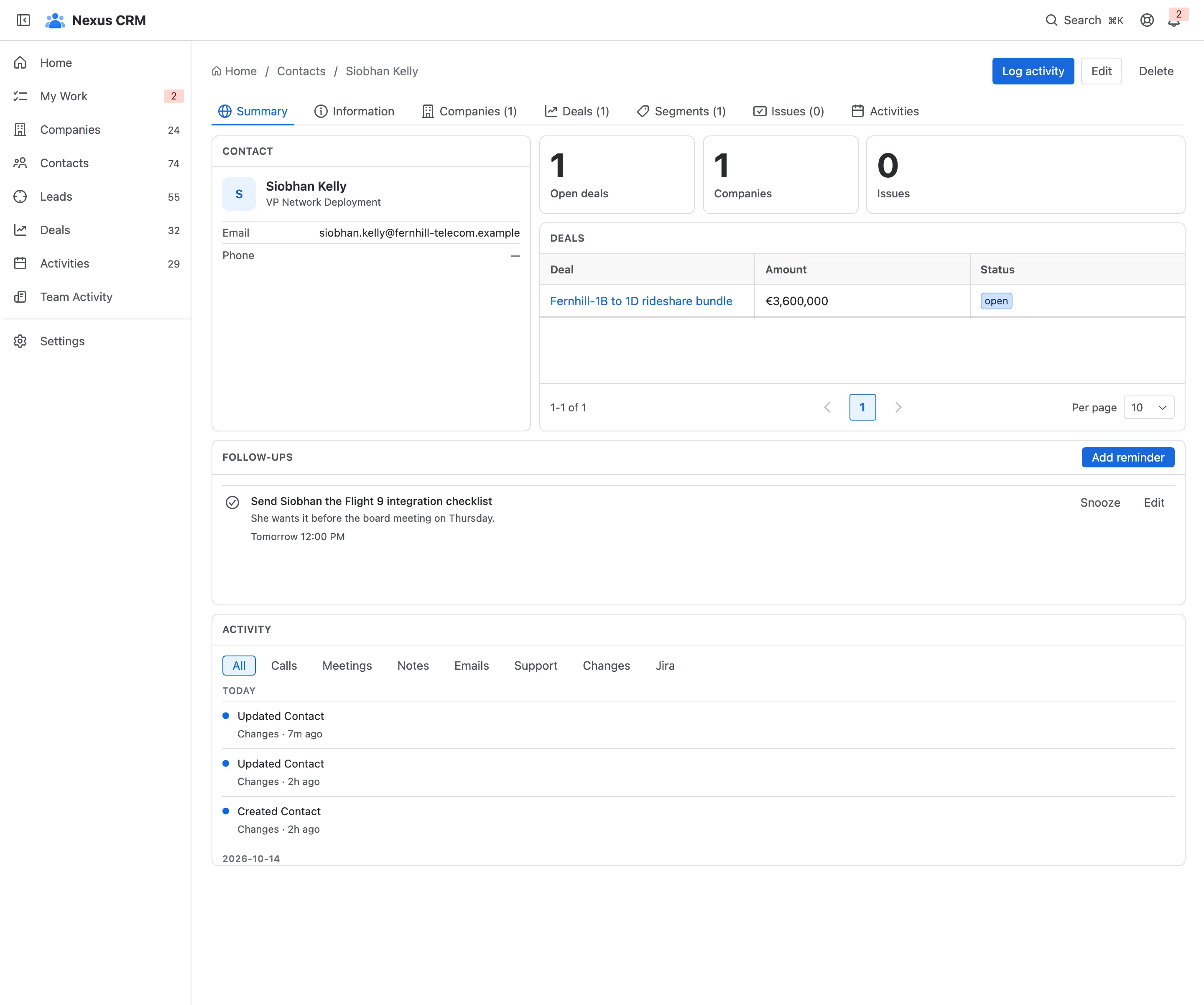
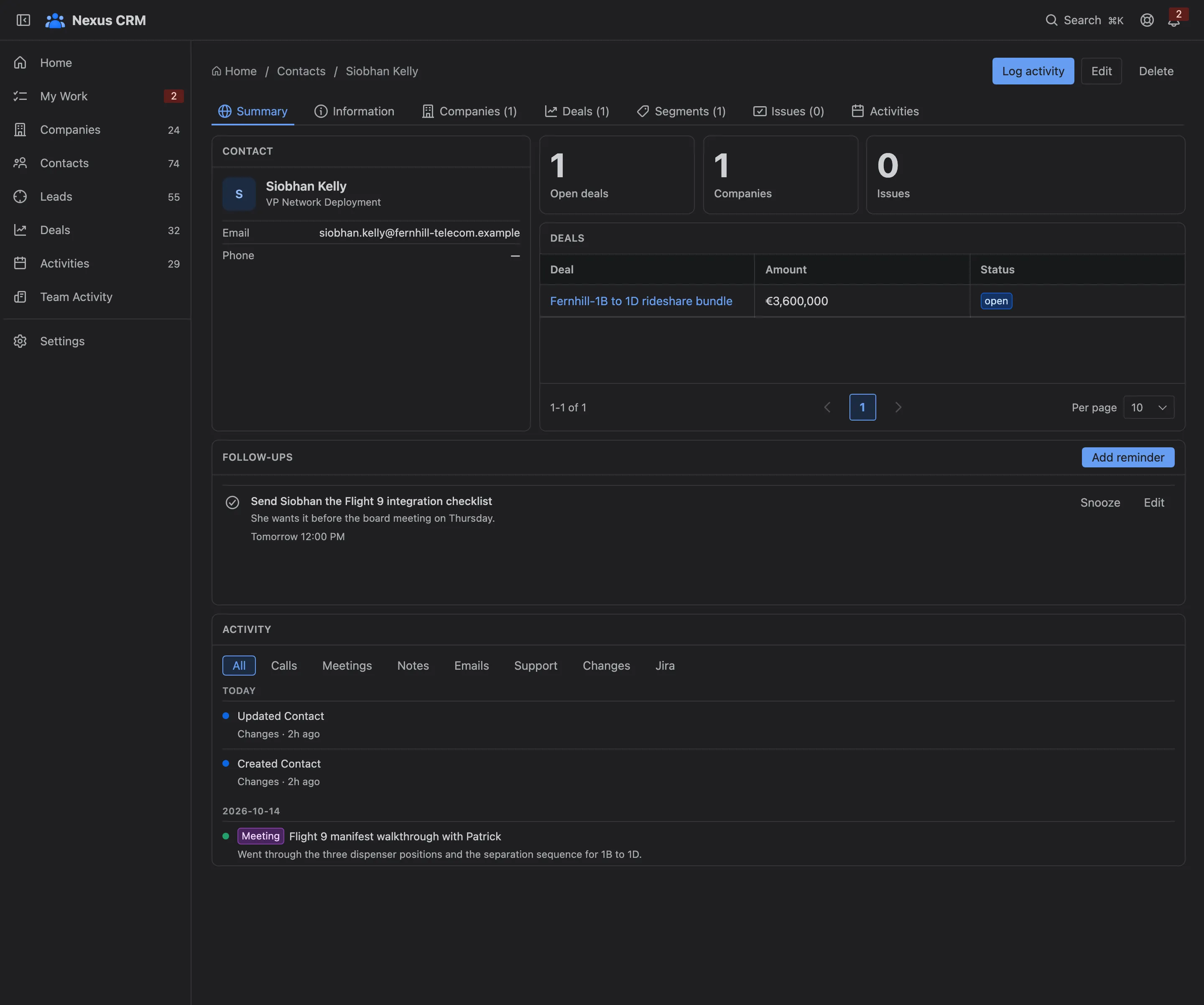
- Actions. Log an activity, edit or delete the contact.
- Tabs. Summary, Information, Companies, Deals, Segments, Issues and Activities.
- Summary. The contact’s card, deals and timeline.
Deleting a contact removes their links and segments. The companies and deals stay.
Companies they work for
Section titled “Companies they work for”A person can work with several companies: a consultant, a board member, someone who moved jobs. The Companies tab lists every one, with their role at each.
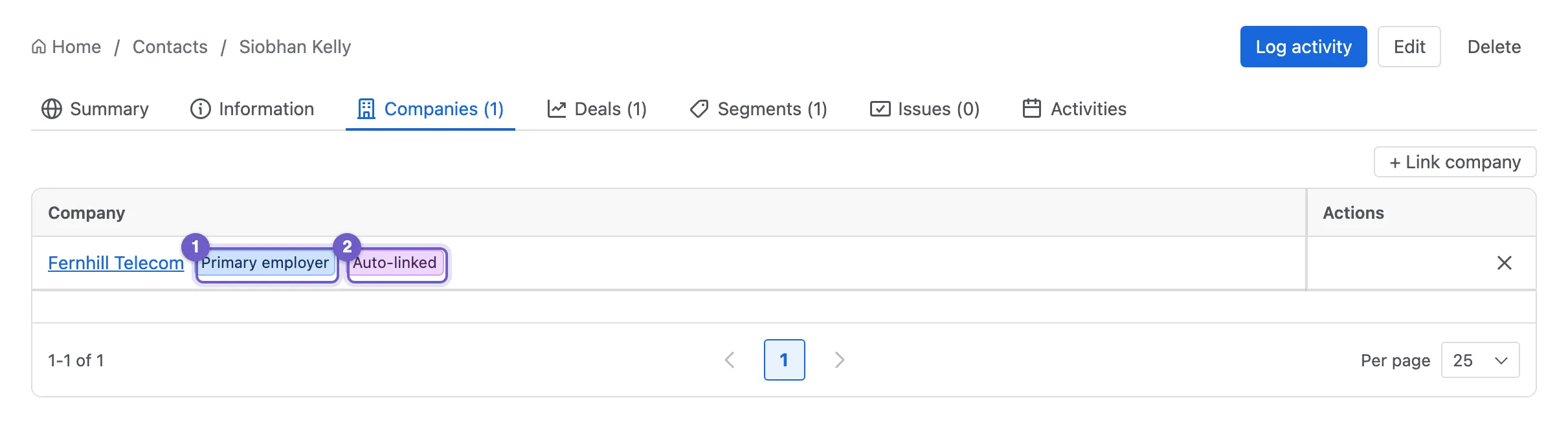
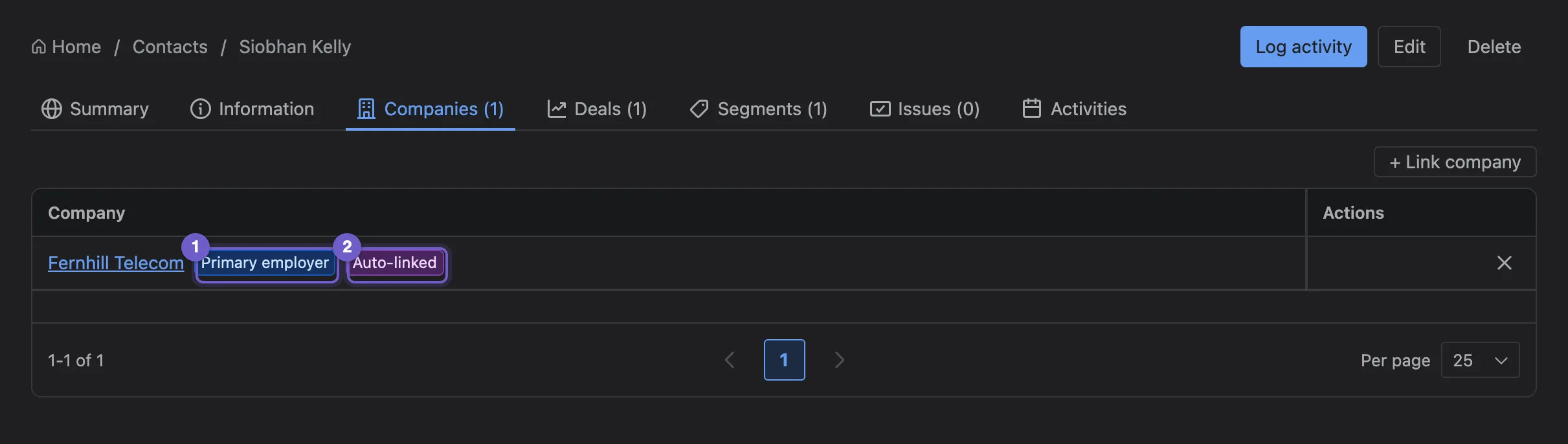
- Primary employer is the company they mainly work for. Set primary moves it.
- Auto-linked shows a link made from the email domain.
- + Link company adds another, with a role.
The Deals tab lists the deals the contact is involved in. + Add puts them on a deal’s buying committee, with a role such as Economic buyer or Technical lead. See Deals and pipelines.
Segments
Section titled “Segments”Segments tag people so you can find them again: a group (Finance, Engineering), a label (Launch newsletter) or a role (Champion).
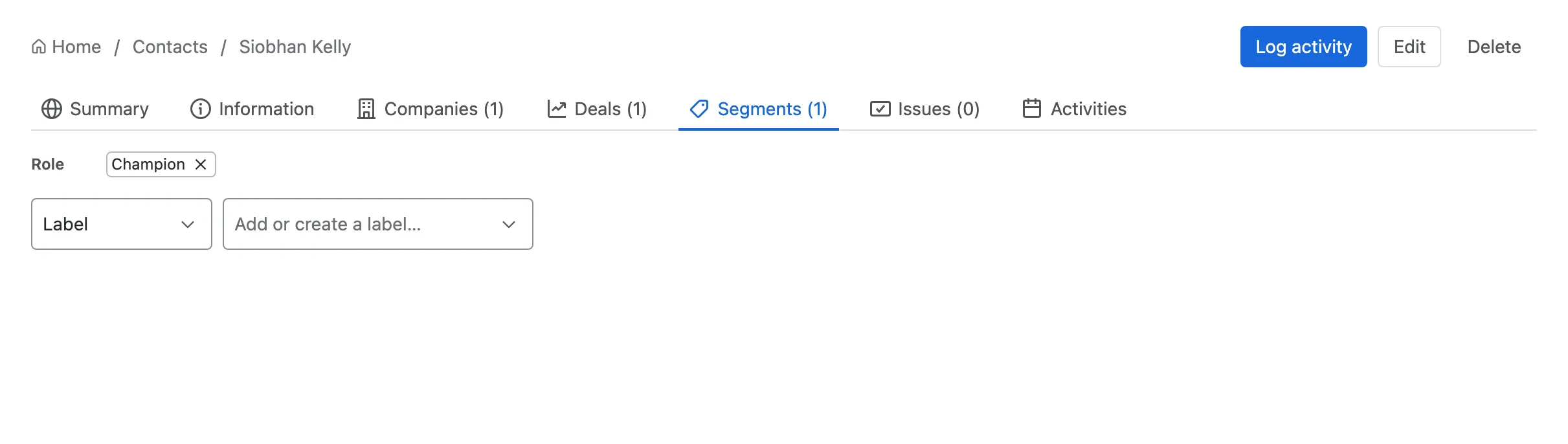
- The contact’s segments, grouped by kind.
- Pick a kind, then choose an existing value or type a new one to create it.
- ✕ removes a segment from this contact.
Filter the Contacts list by segment with + Add filter → Segment. Admins rename or delete segments under Lead sources and segments.